How to find your way around the admin
Goal: know where things are in the admin, so you can find what you need.
Who this is for: editors. You do not need any technical knowledge.
Time: about 5 minutes.
Before you start
You need:
- the address of your admin. It usually ends with
/login, for examplehttps://www.example.com/login. - a username and a password. Ask the person who manages your site if you do not have them.
Words you will see
| Word | What it means |
|---|---|
| Admin | The private part of the site. You change your website here. Visitors cannot see it. |
| Page | One page of your website, for example "About us" or "Contact". |
| Publish | Make a page visible to visitors. |
| Draft | A page that is not published yet. Only people in the admin can see it. |
Steps
1. Sign in
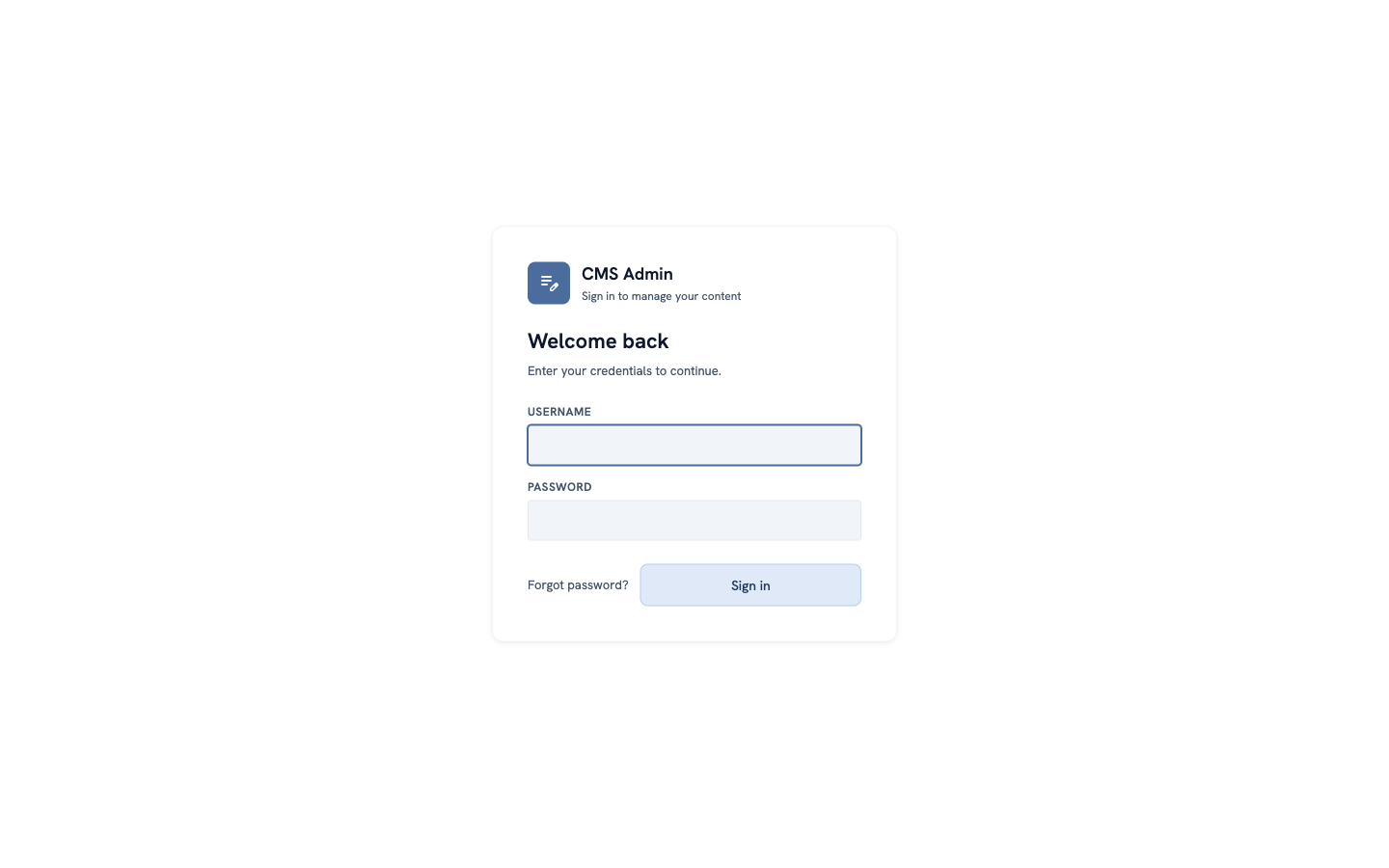
Open the address of your admin in your web browser. Type your username and your password. Click Sign in.
2. Look at the dashboard
After you sign in, you see the Dashboard. It is the start page of the admin.
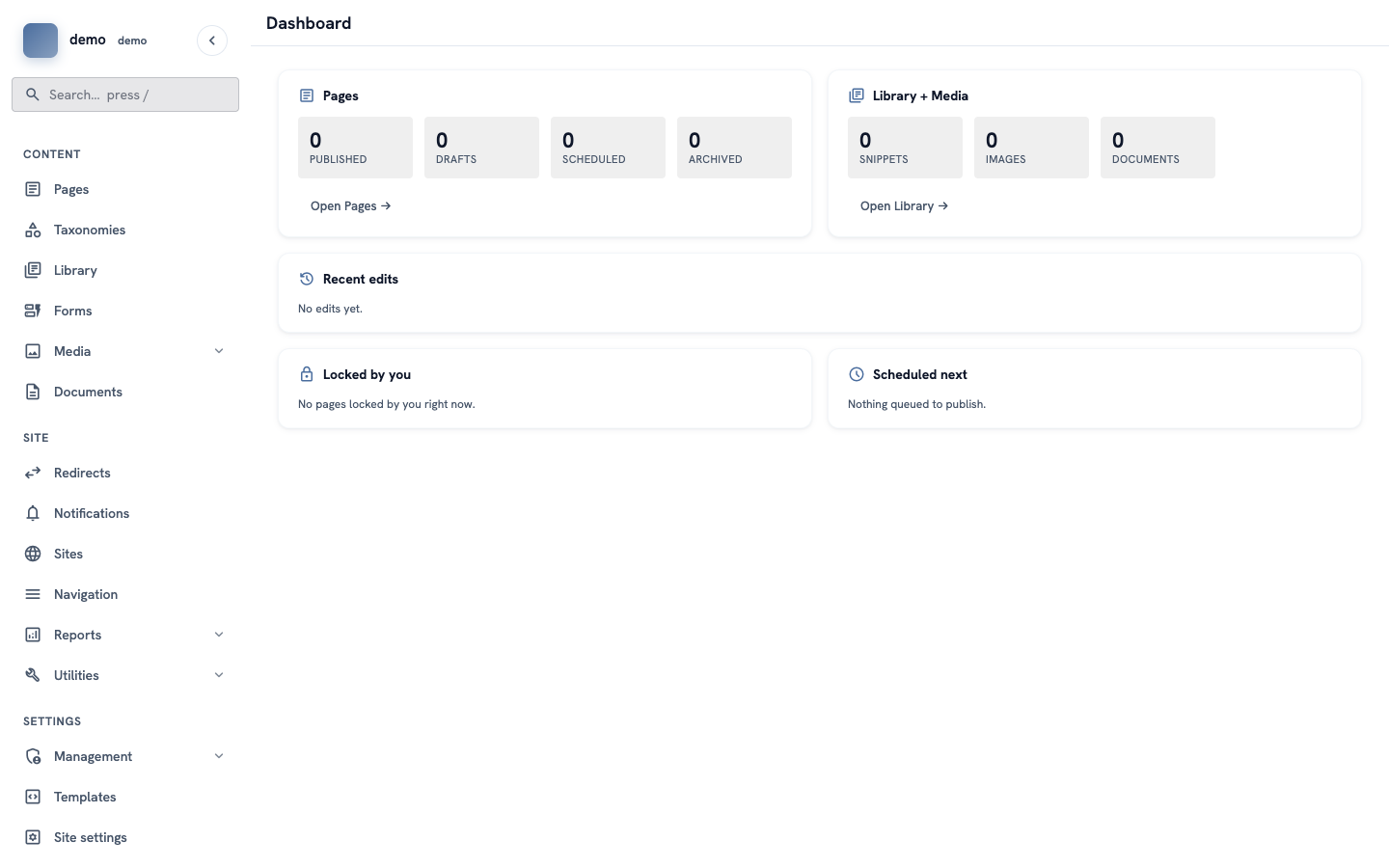
The dashboard shows:
- Pages — how many pages are published, how many are drafts, and more. Click Open Pages to see them.
- Library + Media — how many images, documents and snippets you have.
- Recent edits — the pages that people changed last.
- Locked by you — pages that you are editing now.
- Scheduled next — pages that will be published later, on a date you chose.
On a new site, all the numbers are 0. That is normal.
3. Use the menu on the left
The menu on the left is always there. It has three groups:
- Content — the things you write: Pages, Library, Forms, Media (images) and Documents (files like PDFs).
- Site — settings for the whole website, for example Navigation (the menus on your site) and Redirects (old addresses that send visitors to new ones).
- Settings — settings for the admin and for users.
Some items have a small arrow ⌄. Click the item to open more choices.
To find something fast, use the Search box at the top of the menu. You can also press the / key on your keyboard to go to the search box.
4. Find your account
Scroll to the bottom of the menu. There you see your username.
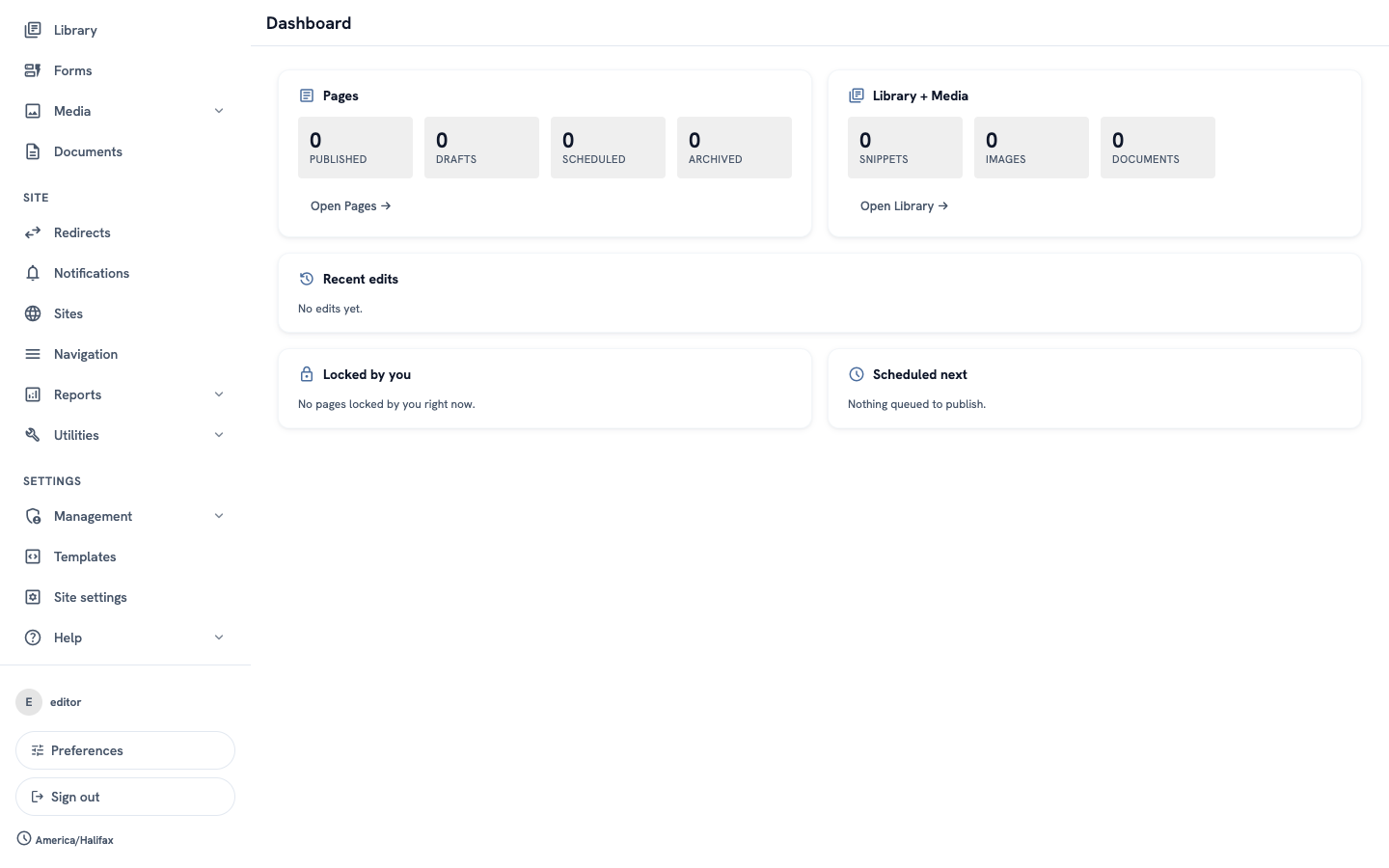
- Click Preferences to change your language, the colours of the admin, or your password.
- Click Sign out when you finish. This is important on a shared computer.
5. Make the menu smaller (optional)
Do you want more space on the screen? Click the small arrow ‹ at the top of the menu. Now the menu shows only icons.
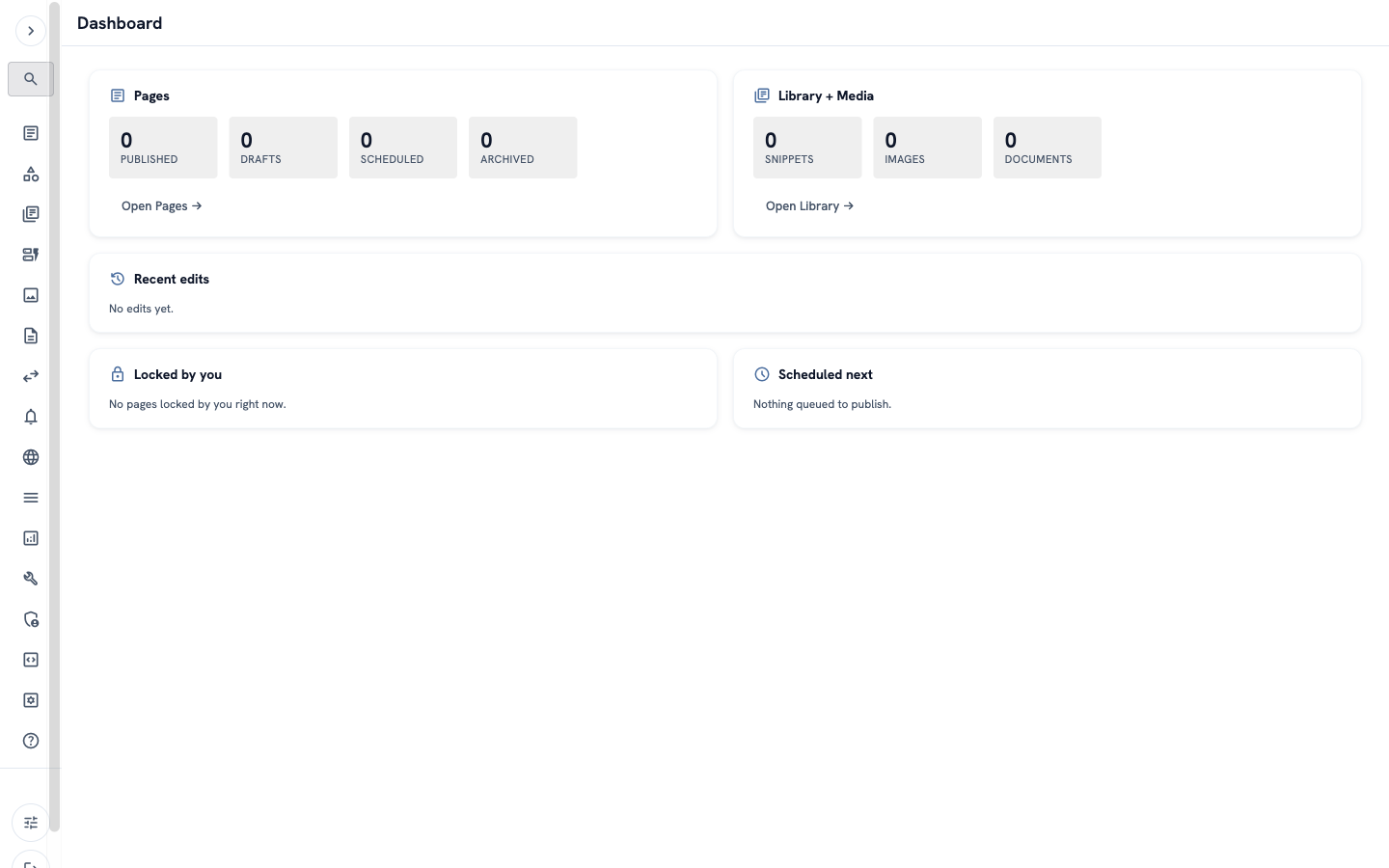
To make the menu big again, click the arrow › at the top.
Check it worked
- You can see the Dashboard.
- You can open Pages from the menu on the left.
- You can find Sign out at the bottom of the menu.
If something goes wrong
- "Invalid credentials" — the username or the password is wrong. Check the spelling. In a password, big and small letters are different:
Ais not the same asa. If you forgot your password, click Forgot password? on the sign-in page. - You cannot see an item in the menu — your account may not have permission for it. Ask the person who manages your site.
- You see "No access" — your account cannot open this part of the admin. Ask the person who manages your site.