How to create and publish your first page
Goal: make a home page and show it to visitors.
Who this is for: editors. You do not need any technical knowledge.
Time: about 5 minutes.
Before you start
- You can sign in to the admin. See How to find your way around the admin.
- Your account can create pages. If you cannot see Pages in the menu, ask the person who manages your site.
Words you will see
| Word | What it means |
|---|---|
| Page type | The kind of page, for example "Home page" or "Article". Each type has its own boxes to fill in. |
| Title | The name of the page. Visitors see it at the top of the page. |
| Slug | The last part of the page address. For the page www.example.com/about-us, the slug is about-us. |
| Root page | A page at the top of your site, not inside another page. |
| Status | Tells if visitors can see the page. Draft = only you can see it. Published = everybody can see it. |
Steps
1. Open the list of pages
In the menu on the left, click Pages. On a new site, the list is empty.
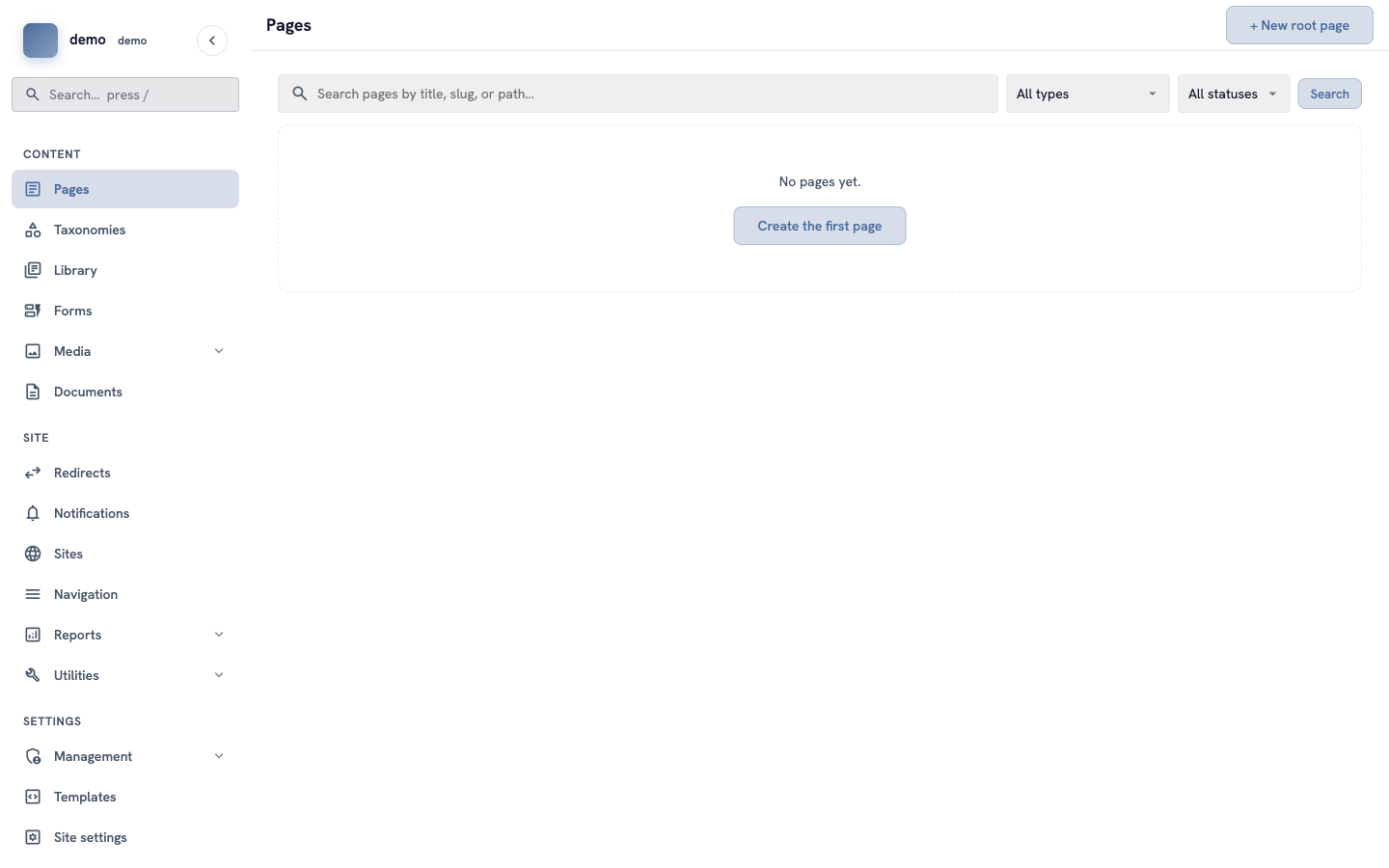
Click + New root page at the top right.
2. Choose the page type
You see a list of page types. For your first page, find Home page and click Use this type.
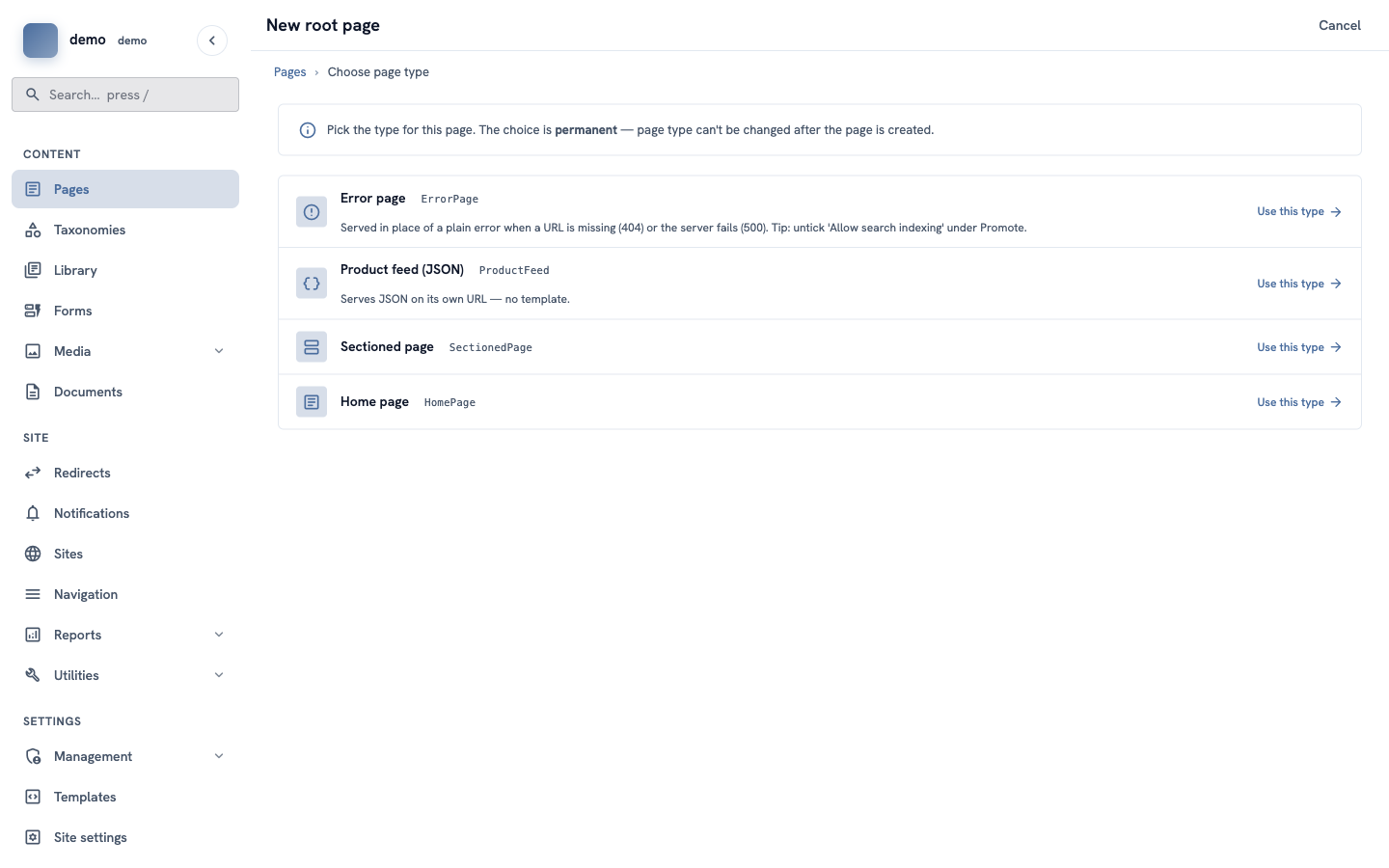
Important: you cannot change the page type later. If you choose the wrong type, delete the page and make a new one.
The types on your site can be different. Choose the one that is best for your page. If you are not sure, ask the person who manages your site.
3. Type the title
Click in the Title box and type the name of the page, for example Welcome to our site.
The Slug box fills in by itself while you type.
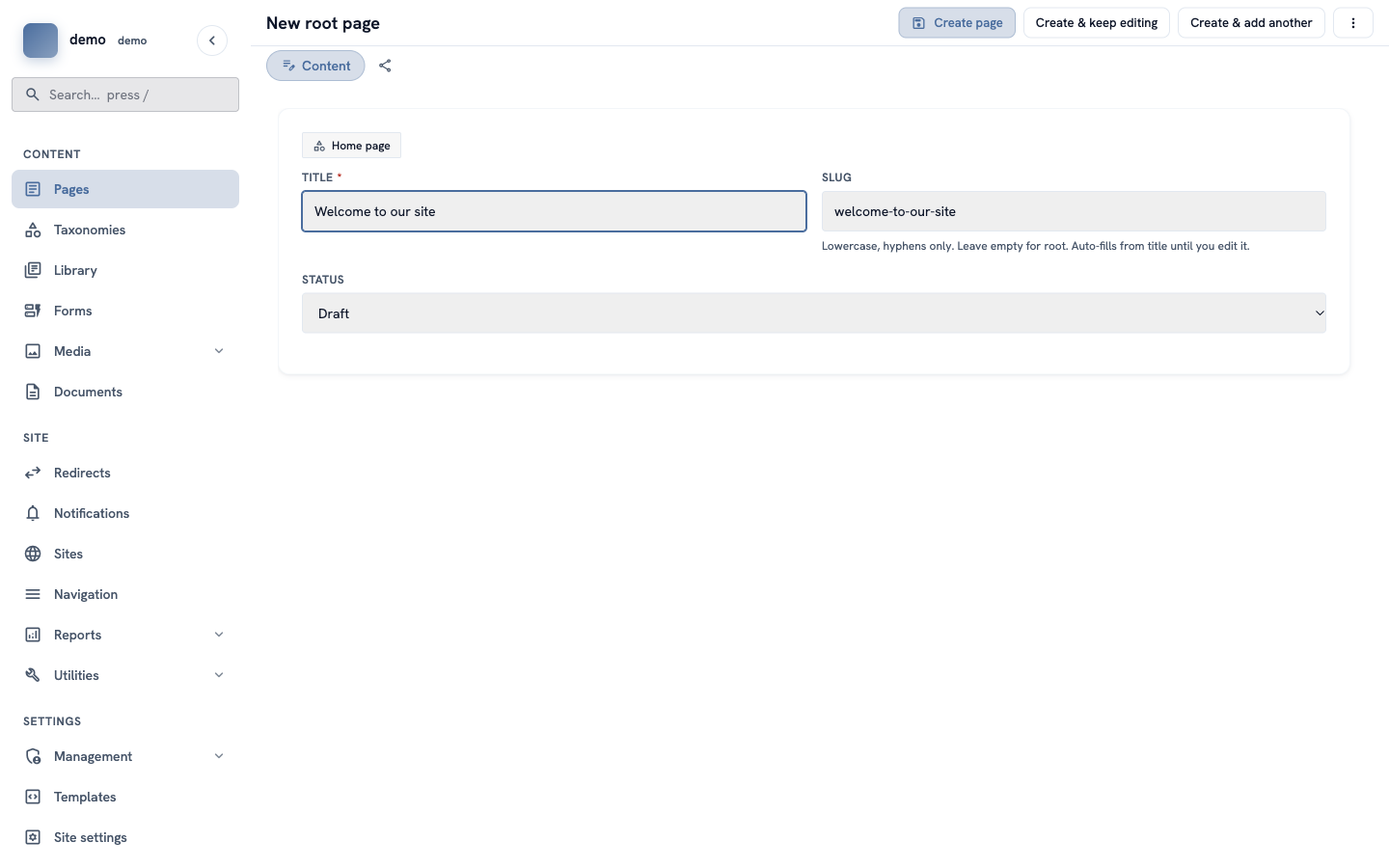
4. Make it the front page and publish it
This page is your home page, so it must open at the main address of your site (for example www.example.com, with nothing after it).
- Click in the Slug box and delete all the text in it. The box must be empty.
- Open the Status list and choose Published.
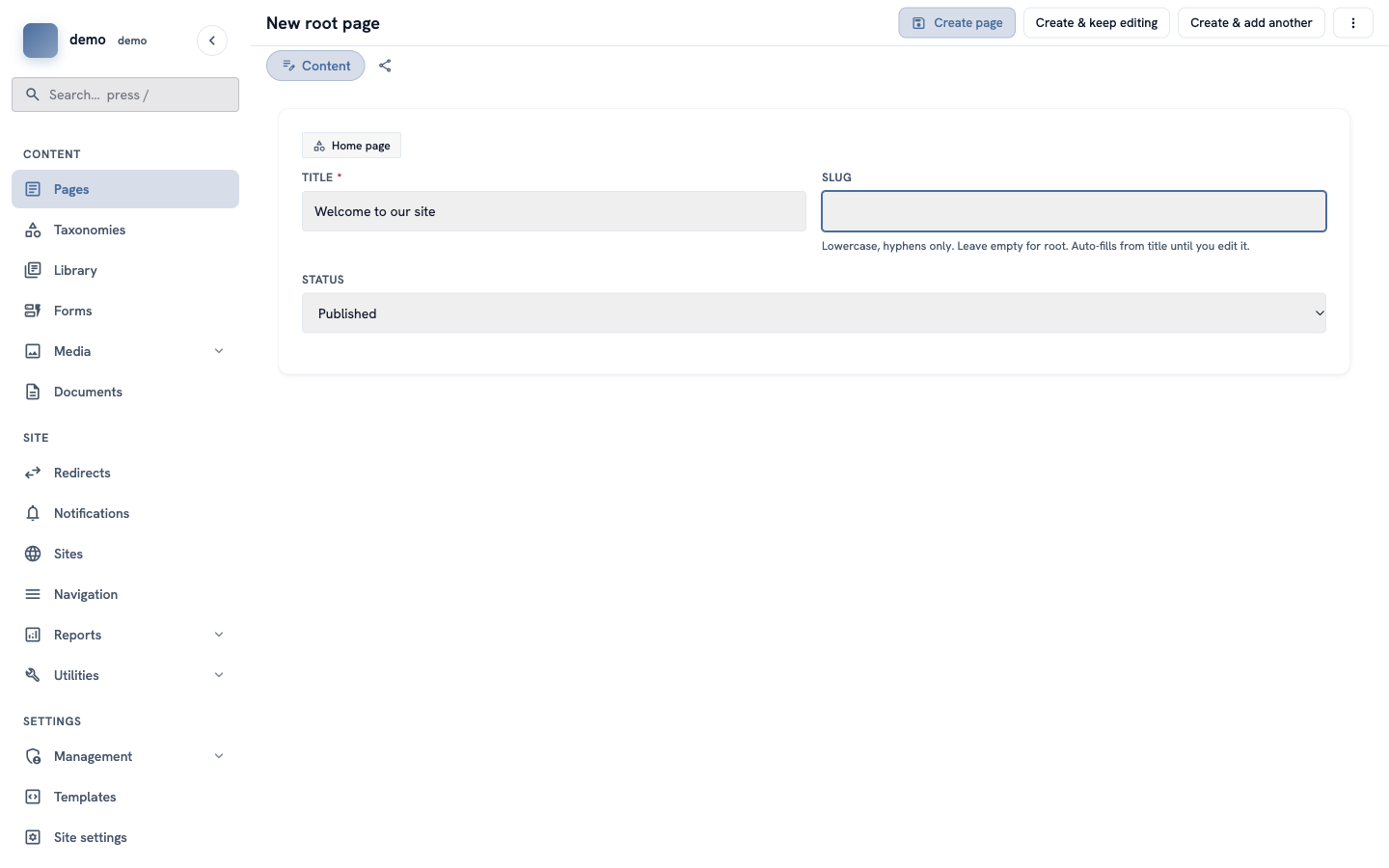
Tip: for all other pages, keep the slug. Only the home page has an empty slug.
Not ready yet? Keep the status Draft. You can publish the page later.
5. Save the page
Click Create page at the top of the screen.
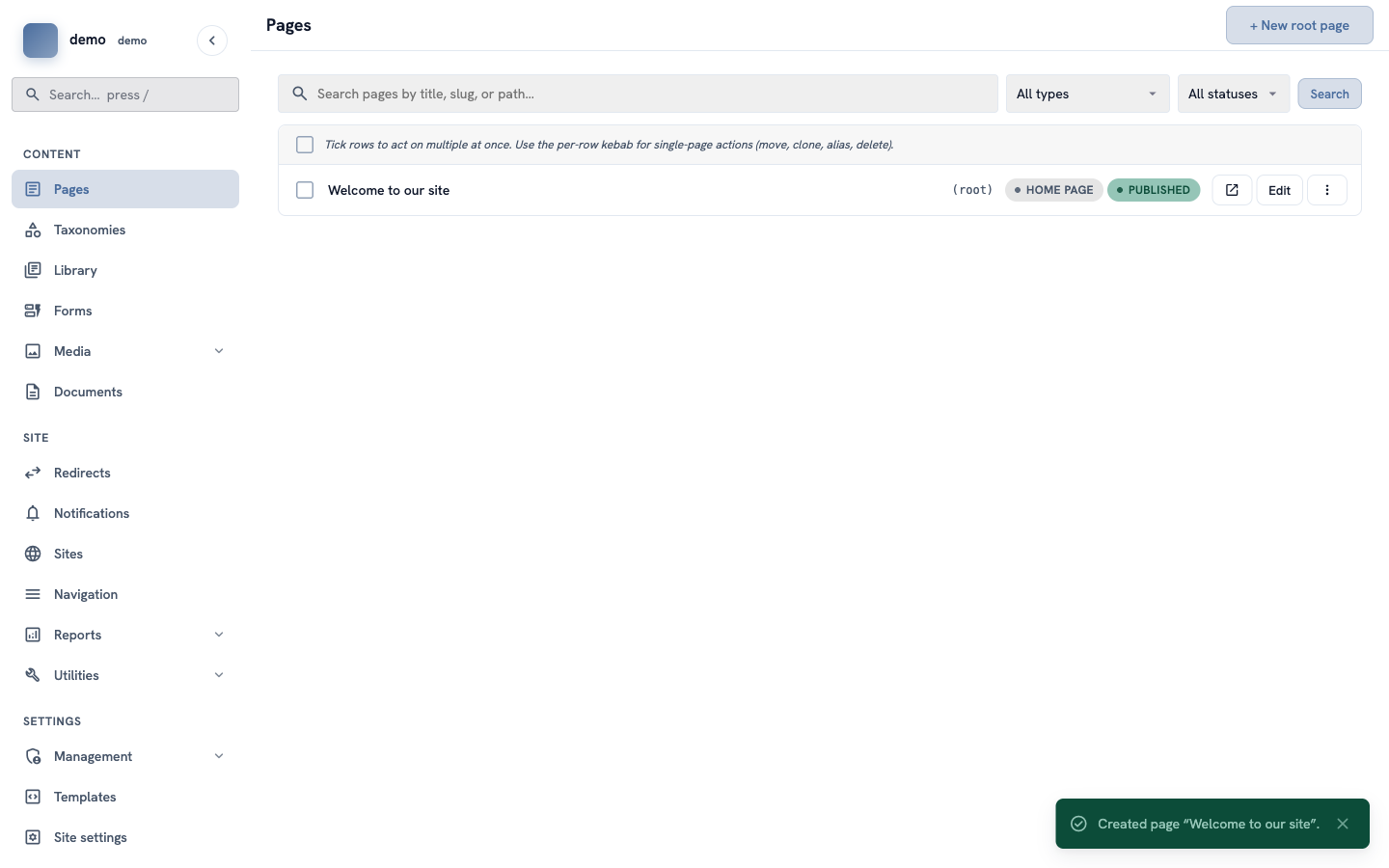
You go back to the list of pages. A green message at the bottom says Created page "Welcome to our site". Your page is in the list, with (root) and a green PUBLISHED label.
6. Look at your page
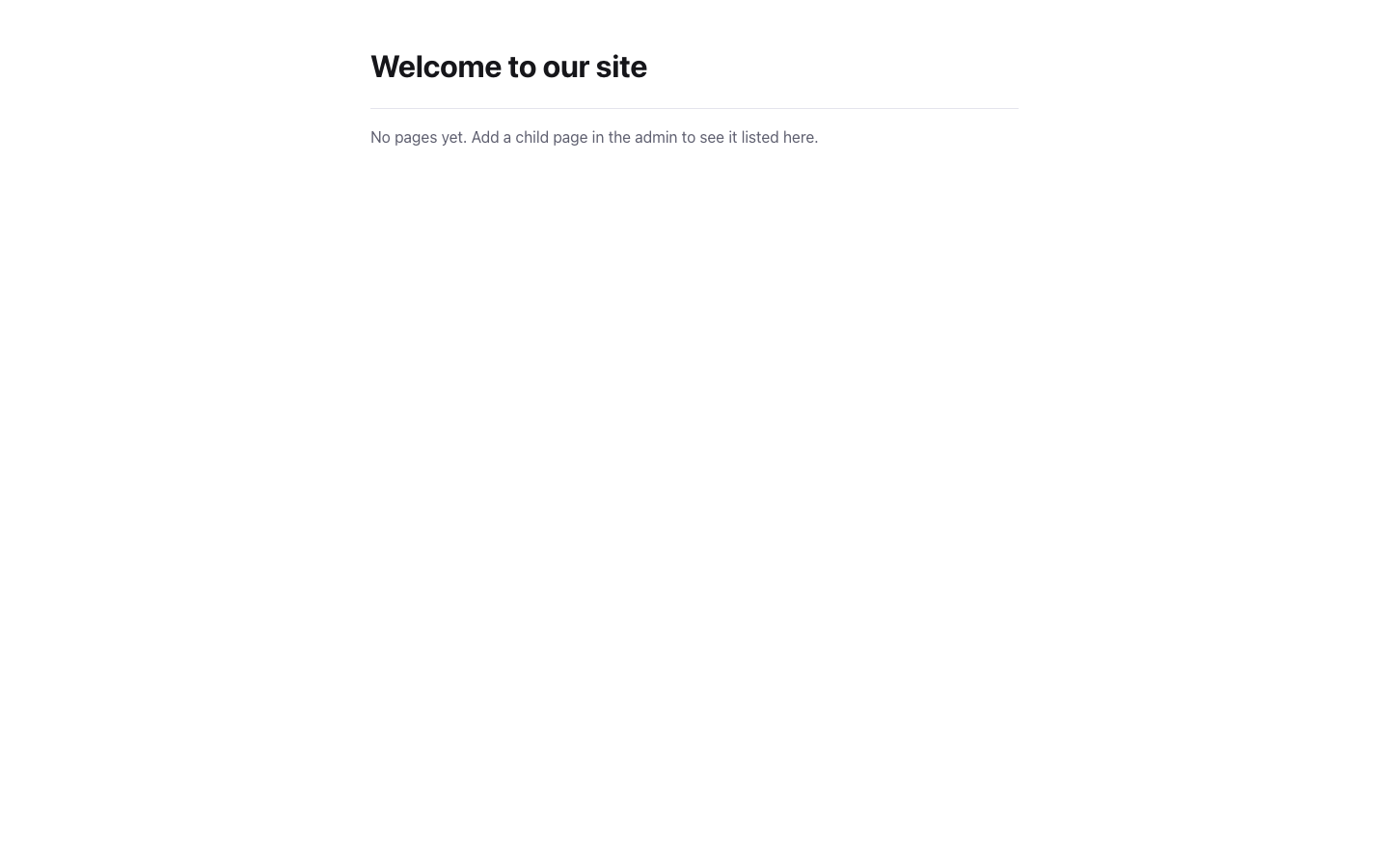
In the row of your page, click the small square button with an arrow (next to Edit). Your page opens in a new tab, the way visitors see it.
This button is only there for published pages.
Check it worked
- The page is in the Pages list with a green PUBLISHED label.
- When you open the main address of your site, you see your page.
If something goes wrong
- The address of the page is
/welcome-to-our-site, not the main address. The slug box was not empty when you saved. Click Edit, delete all the text in the Slug box, and click Save. The old address still works: it sends visitors to the new one. - You already have a home page. Only one root page can have an empty slug. If you make a second one, it gets a slug from its title.
- Visitors see "Page not found". Check the status. A Draft page is not visible to visitors. Click Edit, choose Published, and click Save.
- You cannot find Home page in the list of types. Your site may use other names. Ask the person who manages your site which type to use.