How to use the live preview
Goal: see how your page looks while you write it — on a computer, a tablet and a phone.
Who this is for: editors. You do not need any technical knowledge.
Time: about 5 minutes.
Before you start
- You have a page to edit. See How to create and publish your first page.
Words you will see
| Word | What it means |
|---|---|
| Preview | A picture of your page as visitors will see it. It is not public. |
| Save | Keep your changes. The preview does not save anything. |
Steps
1. Open a page in the editor
In the menu on the left, click Pages. Find your page and click Edit.
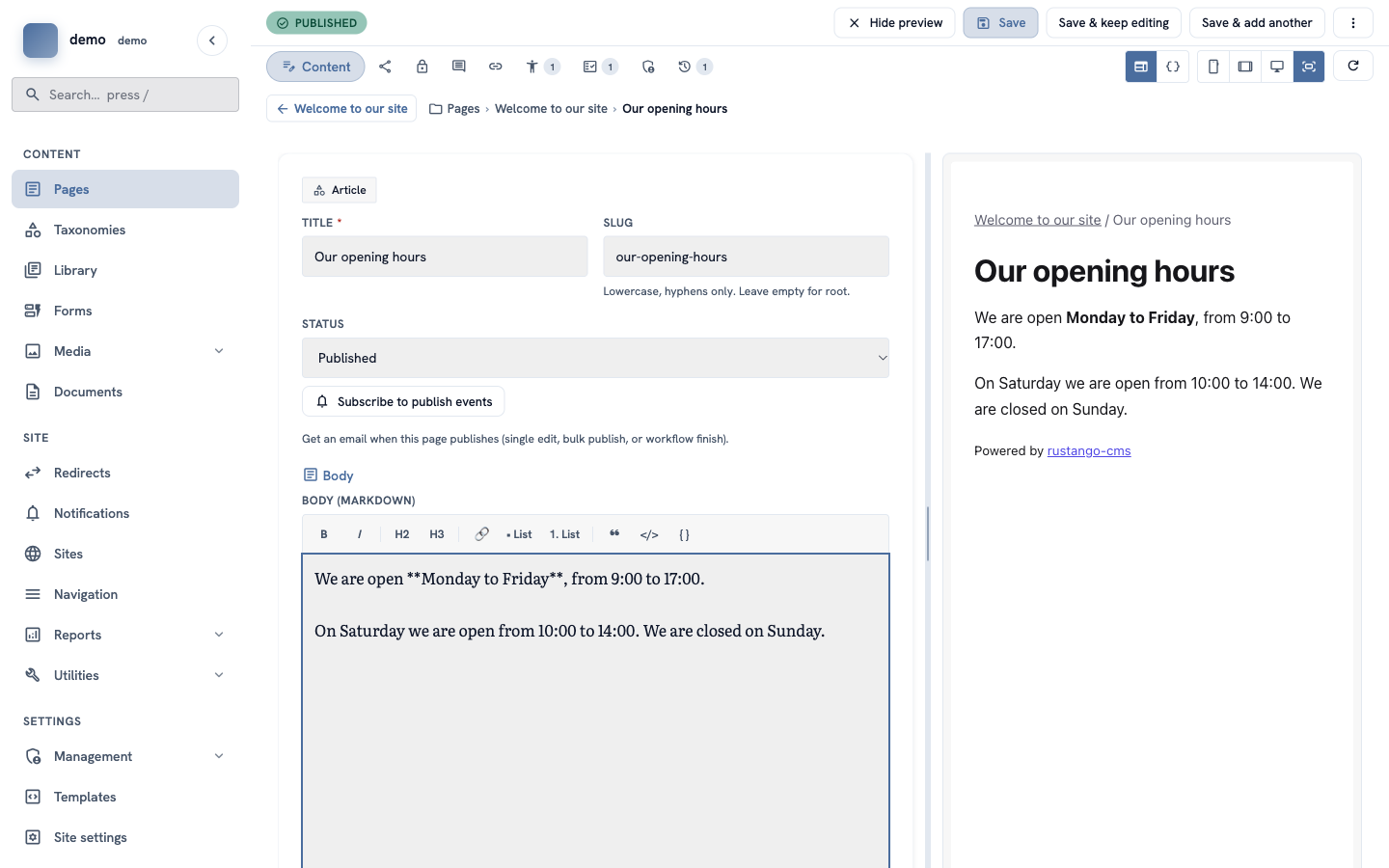
The editor opens. On the left you write. On the right you see the preview.
2. Change something and watch the preview
Type in a box, for example in Title or Body. After a second, the preview on the right changes too. You do not need to save to see it.
Important: the preview does not save your work. When you are happy, click Save.
3. See the page on a phone
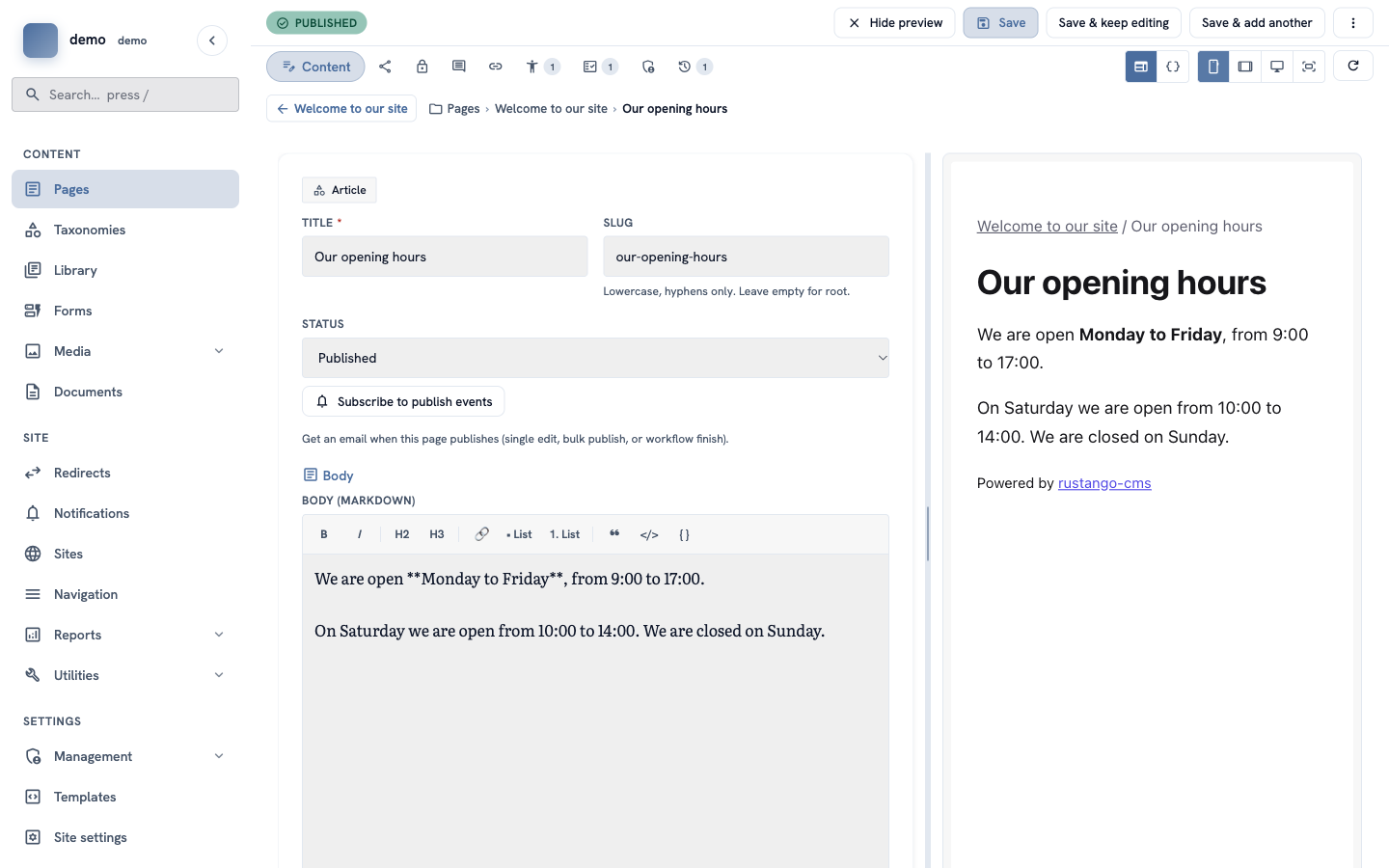
At the top right there are four small buttons with pictures of screens. Click the first one, the phone. The preview now shows your page as it looks on a phone.
4. See the page on a tablet
Click the second button, the tablet. The preview shows your page at tablet size. The page looks small, because it must fit in the space on your screen.
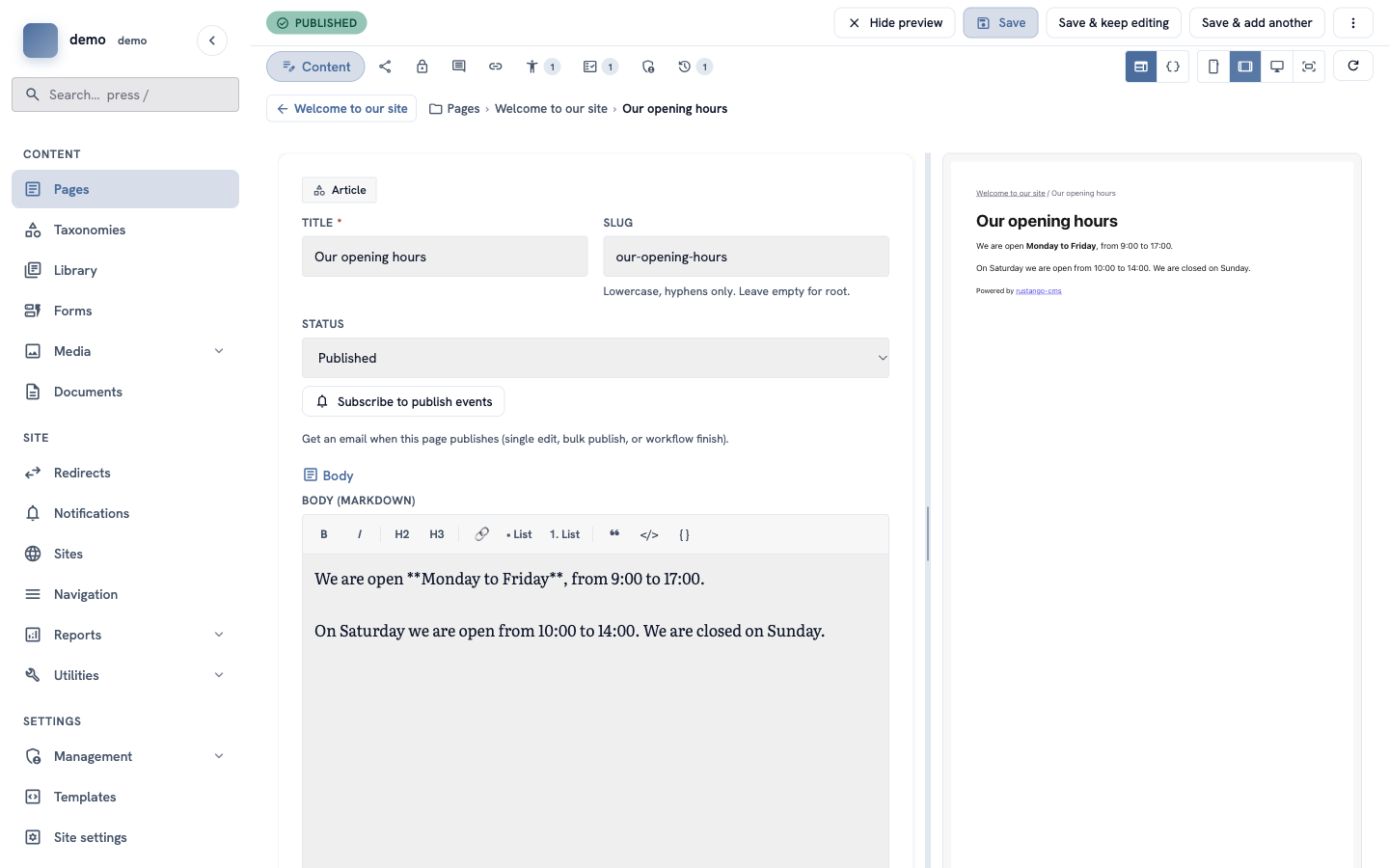
The third button shows a computer screen. The fourth button makes the preview use all the free space again.
5. Hide the preview
Do you need more space to write? Click Hide preview at the top. The form now uses the whole screen.
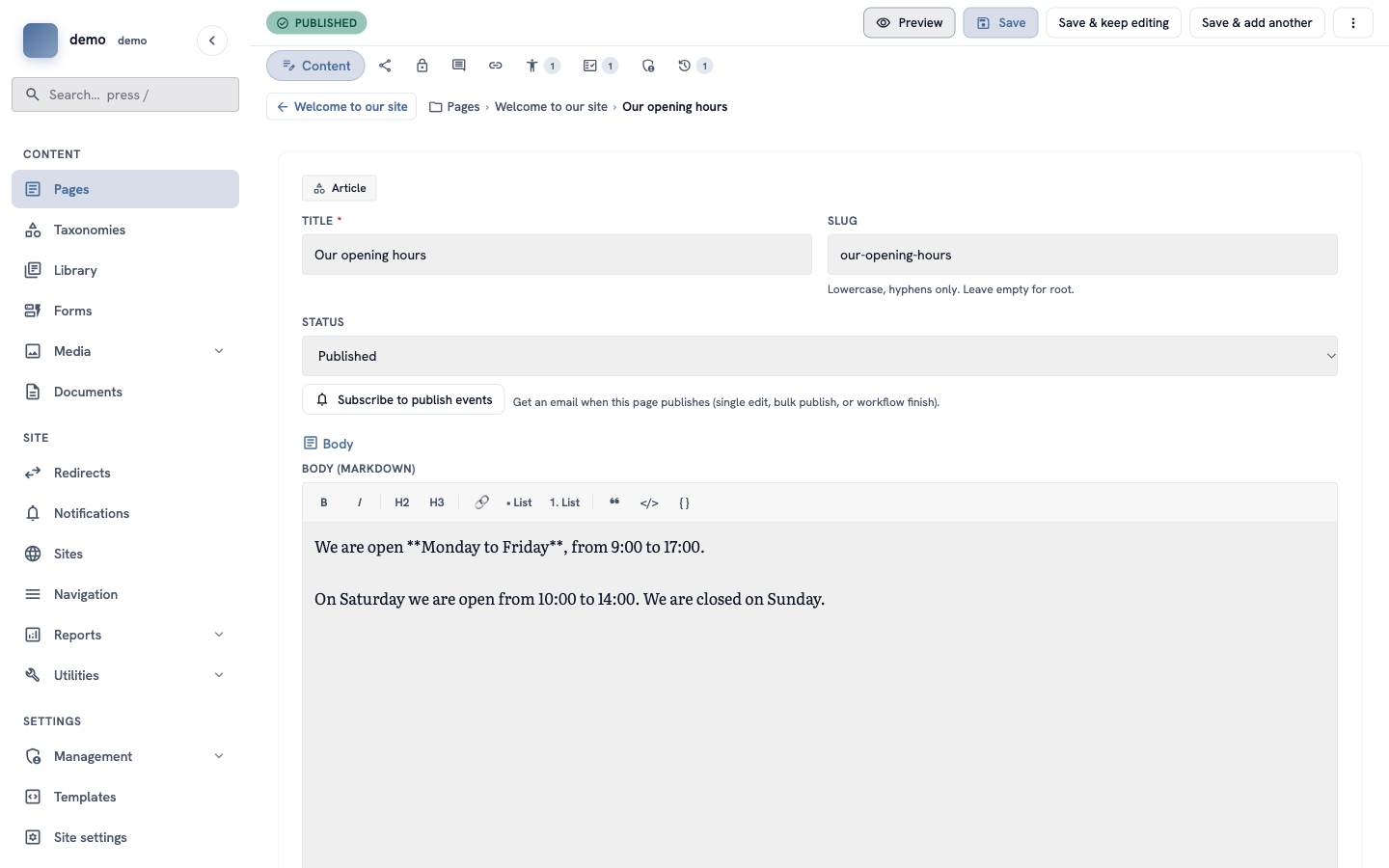
To see the preview again, click Preview.
6. Save your changes
Click Save at the top of the screen. You go back to the list of pages, and a green message says Saved "…" with the name of your page. Now visitors can see your changes (if the page is published).
Tip: click Save & keep editing if you want to stay in the editor.
When your site has its own frontend
Some sites are not drawn by the CMS but by a separate website or app that reads the content from the CMS (a "headless" site). If your developer set this up, you see two more things in the editor:
- Your frontend — above the preview, next to the screen buttons, there is a globe button. Click it, and the preview shows your page in the real site, even when the page is still a Draft.
- Preview on site — click the ⋮ button at the top right, then Preview on site. The real site opens in a new tab with your page. Only people with this link can see the draft, and the link stops working after one hour.
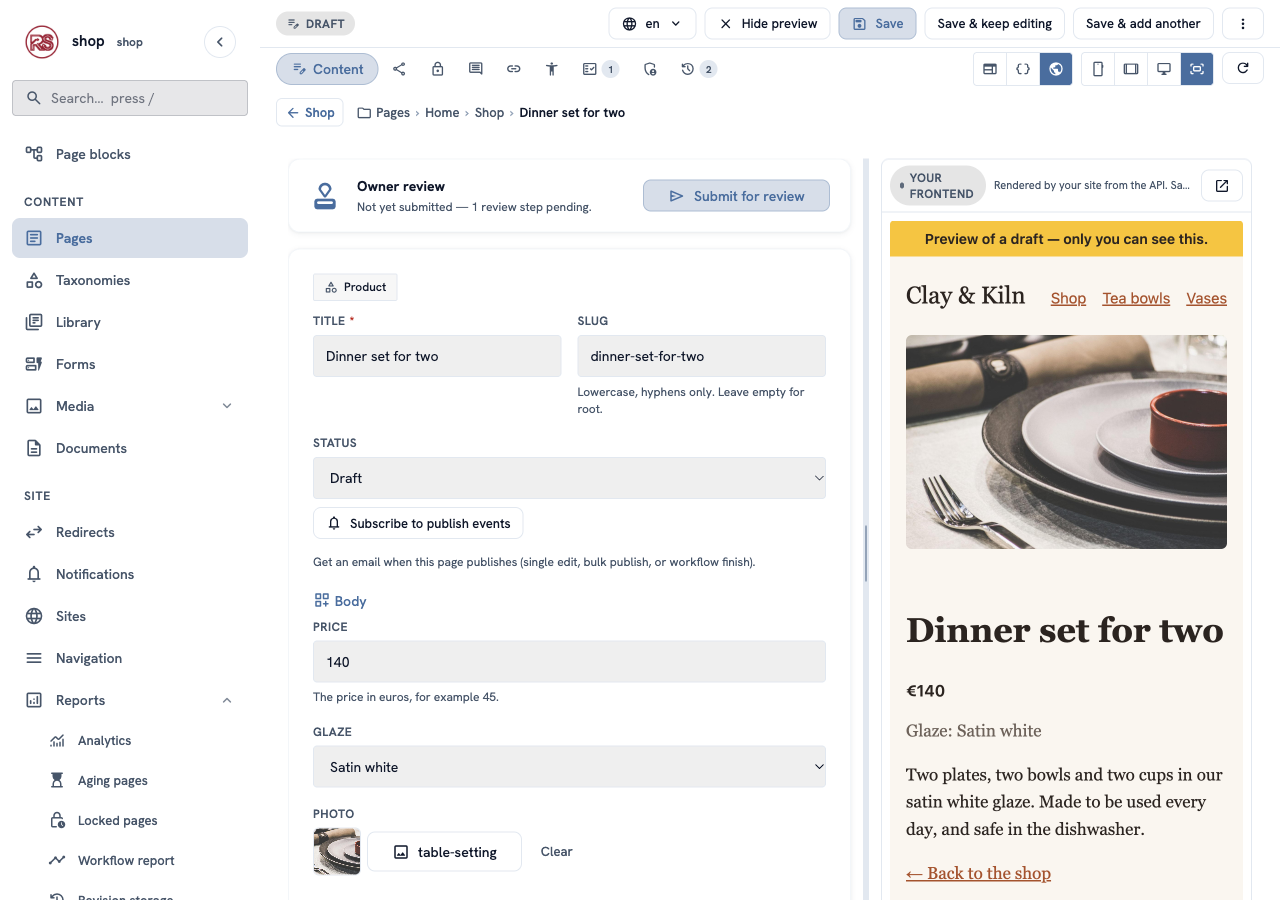
Important: this preview cannot change while you type. Click Save & keep editing, then the round arrow button above the preview.
Does the real site use a different address for a page? Your developer may ask you to fill in Frontend route on the Promote tab. Leave it empty if nobody asked.
How a developer sets this up: Preview drafts on your own frontend.
Check it worked
- When you type in the form, the preview changes after a second.
- The phone button makes the page narrow.
- After you click Save, a green message Saved "…" appears.
If something goes wrong
- The preview does not change. Click the round arrow button at the top right to load it again.
- The globe preview shows the old version. Save first, then click the round arrow.
- Visitors cannot see your changes. You did not save, or the page is a Draft. Click Save, and check that the status is Published.