Preview drafts on your own frontend
Goal: let editors see a draft in the headless storefront — inside the page editor and in a new tab — before anybody else can.
Who this is for: developers who did A headless storefront. The last part is for editors too.
Time: about 15 minutes.
This is a developer chapter of Build a ceramics shop, step by step. The code is in examples/ceramics_shop/headless/app.js.
The problem
The storefront asks the API for pages, and the API shows only what a visitor may see. A draft is not there: /api/v2/pages/22/ answers 404. That is right for visitors, but an editor wants to check a new product in the real design before publishing it.
The answer is a preview token: a short signed text that unlocks one draft page for one hour. The admin makes the token; the storefront sends it back to the API.
The CMS signs tokens with RCMS_SECRET_KEY. Without it, it makes a key once and keeps it in ./var/.rustango_cms_signing.key, so preview works with no setup. In production, set RCMS_SECRET_KEY (or share that file between servers), so every server signs alike.
Before you start
- The storefront from the last chapter runs on http://localhost:8250.
- There is a draft to look at. This chapter uses a new product, Dinner set for two, saved as a Draft under Shop with a price, a glaze and a photo — the way you added products in chapter 7.
1. Tell the CMS where your frontend lives
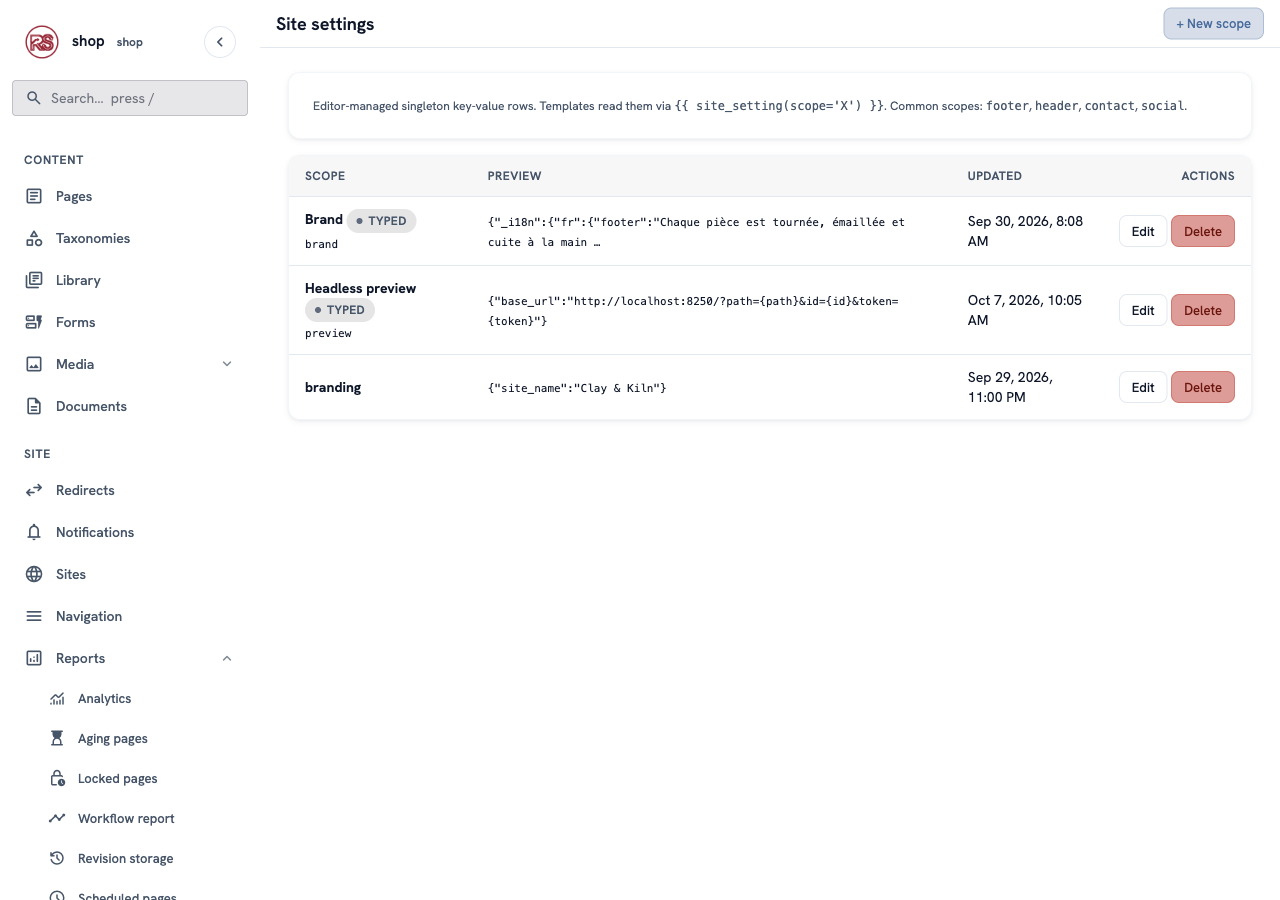
In the menu on the left, click Site settings. Find the row Headless preview and click Configure (or Edit, if somebody set it before).
In Frontend preview URL, type the address of a page in your frontend, with three placeholders:
http://localhost:8250/?path={path}&id={id}&token={token}
| Placeholder | Becomes |
|---|---|
{path} | the page's address, for example /shop/dinner-set-for-two |
{id} | the page's number, for example 22 |
{token} | the preview token |
Click Save.
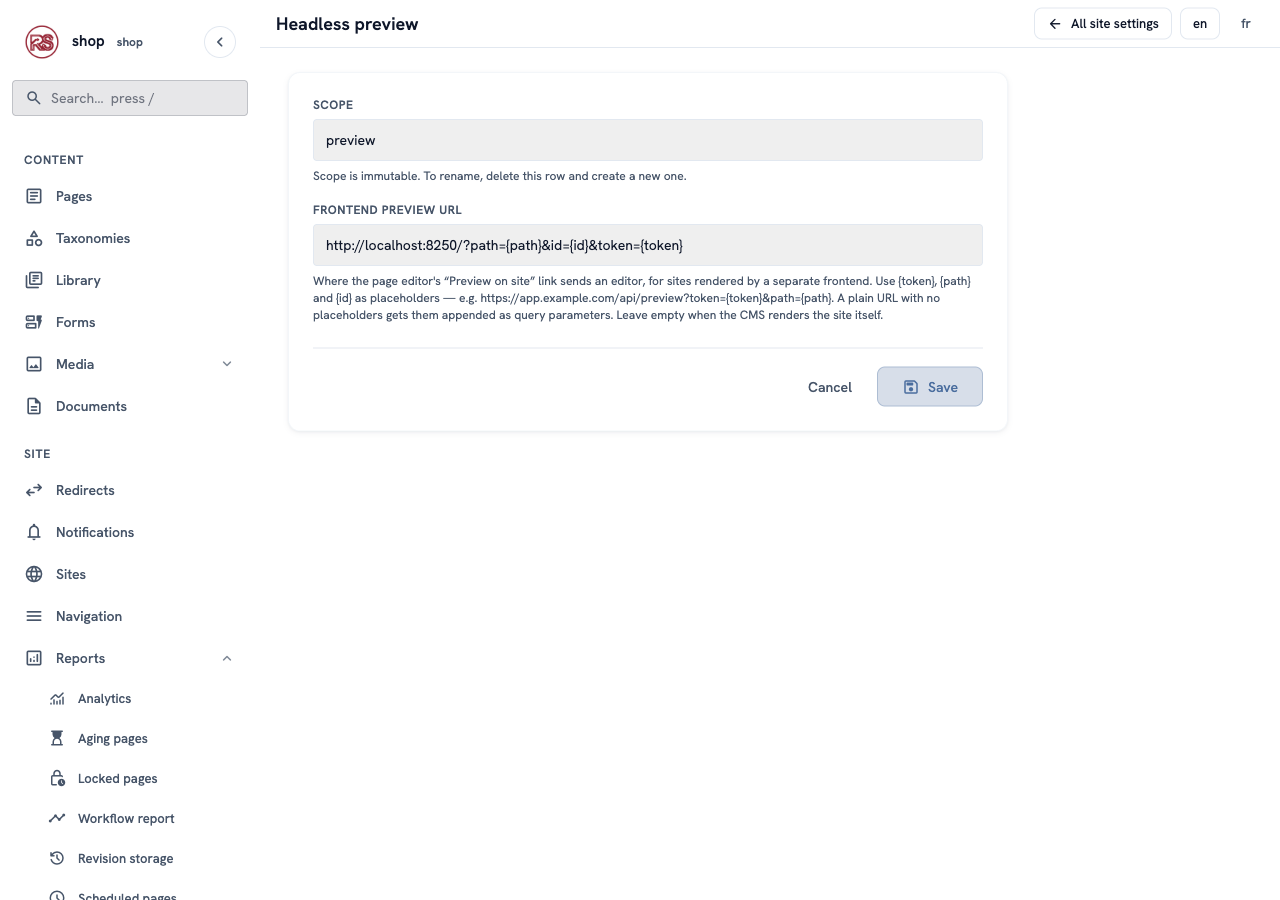
The CMS percent-encodes what it puts in. {path} keeps its /, so it also works in the path part of a URL: https://shop.example.com/preview{path}?token={token}. A plain address with no placeholders works too — the CMS adds the three as query parameters.
2. Read the token in the storefront
When the address has id and token, the storefront asks for that page directly and sends the token:
const previewId = params.get("id");
const previewToken = params.get("token");

function loadPage() {
  if (previewId && previewToken) {
    const token = encodeURIComponent(previewToken);
    return api(`/api/v2/pages/${previewId}/?preview_token=${token}`);
  }
  return api(`/api/v2/pages/find/?html_path=${encodeURIComponent(path)}`);
}
It also shows a yellow bar, so nobody mistakes a draft for the live page:
document.getElementById("preview-bar").hidden = !previewToken;
That is all. The token is the whole permission: no login, no cookie, no extra CORS setting.
3. Preview a draft
Open the draft in the editor. Two new things are there now.
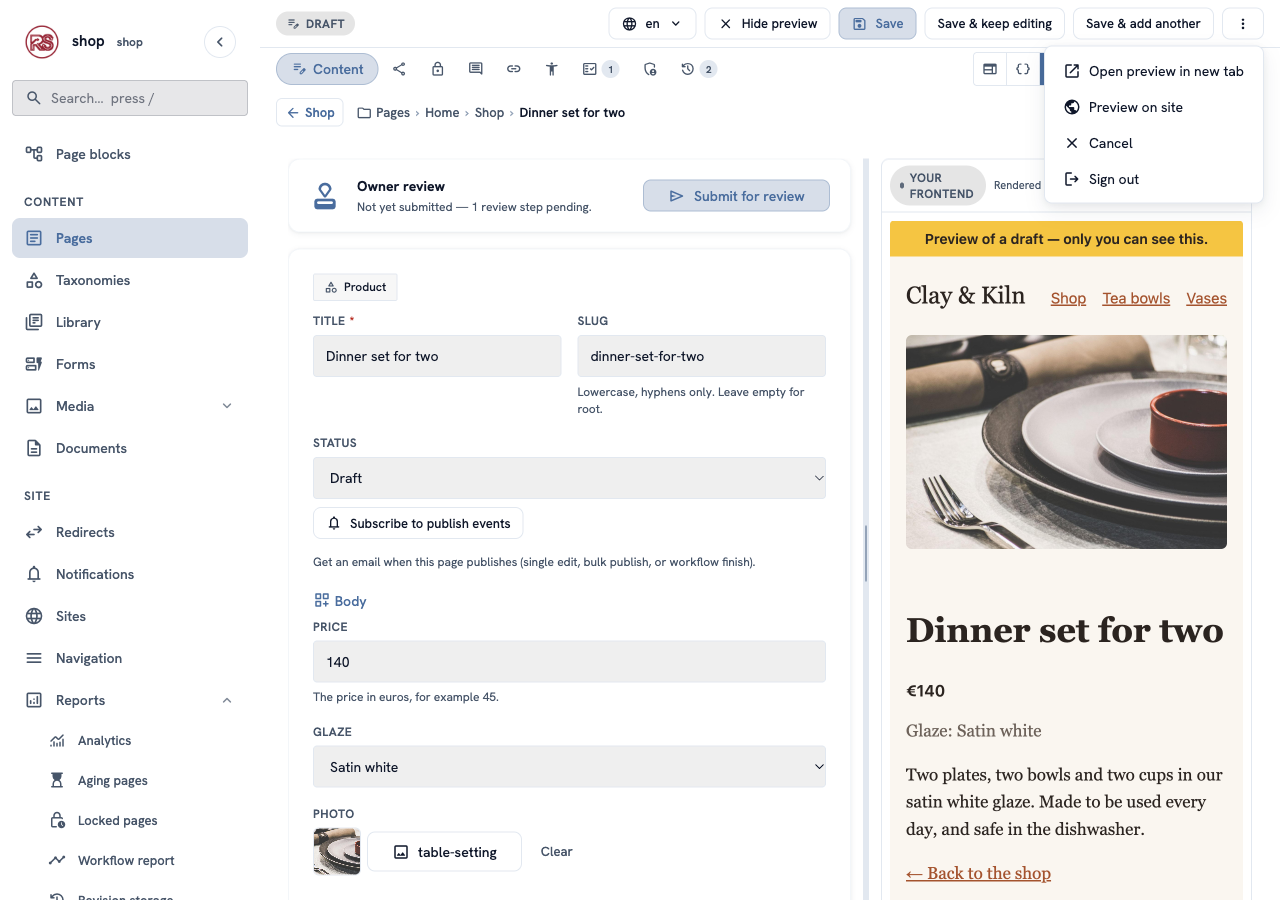
Preview on site. Click the ⋮ button at the top right, then Preview on site. The storefront opens in a new tab, with the draft.
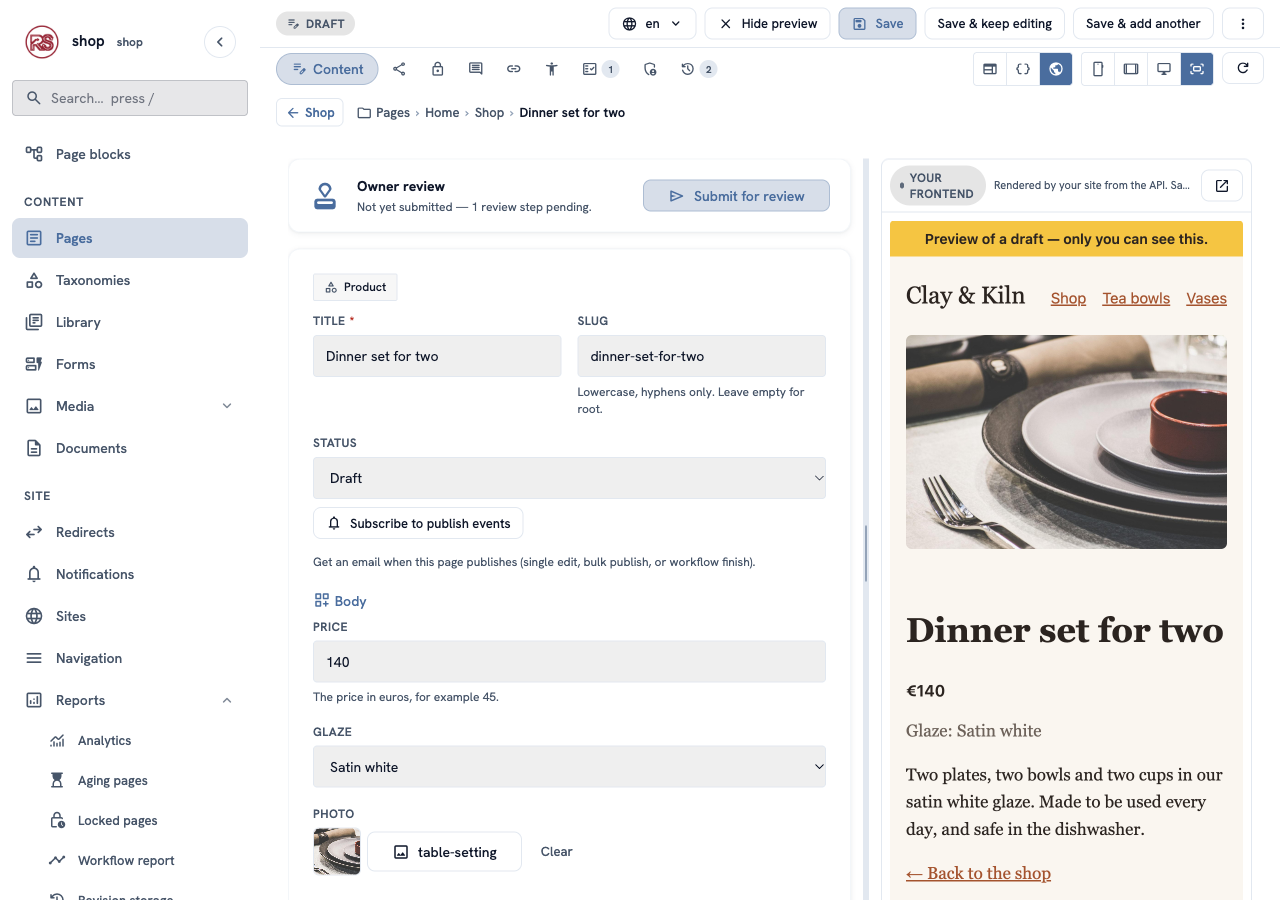
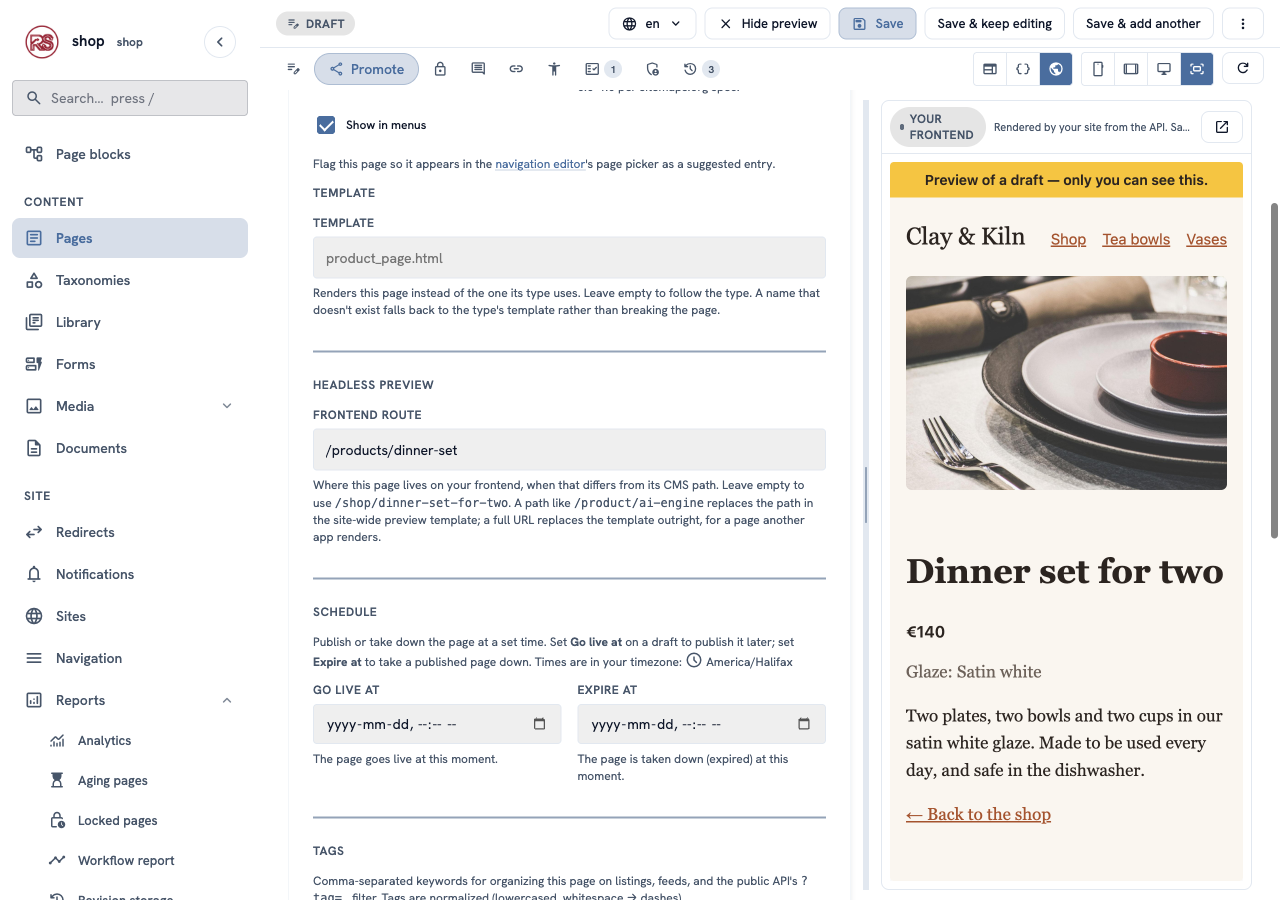
Your frontend, next to the form. Above the preview there are three buttons: the CMS's own preview, the JSON from the API, and a globe — Your frontend. Click the globe. The preview now shows the storefront, with the draft — the picture at the top of this chapter. The phone, tablet and computer buttons work here too.
Save, then reload. The CMS can change its own preview while you type, but not a page that comes from another address. Click Save & keep editing, then the round arrow button above the preview.
4. When a page lives at another address
{path} is the page's address in the CMS. Maybe your frontend uses other addresses — for example /products/dinner-set instead of /shop/dinner-set-for-two. Then open the page's Promote tab and fill in Frontend route under Headless preview:
| Frontend route | What happens |
|---|---|
| empty | {path} is the CMS address — the common case |
/products/dinner-set | replaces {path}; the address and the token still come from the site setting |
https://other.example.com/x?t={token} | replaces the whole address, for a page that another app shows — works even with no site setting |
A copy of the page does not get the frontend route: it has its own address.
How safe is the token?
- It unlocks one page. A token made for page 22 does not open page 20.
- It stops working after one hour. The editor makes a new one each time it loads.
- If one letter is changed, the API answers
404, the same as for a page that does not exist. - Private pages stay private: a token lets you read a draft, not a page you are not allowed to see.
Check it worked
/api/v2/pages/22/without a token answers404.- ⋮ → Preview on site opens the storefront with the draft and the yellow bar.
- The globe button shows the draft inside the editor.
- Change the price, click Save & keep editing, then the round arrow: the new price is in the storefront.
If something goes wrong
| Problem | What to do |
|---|---|
| There is no Preview on site and no globe button. | The Headless preview setting is empty and the page has no Frontend route — do step 1. |
| The storefront says "Page not found" in preview. | The token is older than one hour — open the editor again for a fresh one. Or the storefront does not read id and token (step 2). Or you run several servers with different keys — set the same RCMS_SECRET_KEY on all. |
| The globe preview stays white. | Your frontend refuses to be shown in a frame (X-Frame-Options or CSP frame-ancestors). Allow the admin's address, or use Preview on site. |
| The preview shows the old version. | Save first, then click the round arrow above the preview. |
Next
- Back to the list of chapters.
- Every detail of the API: Headless JSON API.