A headless storefront
Goal: show the Clay & Kiln shop on a second website that you write yourself. The CMS keeps the content; your site only asks for it and decides how it looks.
Who this is for: developers who build a site in JavaScript (or any language that can read JSON) instead of Tera templates.
Time: about 20 minutes.
This is a developer chapter of Build a ceramics shop, step by step. All code is from the example storefront in examples/ceramics_shop/headless/: one HTML file, one JavaScript file and one CSS file. No build step, no libraries.
Headless — what it means
Until now, the CMS did two jobs: it kept the content, and it drew the pages with its templates. "Headless" means you keep only the first job. The CMS gives the content as JSON, and another program — a single-page app, a mobile app, a static site generator — draws it.
| The CMS draws the pages | Headless | |
|---|---|---|
| Who makes the HTML | Tera templates in your Rust project | your own frontend |
| How the frontend gets content | — | the JSON API under /api/v2/ |
| What editors use | the admin | the same admin |
| Live preview in the editor | the CMS's own preview | your frontend, with a preview token — see Preview drafts on your own frontend |
You don't have to choose for the whole site. The API is always there next to the normal pages, so a site can draw most pages itself and send a few to an app. The page types don't change: a type made in code, a type built in the admin and Stream fields all come out of the API.
Before you start
- The example shop runs on http://shop.localhost:8080. How to start it is written at the top of
examples/ceramics_shop/main.rs. - Python 3, only to serve three static files. Any static file server works.
1. Allow your frontend's address
The storefront runs on another address (http://localhost:8250), so the browser asks the CMS first whether that address may read the API. This is called CORS, and it is off until you turn it on. Start the shop with:
RCMS_API_CORS_ORIGINS=http://localhost:8250
Use a comma between several addresses. Without this line every request from the storefront fails, and the browser console says the request was "blocked by CORS policy".
Only the API needs this. Photos are plain
<img>tags, and a browser shows an image from another address without asking.
2. Start the storefront
cd examples/ceramics_shop/headless
python3 -m http.server 8250
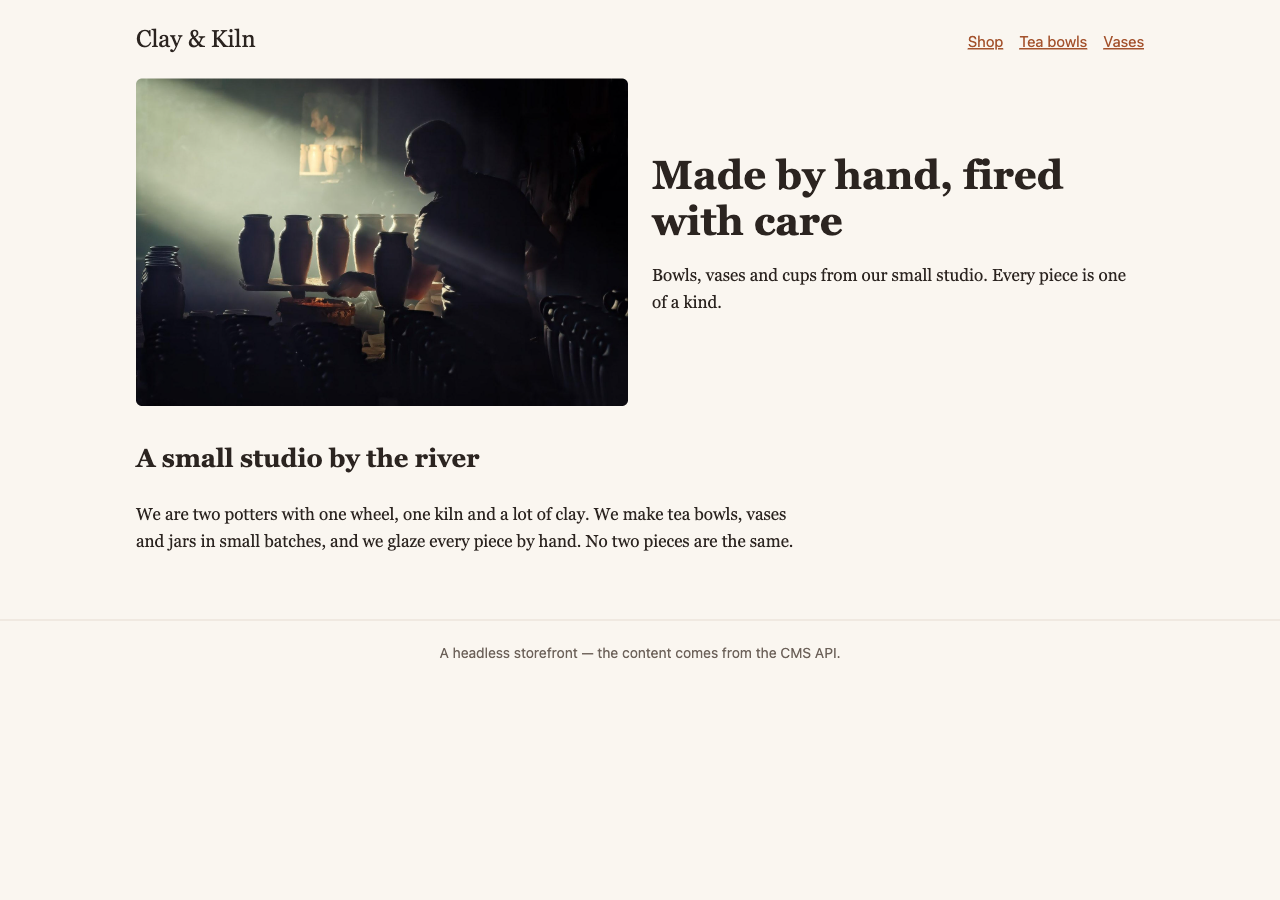
Open http://localhost:8250. You see the home page from the picture at the top. Every word and photo comes from the CMS.
At the top of app.js is the one line that ties the two together:
const CMS = "http://shop.localhost:8080";
If your shop runs on another port, change it here.
3. Find the page for an address
The storefront keeps the page's address in its own URL: ?path=/shop/moon-jar. The API turns a CMS address into the page's JSON in one step:
function loadPage() {
  // …the preview case comes in the next chapter…
  return api(`/api/v2/pages/find/?html_path=${encodeURIComponent(path)}`);
}
find/ answers with a redirect to the page's own JSON, like /api/v2/pages/9/, and fetch follows it. A draft, a private page and an address with no page all give 404.
A product comes back like this (shortened):
{
  "id": 9,
  "title": "Moon jar",
  "url": "/shop/moon-jar",
  "seo_title": "Moon jar — handmade blue stoneware jar",
  "meta": { "type": "product", "html_url": "/shop/moon-jar", "parent_id": 2 },
  "builder": {
    "price": 120.0,
    "glaze": "Moon blue",
    "photo": 5,
    "description": "<p>A round jar with a milky blue glaze…</p>"
  },
  "children": []
}
4. One function for each page type
meta.type says which page type the page has. It is the type's identifier — type name in the admin. The storefront keeps one function for each type, and a fallback for the rest:
const templates = {
  async HomePage(page) { … },
  async ShopPage(page) { … },
  async product(page) { … },
};

const draw = templates[page.meta.type] || fallback;
box.innerHTML = await draw(page);
Where the fields are depends on how the type was made:
| Type made… | Its fields are in | In the shop |
|---|---|---|
in code, with #[derive(PageType)] | extension | HomePage, ShopPage, ContentPage |
| in the admin, with the Page Builder | builder | product |
So the product function reads page.builder.price, and the home page reads page.extension.hero_heading.
5. Photos
A photo field holds the photo's id, for example "photo": 5. Ask for the photo once to get its sized copies ("renditions"):
async function photo(id, size = "medium") {
  const img = await api(`/api/v2/images/${id}/`);
  return `<img src="${CMS}${img.renditions[size]}" alt="${escape(img.alt_text || "")}" …>`;
}
renditions has thumbnail (100 × 100), medium (800 wide) and large (1600 wide). For any other size, meta.download_url_template has a {filter_spec} you can fill in, for example fill-400x400.
6. Blocks
A Stream field — the home page's Introduction, the body of About us — is a list of blocks. Each block has a type, an id and a value:
"body": [
  { "type": "heading", "id": "1e5e…", "value": { "text": "A small studio by the river", "level": "2" } },
  { "type": "paragraph", "id": "4a5c…", "value": { "body": "We are two potters with one wheel…" } }
]
The storefront draws the types the shop uses and skips the rest:
switch (block.type) {
  case "heading":   return `<h2>${escape(v.text)}</h2>`;
  case "paragraph": return markdown(v.body);
  case "image":     return `<figure>${await photo(v.media_id, "large")}</figure>`;
  case "snippet_chooser": {
    const snippet = await api(`/api/v2/snippets/${v.snippet_id}/`);
    return `<aside class="note">…${markdown(snippet.body_markdown)}</aside>`;
  }
  default: return "";
}
Paragraph text is Markdown. The storefront has a very small Markdown function; a real site would use a Markdown library. The About us page shows the shipping text from the Library (chapter 9) through the snippet_chooser block.
Rich text is HTML. A product's Description comes as HTML that the CMS has already cleaned, so the storefront puts it in the page as it is.
7. The shop page and the menu
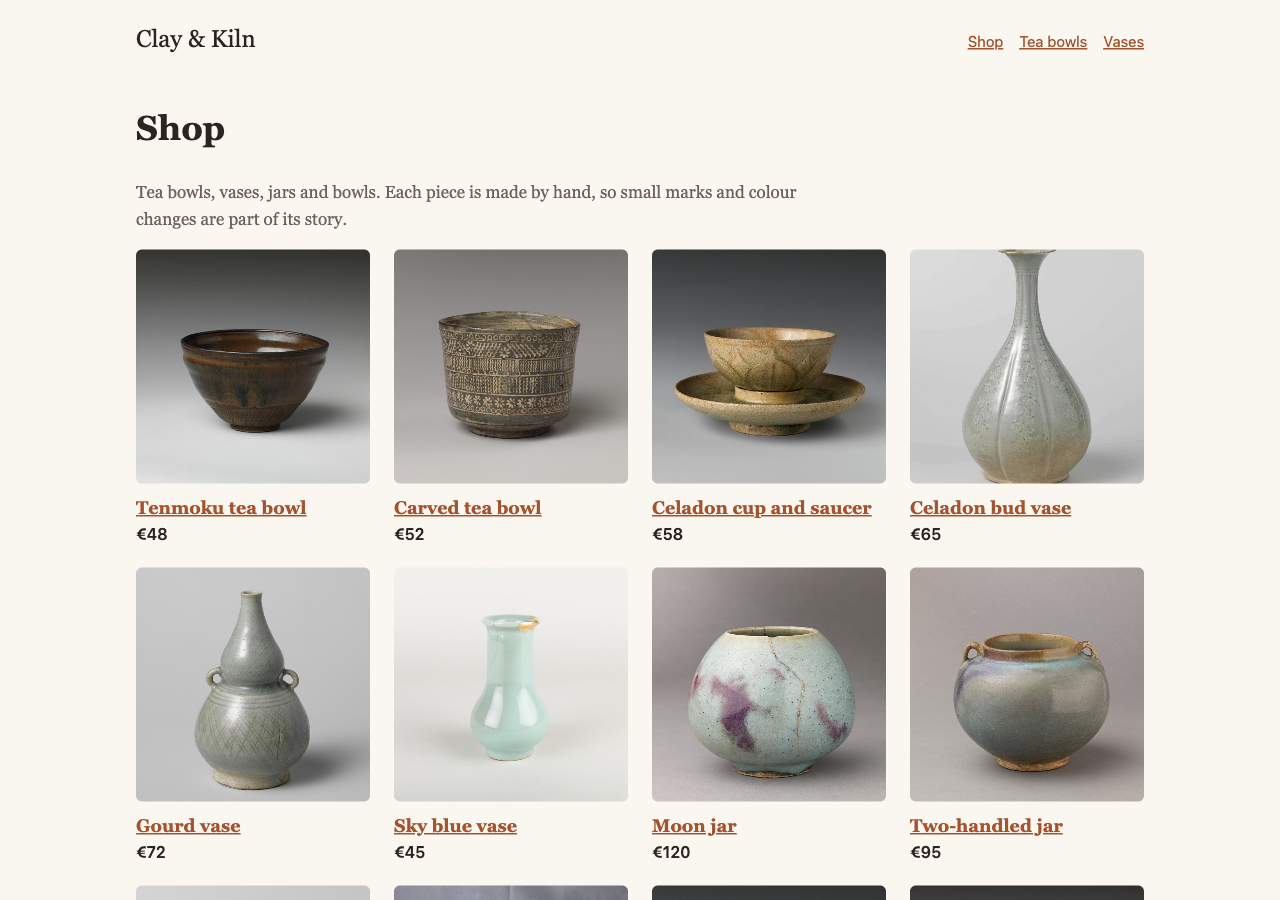
The shop page's children list has each product's title, URL and detail_url — but not its photo or price. The storefront asks for each product, all at the same time:
const products = await Promise.all(page.children.map((c) => api(c.detail_url)));
The menu at the top is the editors' Main menu from chapter 8:
const data = await api("/api/v2/menus/main/");
Each item has a label and a url. is_page tells you whether it points to a page in the tree (the storefront keeps those inside the app) or to your own link.
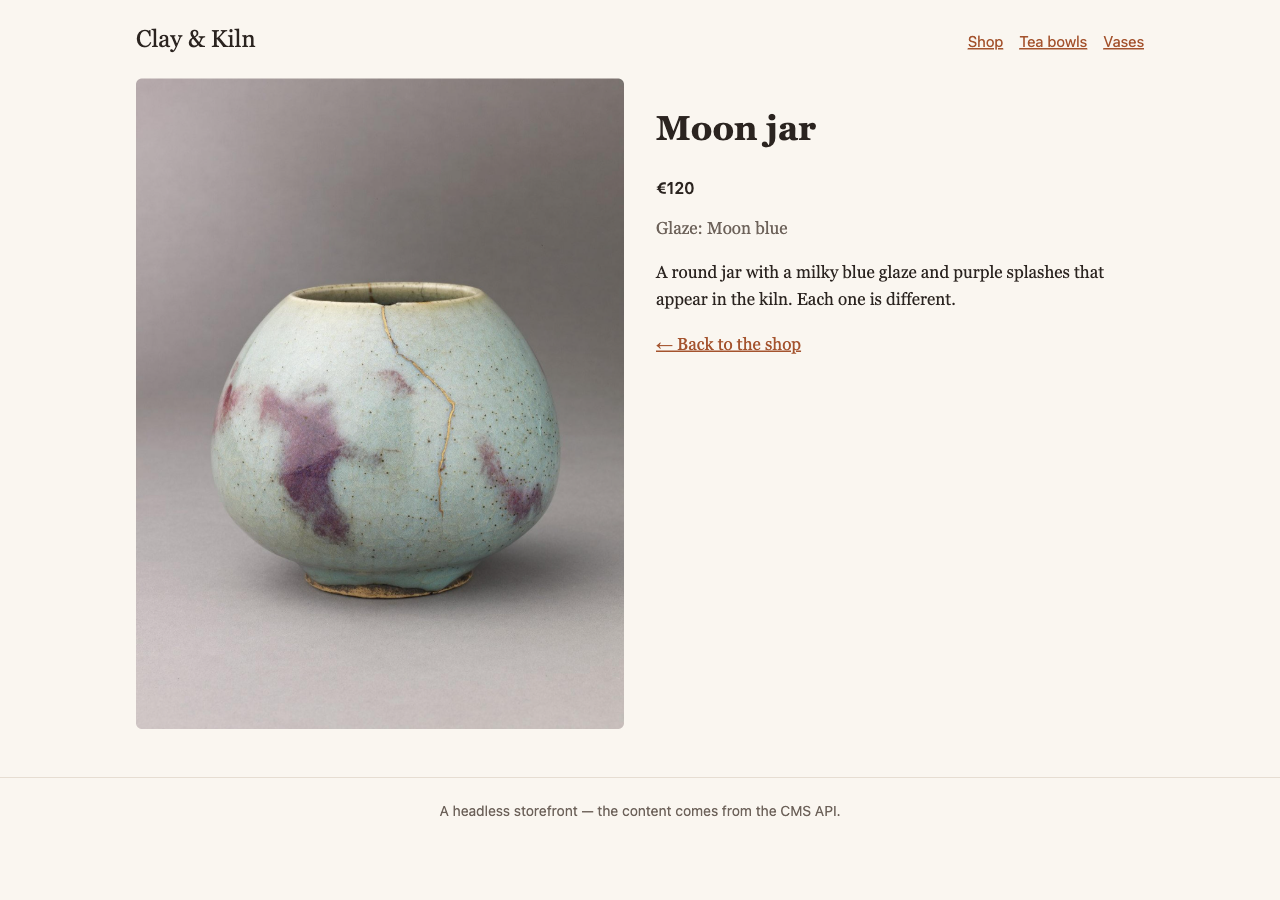
Click Moon jar: the product page uses the product function.
Check it worked
- http://localhost:8250 shows the home page with the big photo.
- Shop shows all products with photos and prices.
- A product page shows its price and glaze.
- The browser console has no red messages.
- Change a product's price in the admin and save. Reload the storefront: the new price is there.
If something goes wrong
| Problem | What to do |
|---|---|
| "Loading…" stays, and the console says "blocked by CORS policy". | Start the shop with RCMS_API_CORS_ORIGINS=http://localhost:8250. The address must match exactly — http://127.0.0.1:8250 is a different address. |
| "Page not found" for a page you can see in the admin. | It is a draft, private, or scheduled. The API shows only what a visitor may see. |
| Every request answers with an HTML page. | The host app did not mount the API. See Headless JSON API. |
| A page type shows only its title. | Add a function for its meta.type to templates. |
Next
- Preview drafts on your own frontend — let editors see a draft in the storefront before it goes live.
- The full list of endpoints and parameters: Headless JSON API.