Let an AI agent help
Goal: give an AI assistant its own key, so it can write new product pages for you as drafts. You read them and publish them yourself.
Who this is for: shop owners and editors. One part is for the person who sets up the assistant on a computer.
Time: about 15 minutes.
This is chapter 16 of Build a ceramics shop, step by step.
How it works
Many AI assistants — in a code editor, on the desktop, or in a terminal — can use tools over MCP (Model Context Protocol). Rustango-CMS has an MCP server built in. With a key, an assistant can:
- read your page types, pages, photos and Library items,
- create and change pages (always as drafts, unless you allow publishing),
- upload photos and put them on pages,
- write translations and change templates — if you allow it.
The assistant works as you: the CMS checks the same permissions as in the admin, and every change appears in the page's history under your name. A key can do less than you, never more.
Words you will see
| Word | What it means |
|---|---|
| MCP key | A secret text that lets one assistant work in the CMS as you. Like a password, but you can make many and stop each one. |
| Skill | A group of things the assistant may do: read, write, publish, templates, translate. |
| Revoke | Stop a key. It stops working at once. |
Steps
1. Make a key that can only write drafts
In the menu on the left, near your name at the bottom, click Preferences. Scroll down to MCP keys.
In Key label, type Product writer. Under Limit to skills, tick only CMS read and CMS write. Leave CMS publish empty: the assistant can write, but only you can make a page live.
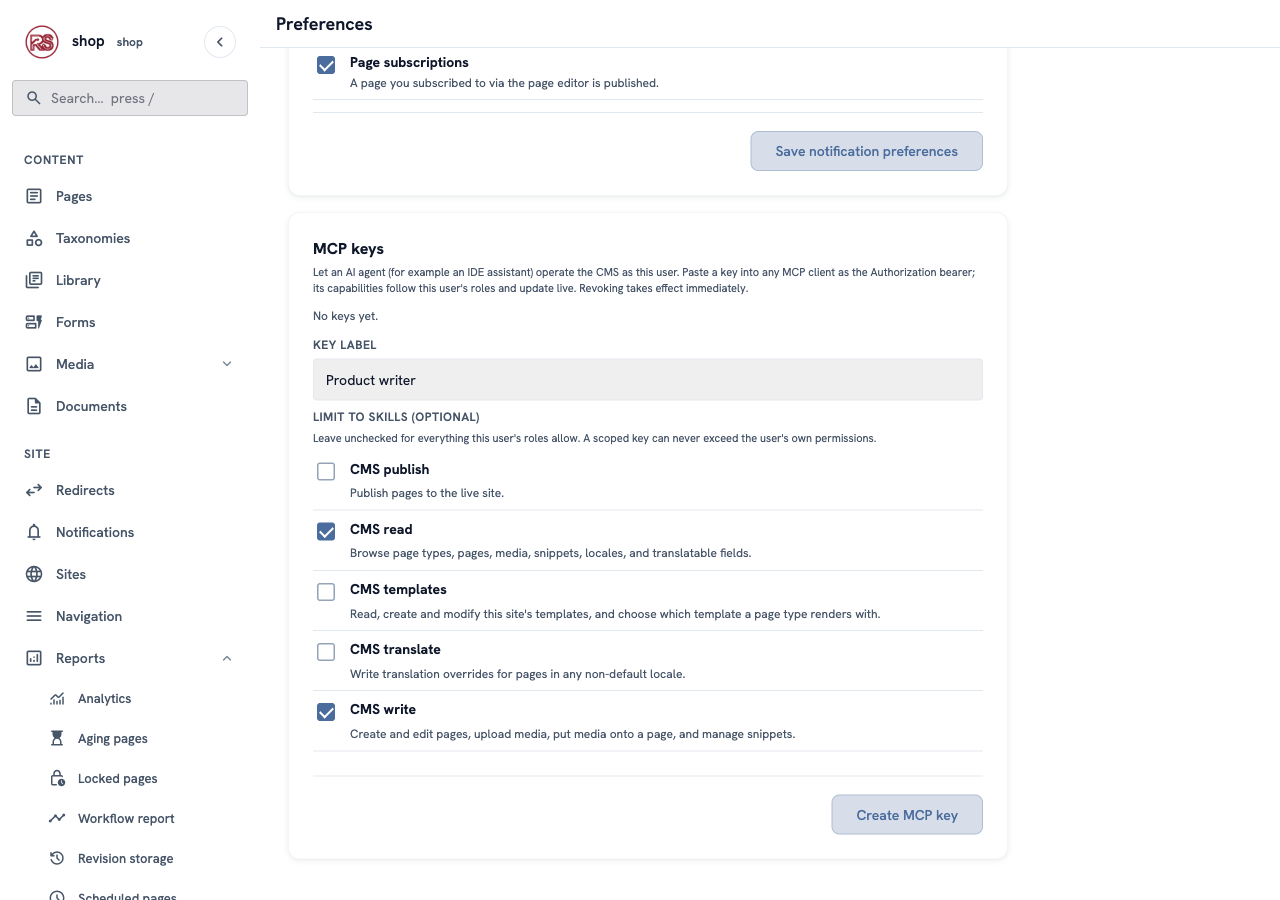
Click Create MCP key.
Why limit it? With no boxes ticked, the key can do everything you can do — publish, delete, change templates. A key for one job should only do that job.
2. Copy the key
A window shows the key. This is the only time you see it. Click Copy and keep it somewhere safe, like a password.
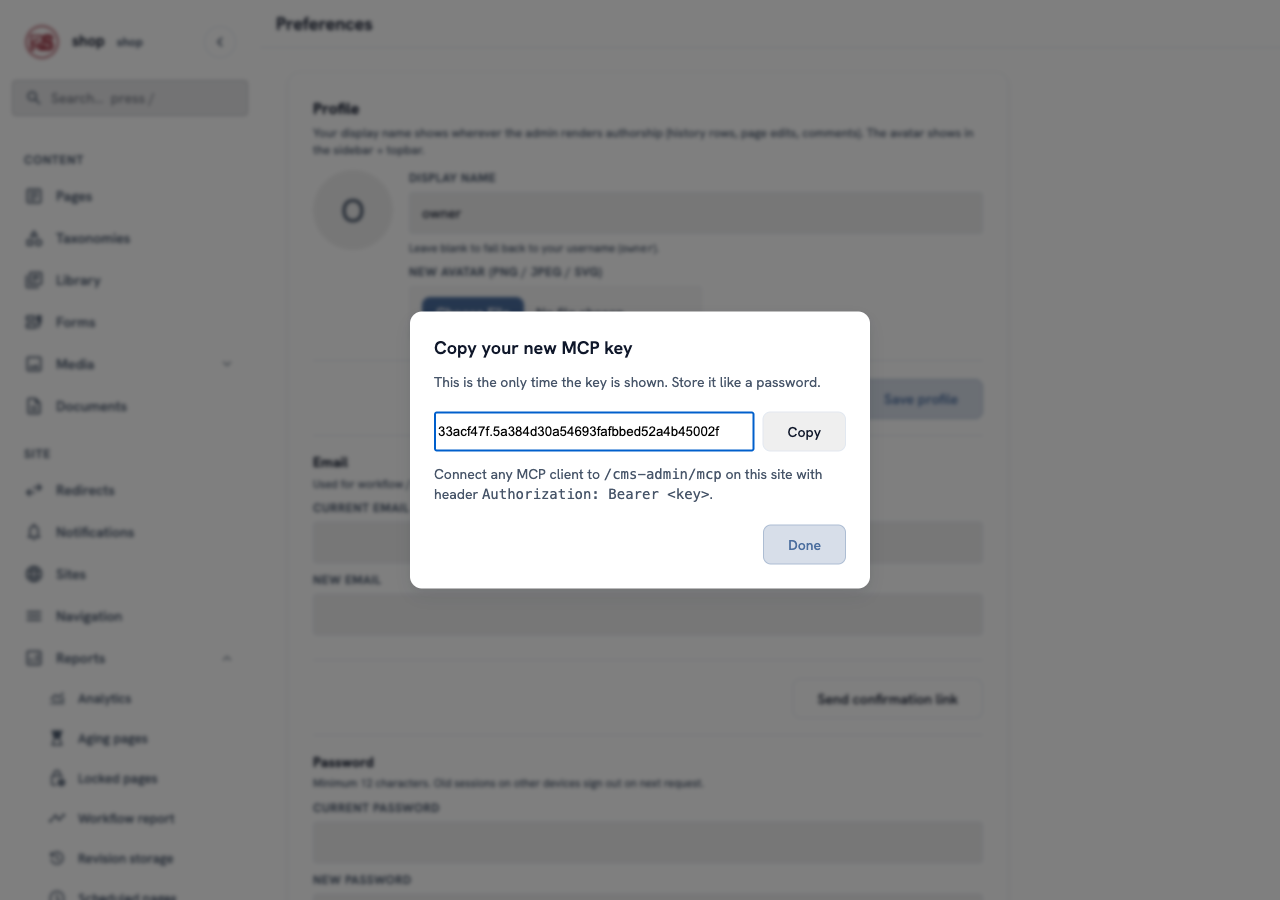
The window also says where the assistant connects: /cms-admin/mcp on your site.
3. Connect the assistant
This part is for the person who sets up the assistant.
Every MCP client has a settings file or a settings screen for servers. Add one server with:
- the address
https://your-site.example/cms-admin/mcp(for the example shop:http://shop.localhost:8080/cms-admin/mcp), - the header
Authorization: Bearer <your key>.
Many clients read a JSON file in this shape:
{
  "mcpServers": {
    "clay-and-kiln": {
      "type": "http",
      "url": "http://shop.localhost:8080/cms-admin/mcp",
      "headers": { "Authorization": "Bearer 33acf47f.5a38…" }
    }
  }
}
The server speaks MCP over HTTP (JSON-RPC requests, with an event stream for clients that open one). A client that can only start local programs can reach it through an HTTP-to-stdio bridge such as mcp-remote:
npx mcp-remote http://shop.localhost:8080/cms-admin/mcp --header "Authorization: Bearer $RCMS_KEY"
When it works, the assistant lists the tools it got. With the Product writer key that is 13 tools — list_page_types, search_pages, get_page, create_page, update_page, upload_media, attach_media and the other read tools — and no publish_page.
4. Ask for a product
Now talk to the assistant as you would to a helper. For example:
Add a new product under Shop: "Speckled serving plate", €64, satin white glaze, use the white serving bowl photo. Write two short sentences about it. Keep it a draft.
The assistant first reads your page types, so it knows that a Product has a price, a glaze, a photo and a description and can only live under Shop. Then it creates the page. In the protocol, that is one create_page call:
{
  "name": "create_page",
  "arguments": {
    "page_type": "product",
    "parent_id": 2,
    "title": "Speckled serving plate",
    "builder": {
      "price": 64,
      "glaze": "Satin white",
      "photo": 14,
      "description": "<p>A wide, flat plate for bread, cheese or fruit. The glaze has small dark speckles from iron in the clay.</p>"
    }
  }
}
The answer says the page is "status": "draft".
5. Check the draft and publish it
In the admin, open Pages → Shop. Speckled serving plate is there, as a Draft. Open it: the price, glaze, photo and text are filled in, and the preview shows the page in your design.
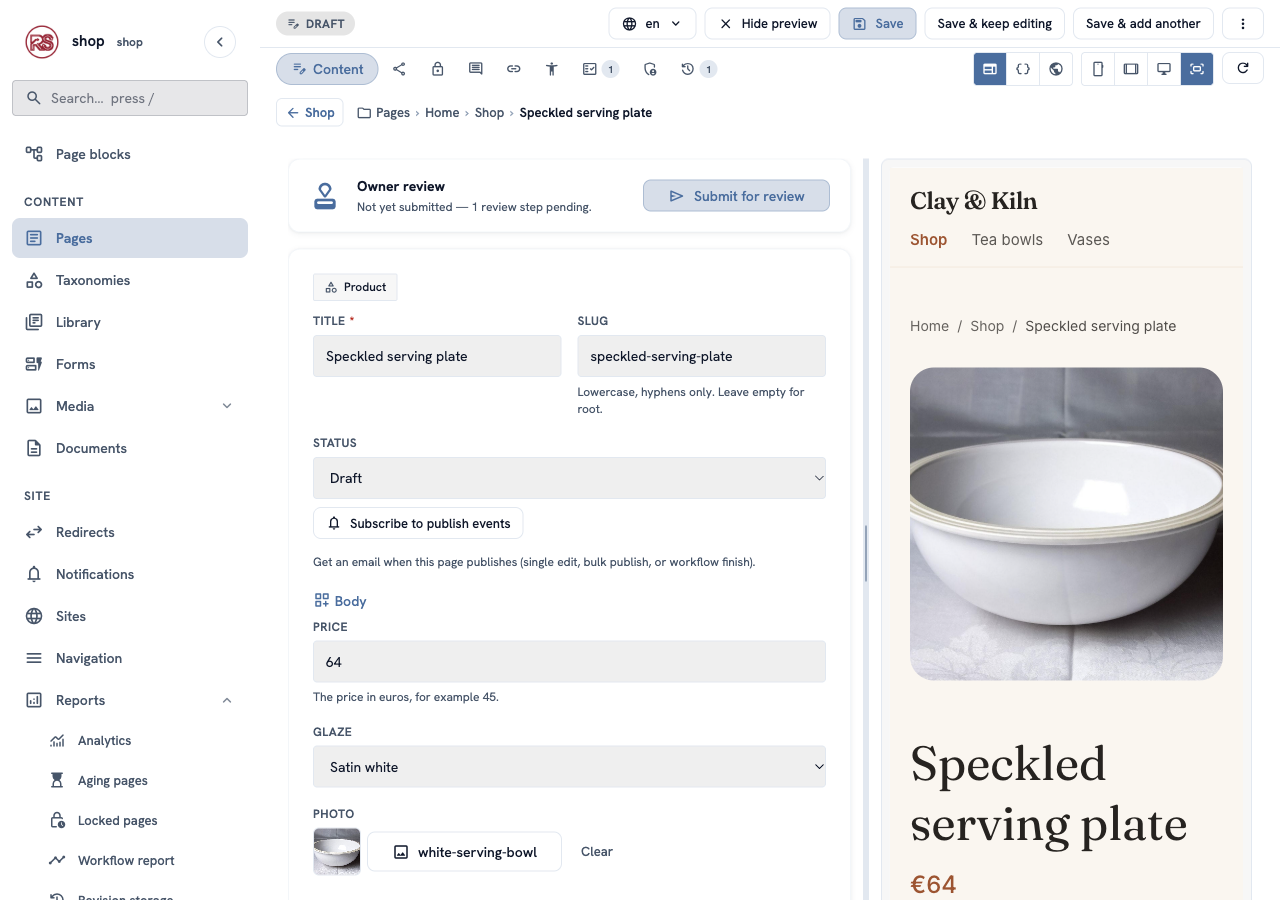
Change what you don't like. When it is right, publish it as in chapter 7 — or send it for review, if your shop uses the workflow from chapter 14.
If you ask this assistant to publish, it cannot: the CMS answers that publish_page is not allowed for this key.
6. Stop a key
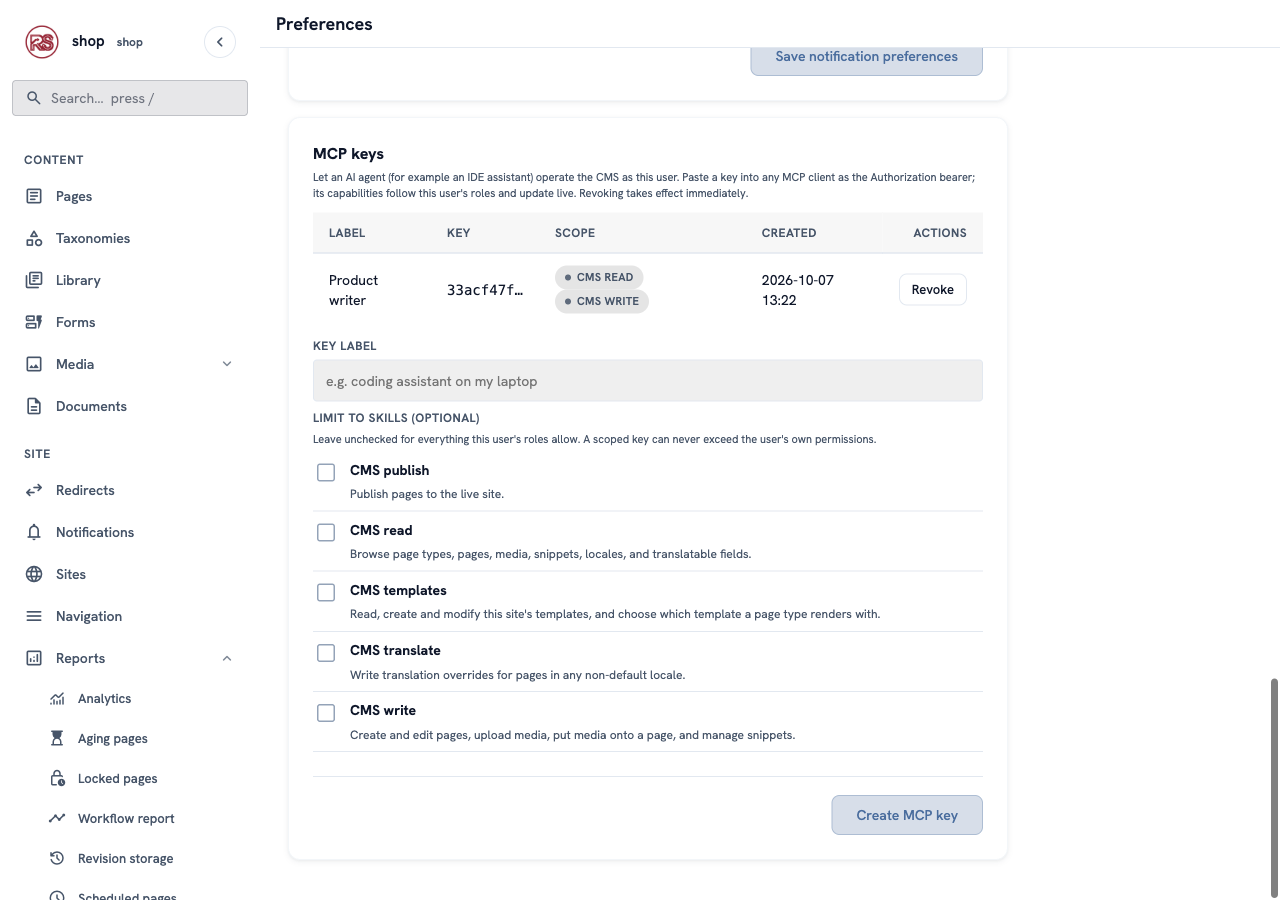
Back in Preferences → MCP keys, each key has a row with its label, the start of the key and its skills. Click Revoke to stop it. The next request with that key gets "invalid token" — at once, no waiting.
For administrators: under Users, open a person and you find the same MCP keys card. You can make or revoke keys for that person there — for example, when somebody leaves the team.
What each skill allows
| Skill | Tools | Needs the permission |
|---|---|---|
| CMS read | list_page_types, search_pages, get_page, list_locales, list_media, list_collections, list_snippets, list_translatable_fields | view pages |
| CMS write | create_page, update_page, upload_media, attach_media, upsert_snippet | add or change pages |
| CMS publish | publish_page | publish pages |
| CMS templates | list_templates, read_template, write_template, validate_template, set_page_type_template | edit templates |
| CMS translate | upsert_translations | change pages |
A skill only works when the key's owner has its permission. So a key made by an Editor without the publish permission cannot publish, even with CMS publish ticked. If you take a permission away from a person, their keys lose it on the next request.
Check it worked
- The key's row in MCP keys shows CMS read and CMS write.
- The assistant lists 13 tools, without
publish_page. - The new product is in Pages as a Draft, and its history shows your name.
- After Revoke, the assistant gets "invalid token".
If something goes wrong
| Problem | What to do |
|---|---|
| The assistant says "missing or invalid agent token". | The key is wrong, revoked, or has no Bearer before it. Make a new key. |
| The assistant has fewer tools than expected. | The key is limited to some skills, or you lack a permission (see the table). |
| "tool … is not authorized for this agent". | The key has no skill with that tool. That is the point — make another key if the job needs it. |
| Every request fails with a CSRF error. | The host app must exempt /cms-admin/mcp from CSRF (CsrfConfig::exempt_prefix(rustango_cms::mcp::MCP_PREFIX)) — the example shop does. |
| The page lands in the wrong place, or is refused. | The page type's parent rules apply to the assistant too. A Product can only be under Shop. |
Next
Back to the list of chapters.