Work as a team
Goal: let a helper, Mia, add products to the shop, and check each product yourself before visitors see it.
Who this is for: shop owners and editors. You do not need any technical knowledge.
Time: about 30 minutes.
This is chapter 14 of Build a ceramics shop, step by step.
Before you start
- You did chapters 1 to 8. The Product page type is from chapter 5.
- You can see Management → Users and Utilities → Workflows in the menu on the left. If you cannot, ask the person who manages your site.
Words you will see
| Word | What it means |
|---|---|
| Workflow | The steps a page goes through before it is published. Here there is one step: the owner checks it. |
| Step | One check in a workflow. People with the step's role can approve or reject the page. |
| Submit for review | The author says "the page is ready, please check it". |
| Reject | The reviewer sends the page back to the author, with a note that says what to change. |
| Approve | The reviewer says "yes". After the last step, the page is published. |
How it works
- You make a workflow, Owner review, with one step.
- You connect it to the Product page type. From then on, a product goes live only after you approve it.
- Mia writes a product and clicks Submit for review.
- You approve it — or reject it with a note. Mia fixes it and submits it again.
- Later, when Mia changes a product that is already live, visitors keep seeing the old version until you approve the change.
Steps
1. Make the workflow
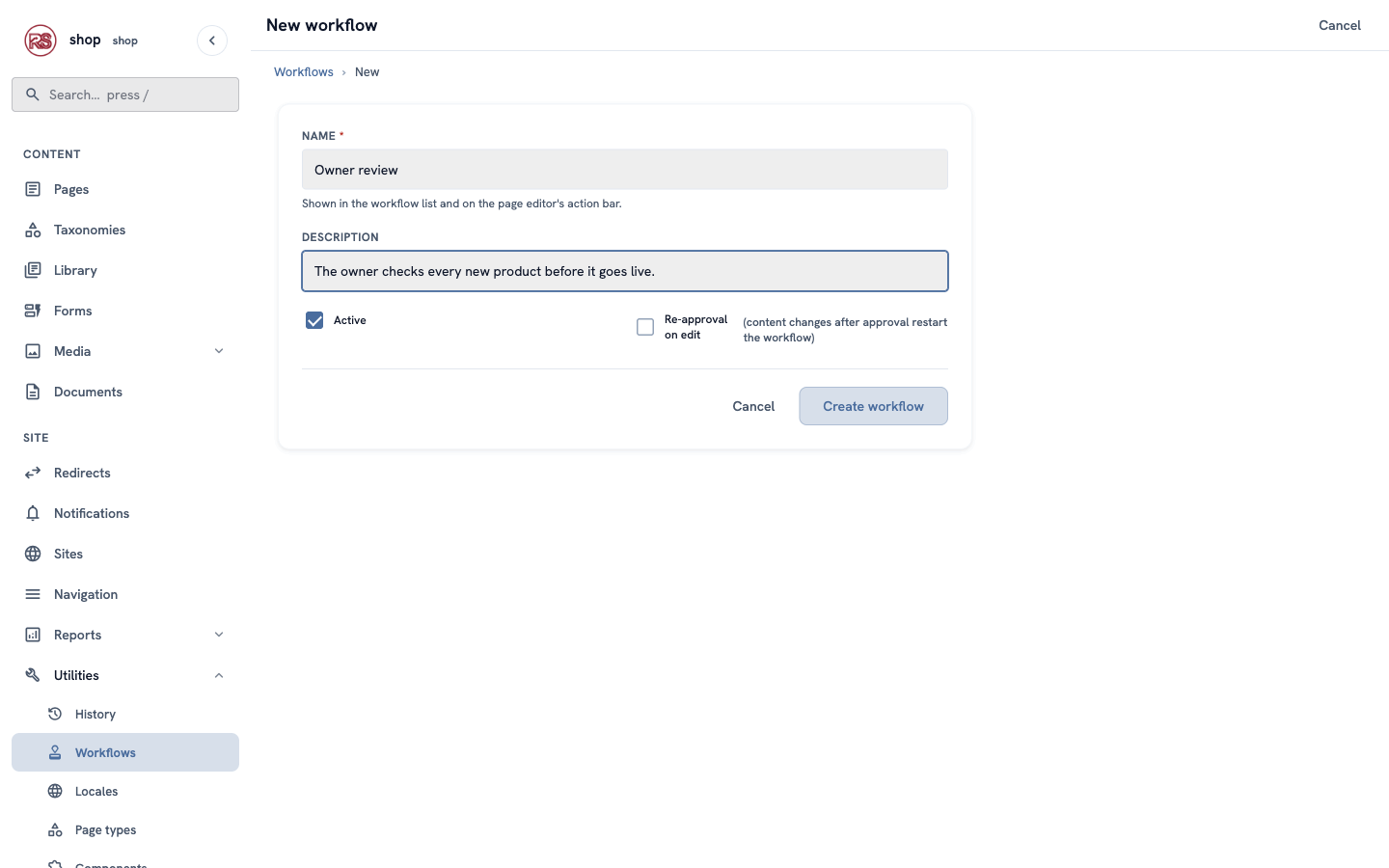
- In the menu on the left, open Utilities → Workflows and click + New workflow.
- Name:
Owner review. - Description:
The owner checks every new product before it goes live. - Keep Active ticked. Leave Re-approval on edit unticked for now — you turn it on in step 7.
- Click Create workflow.
2. Add the review step
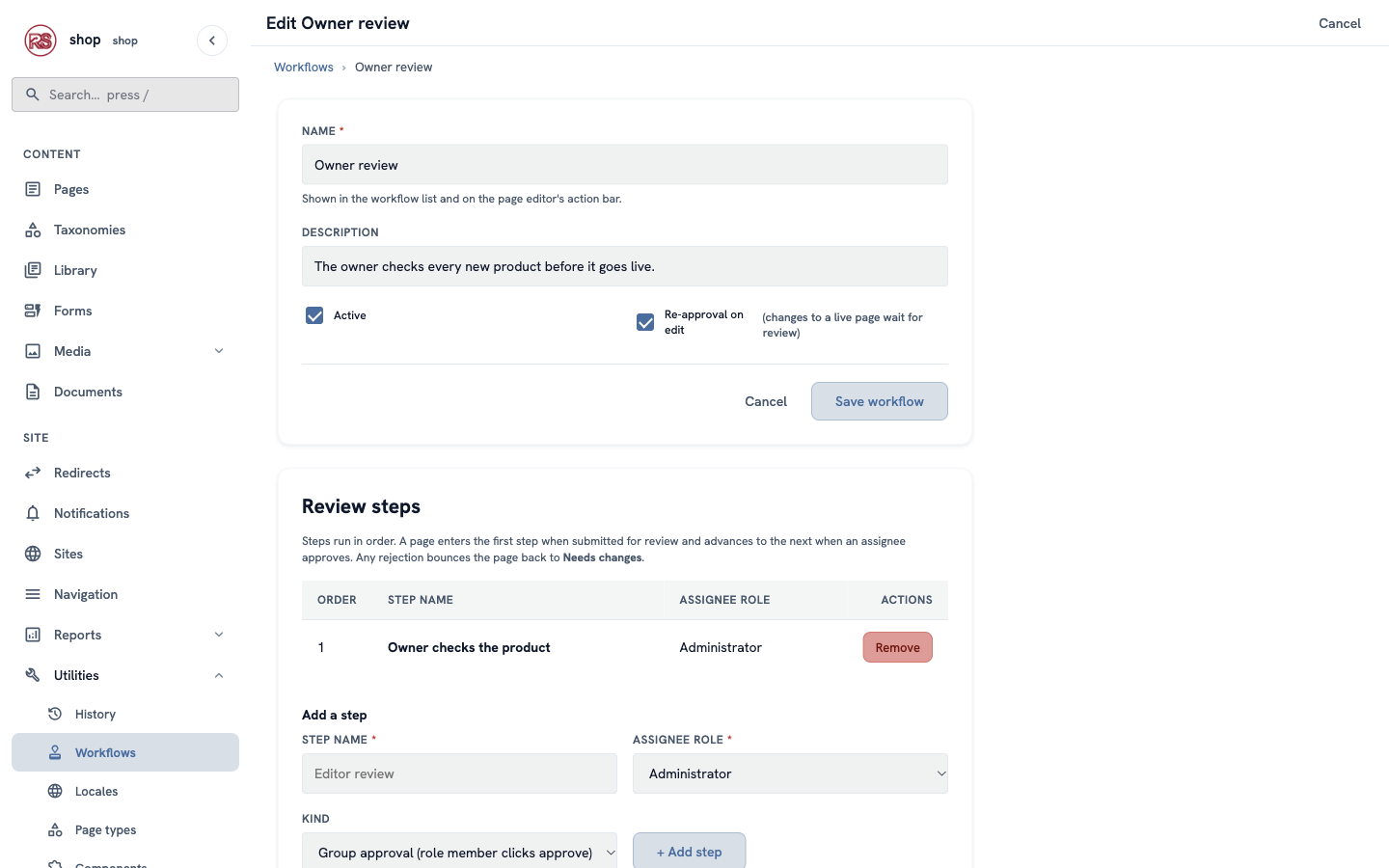
The workflow opens again, with Review steps under it.
- Under Add a step, Step name:
Owner checks the product. - Assignee role: choose Administrator. People with this role can approve. You, as the owner, can always approve.
- Keep Kind as Group approval — a person clicks Approve.
- Click + Add step.
More steps? Add them in the order they happen, for example
Text checkand thenOwner checks the product. A page goes through them one by one.
3. Connect it to the Product page type
- Open Utilities → Page types. In the row of Product, click Settings.
- Workflow: choose Owner review.
- Click Save.
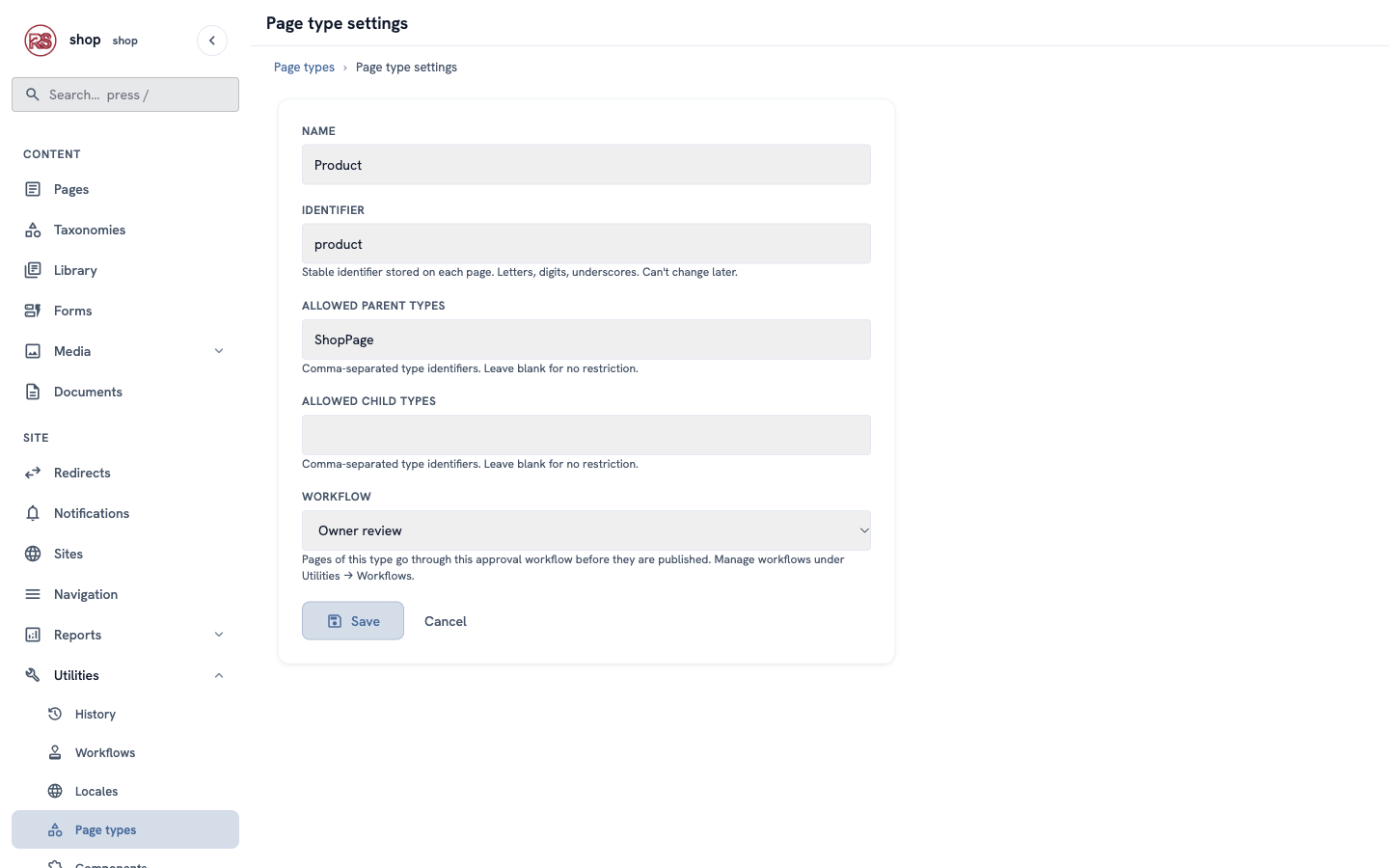
Now a product cannot be published directly — only through the review. (You, as the owner, still can. The rule is for your team.)
4. Add Mia
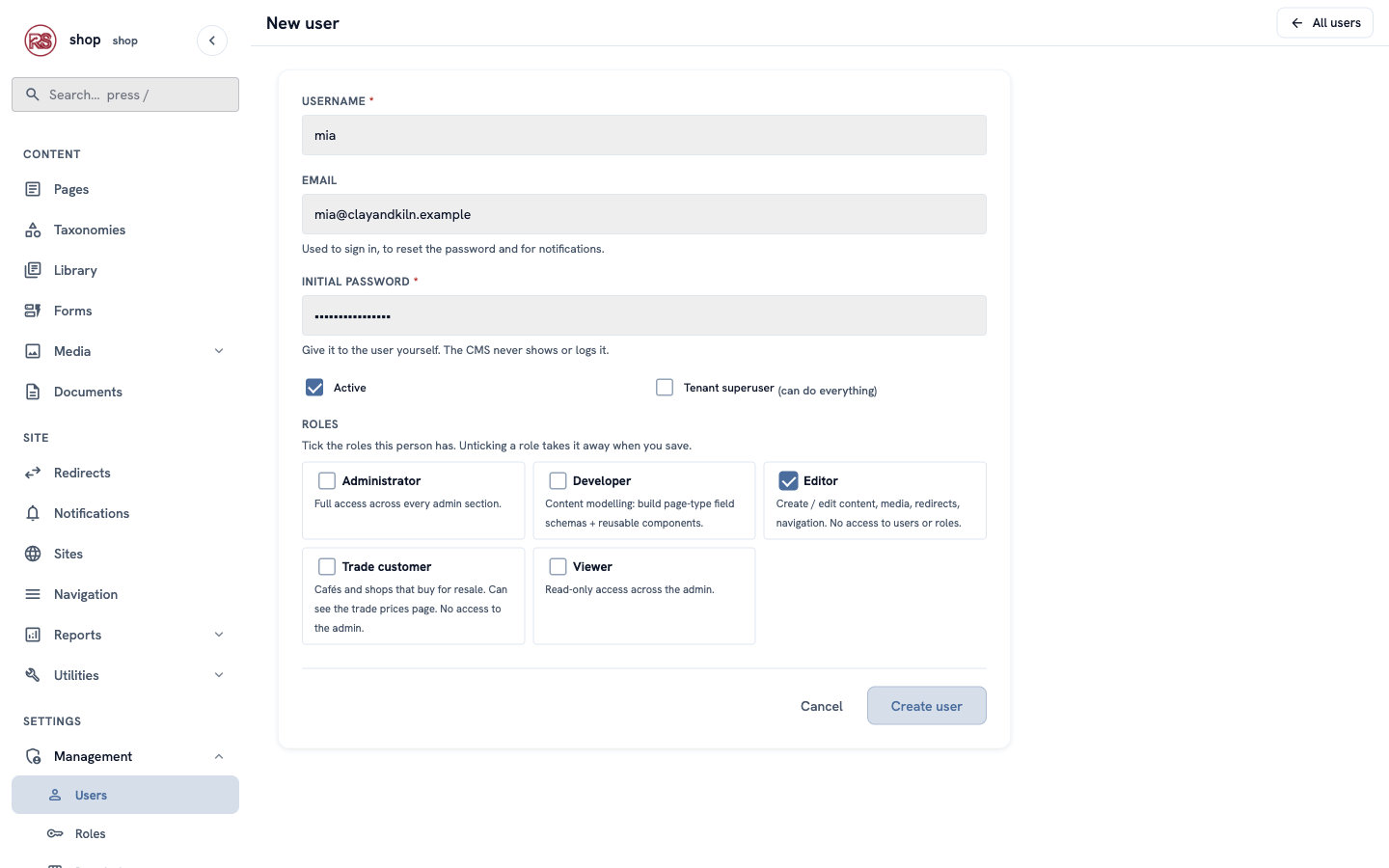
- Open Management → Users and click + New user.
- Username:
mia. Email: her email. Initial password: make one and give it to her. - Under Roles, tick Editor. Editors can write pages, but not manage users. Do not tick Tenant superuser.
- Click Create user.
Mia signs in at /login with her username and password.
5. What Mia does: write a product and submit it
Mia adds a product as in chapter 7: Pages, ⋮ next to Shop, + Child page, Product. She fills in Breakfast set, the price 85, the glaze, a photo and a description, and saves.
At the top of the editor she sees the Owner review bar. The Status list has no Published: under the field it says that pages of this type go live after review.
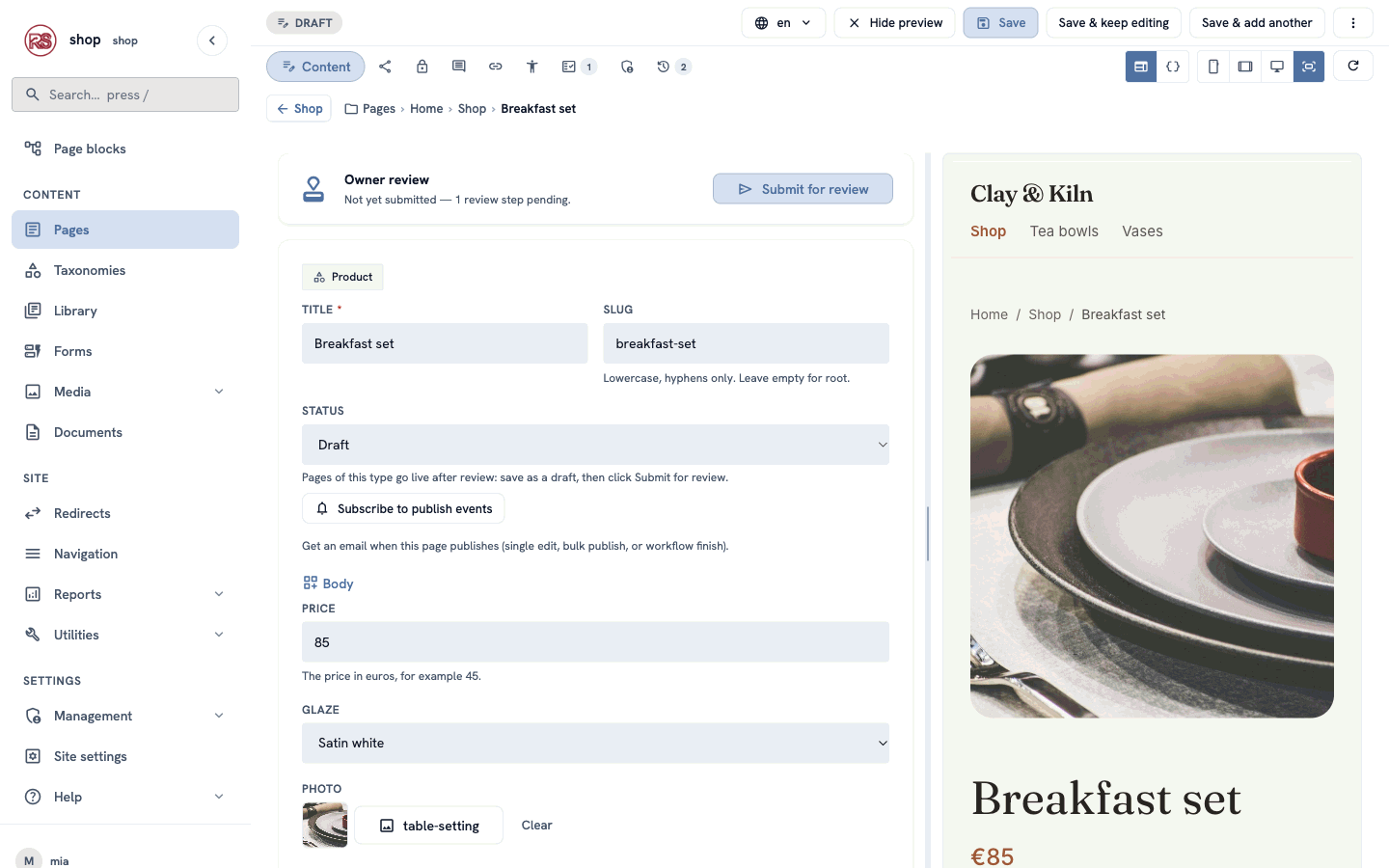
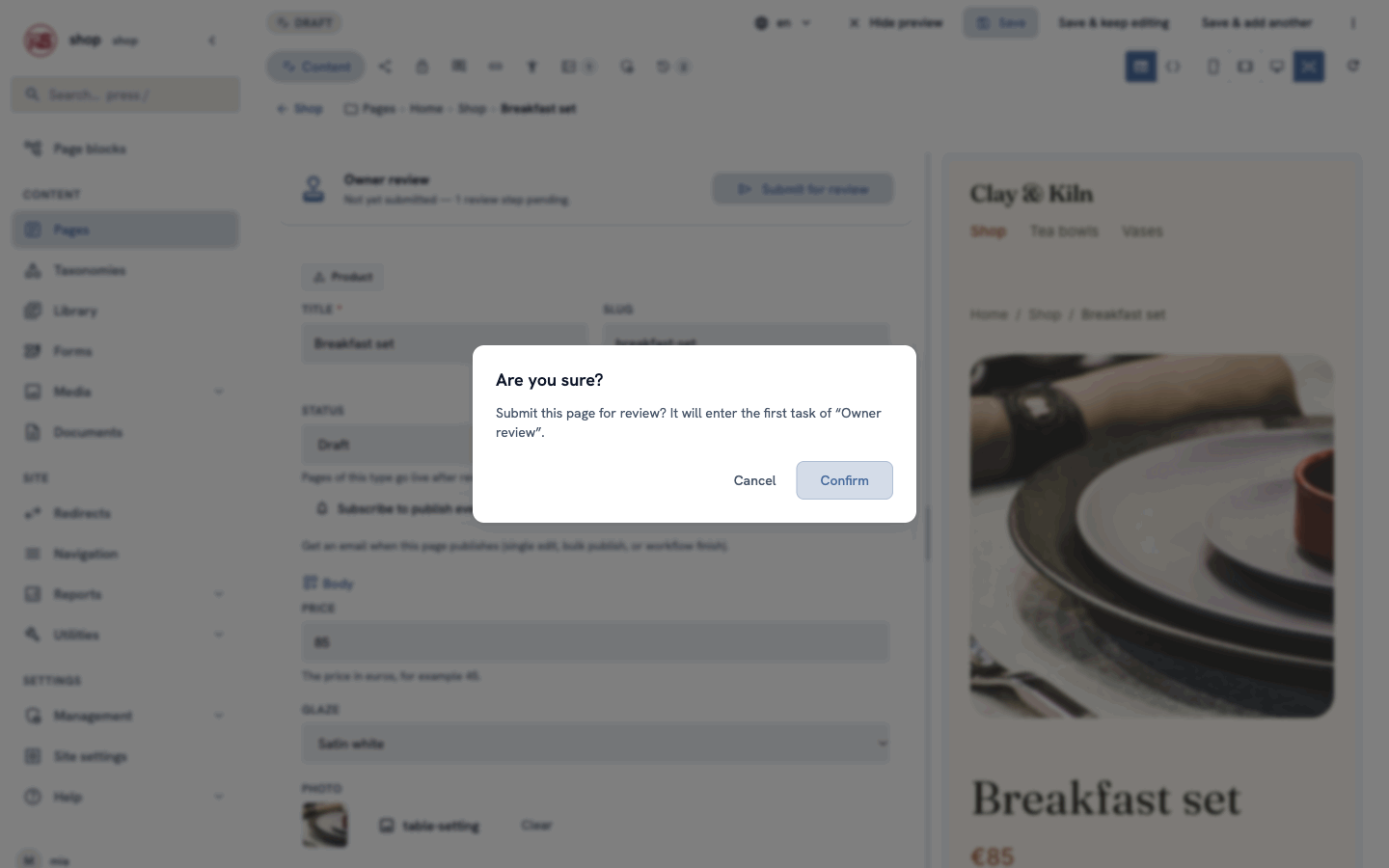
She clicks Submit for review and then Confirm:
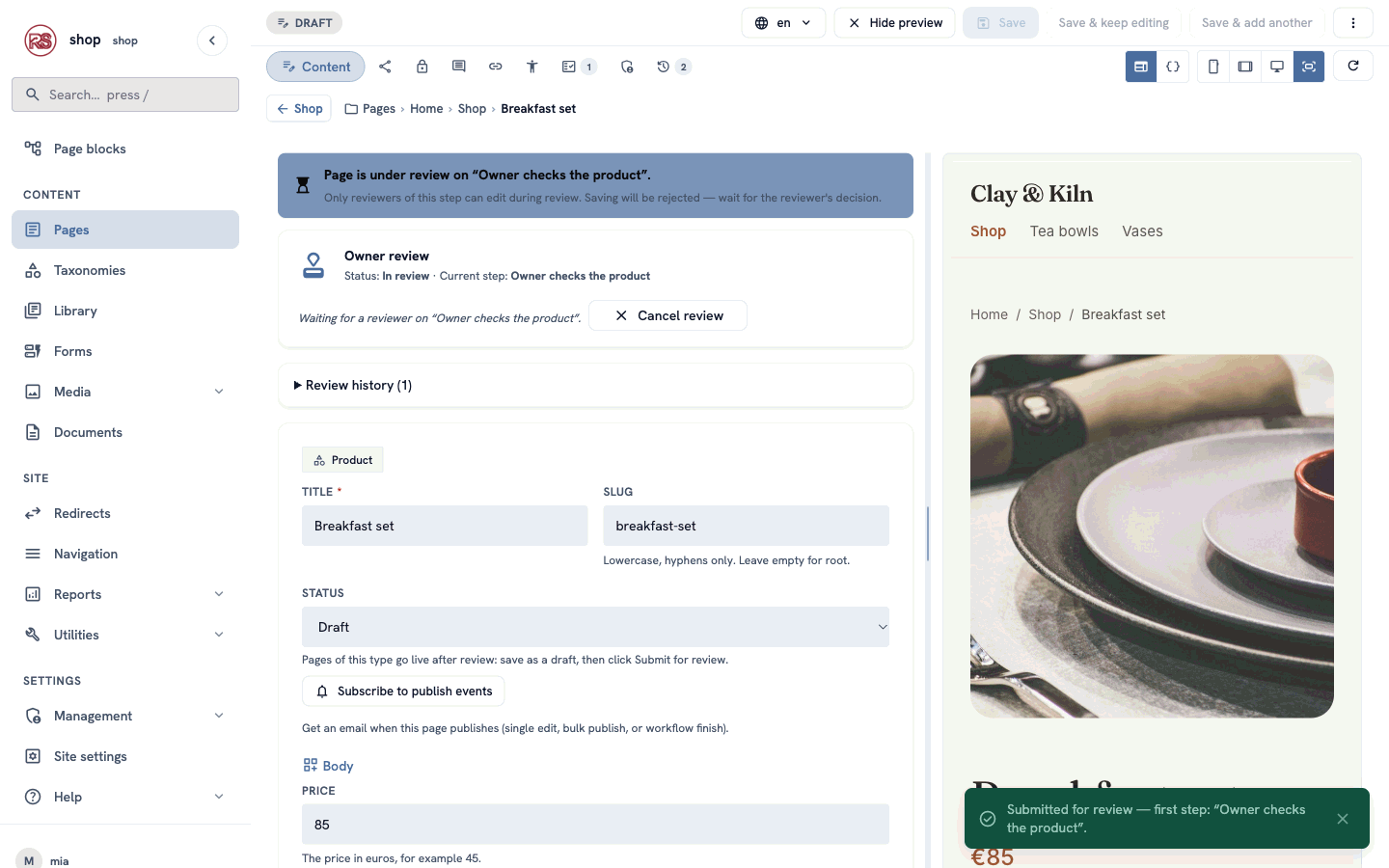
The page is now In review. Mia cannot change it while you check it: the save buttons are grey, and a banner says why.
6. What you do: check it
Your Dashboard shows the pages waiting for your review:
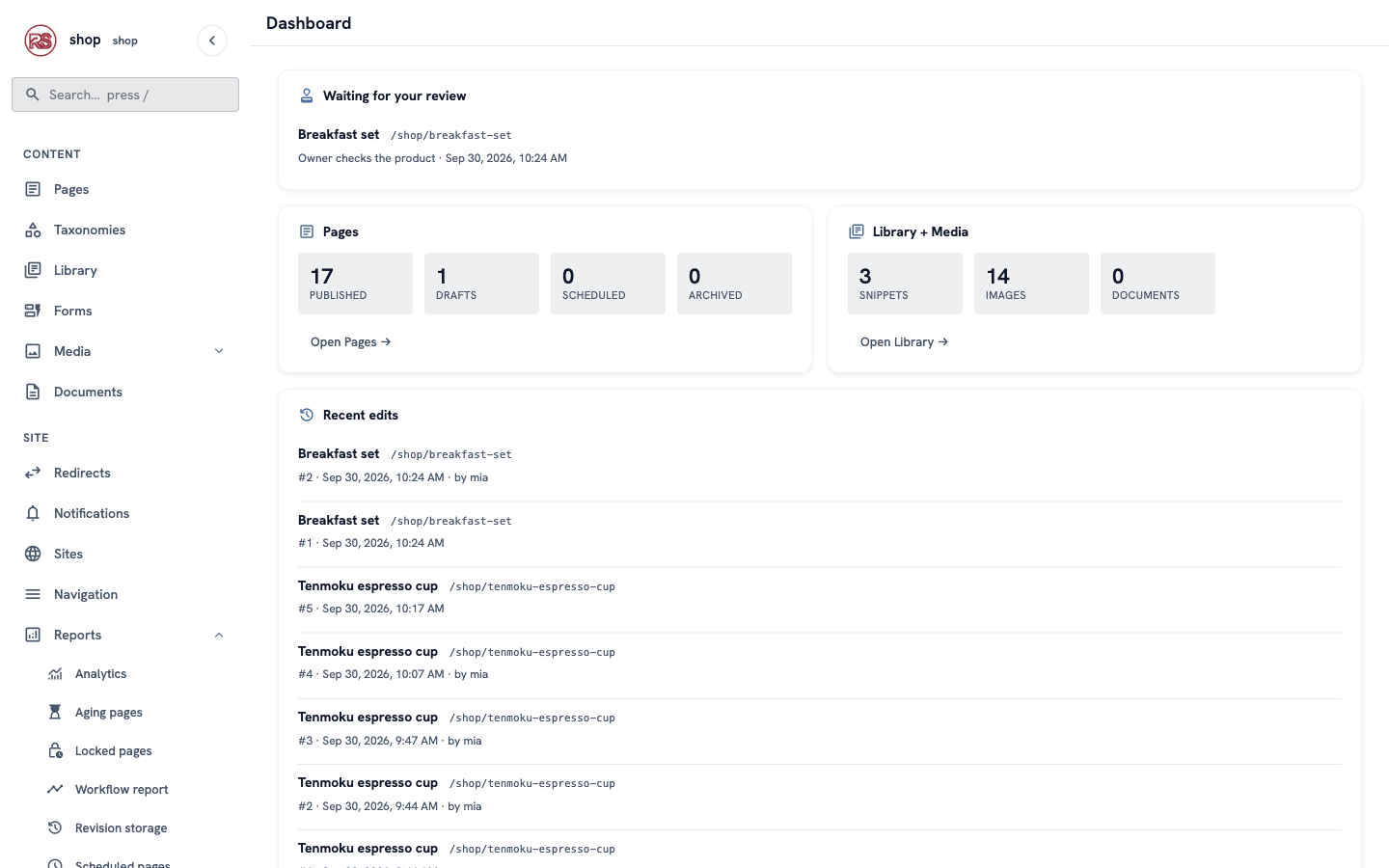
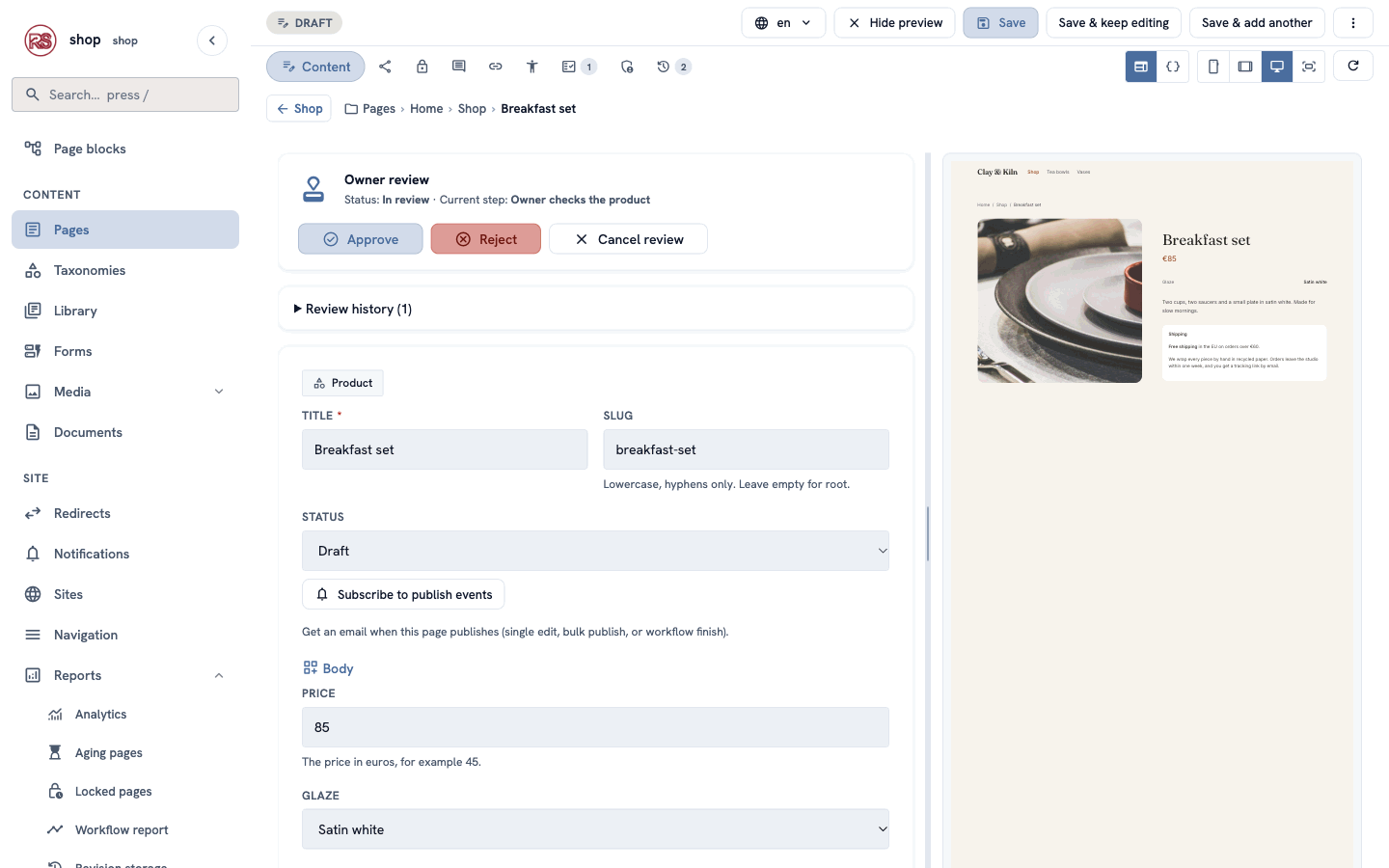
Click Breakfast set. The bar has Approve, Reject and Cancel review. The preview on the right shows the page as visitors will see it.
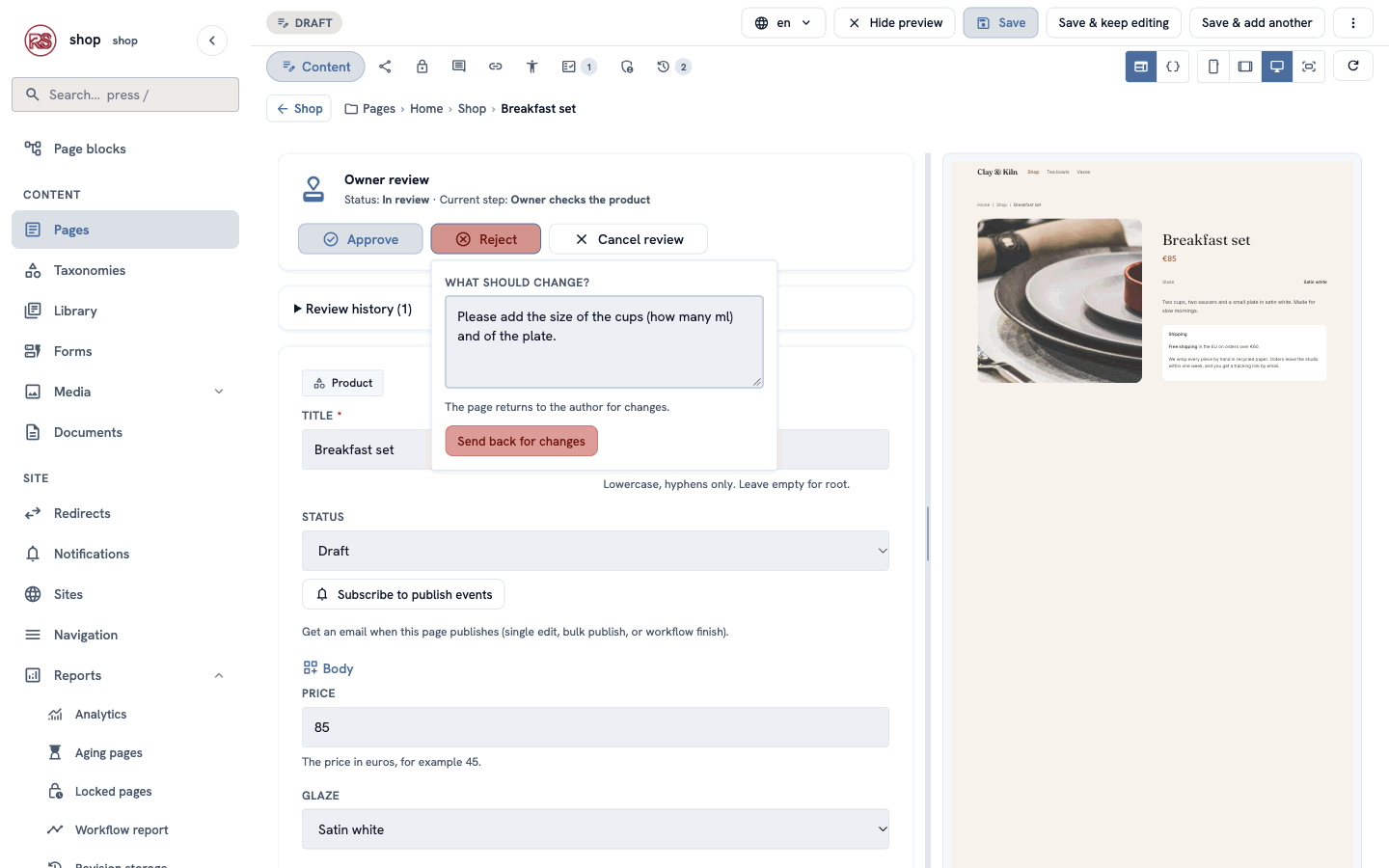
Something is missing? Click Reject, write what should change, and click Send back for changes:
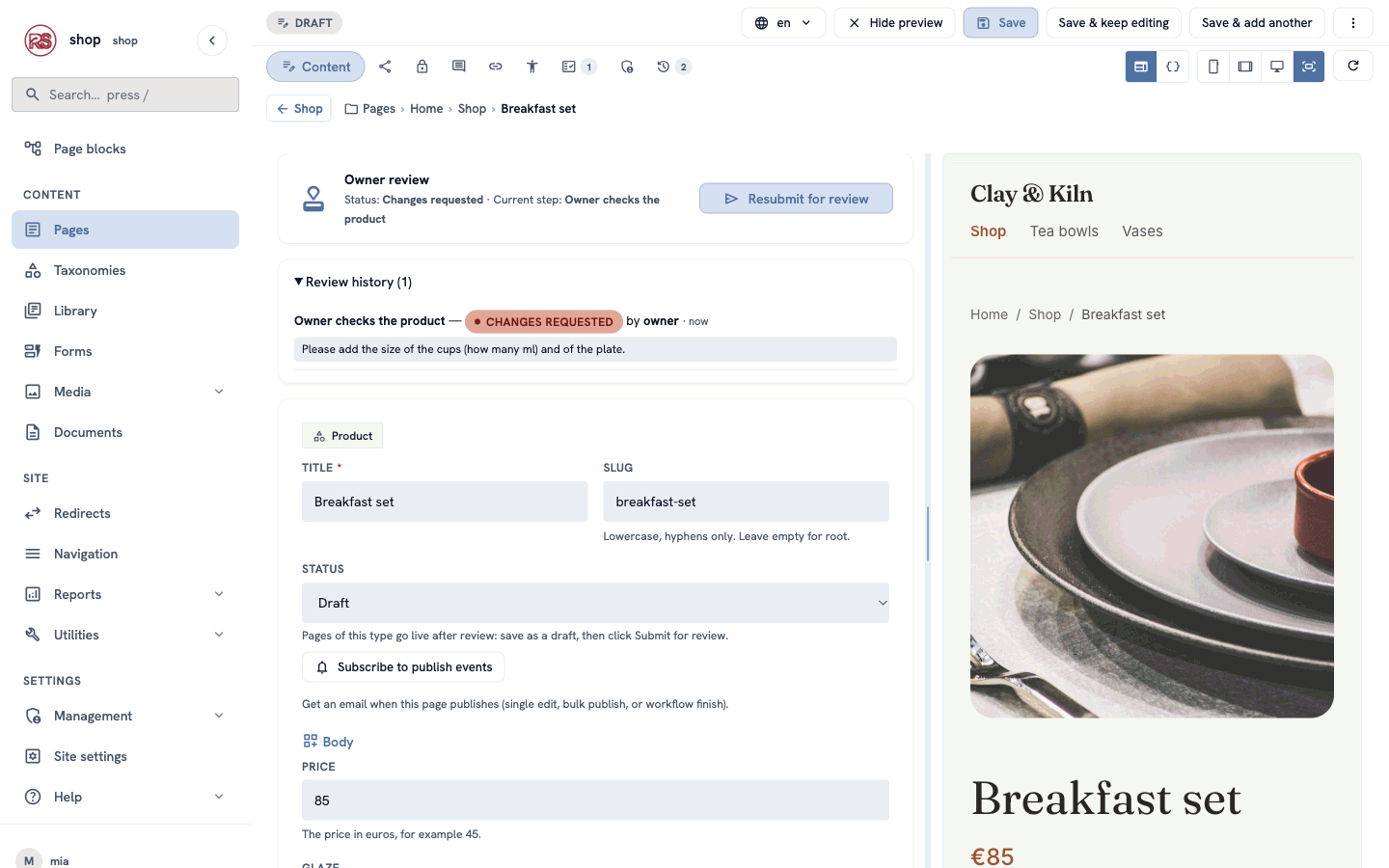
Mia sees Changes requested and your note under Review history. She fixes the page, saves it and clicks Resubmit for review:
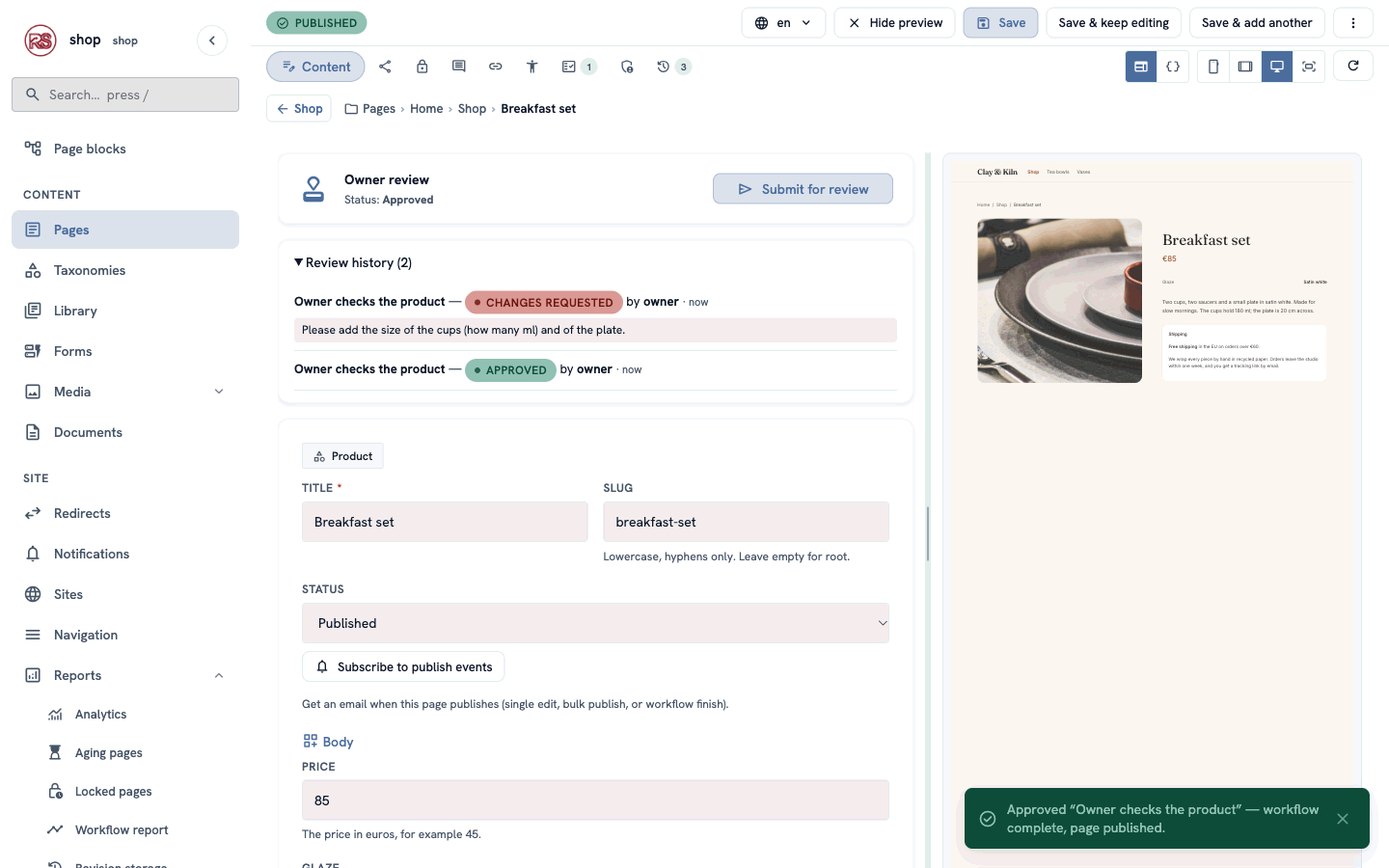
Everything is fine? Click Approve and Confirm. The page is published at once, and the history shows each round:
7. Check changes to live products too
A product is live. Mia wants to change the price. Should the new price go live at once? If you want to check changes too:
- Open Utilities → Workflows → Owner review.
- Tick Re-approval on edit and click Save workflow.
Now, when Mia saves a live product, the change waits. Visitors still see the old version. The review starts by itself:
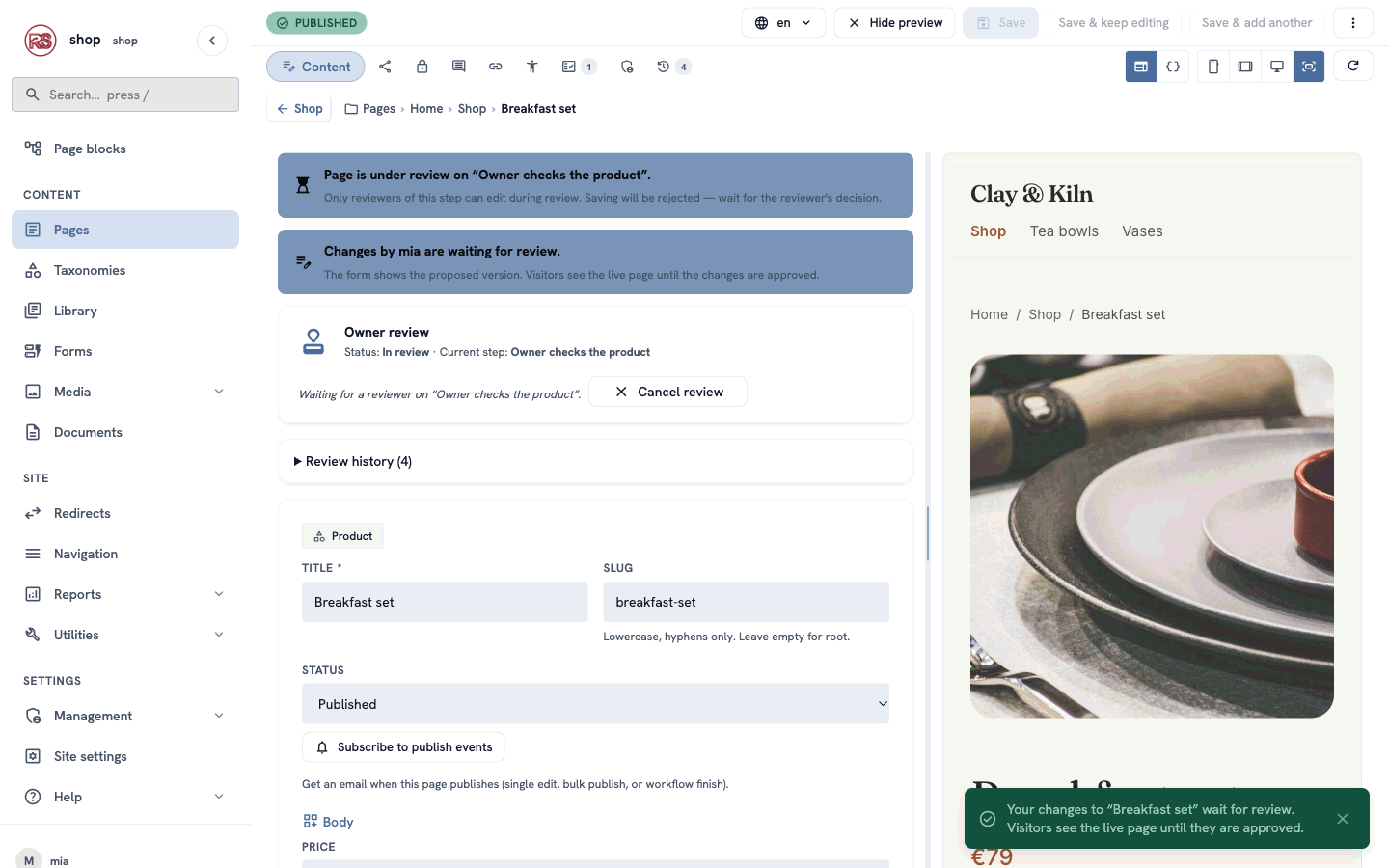
When you open the product, a banner says whose changes wait. The form shows the new version (here the price 79); the preview still shows the live page (€85):
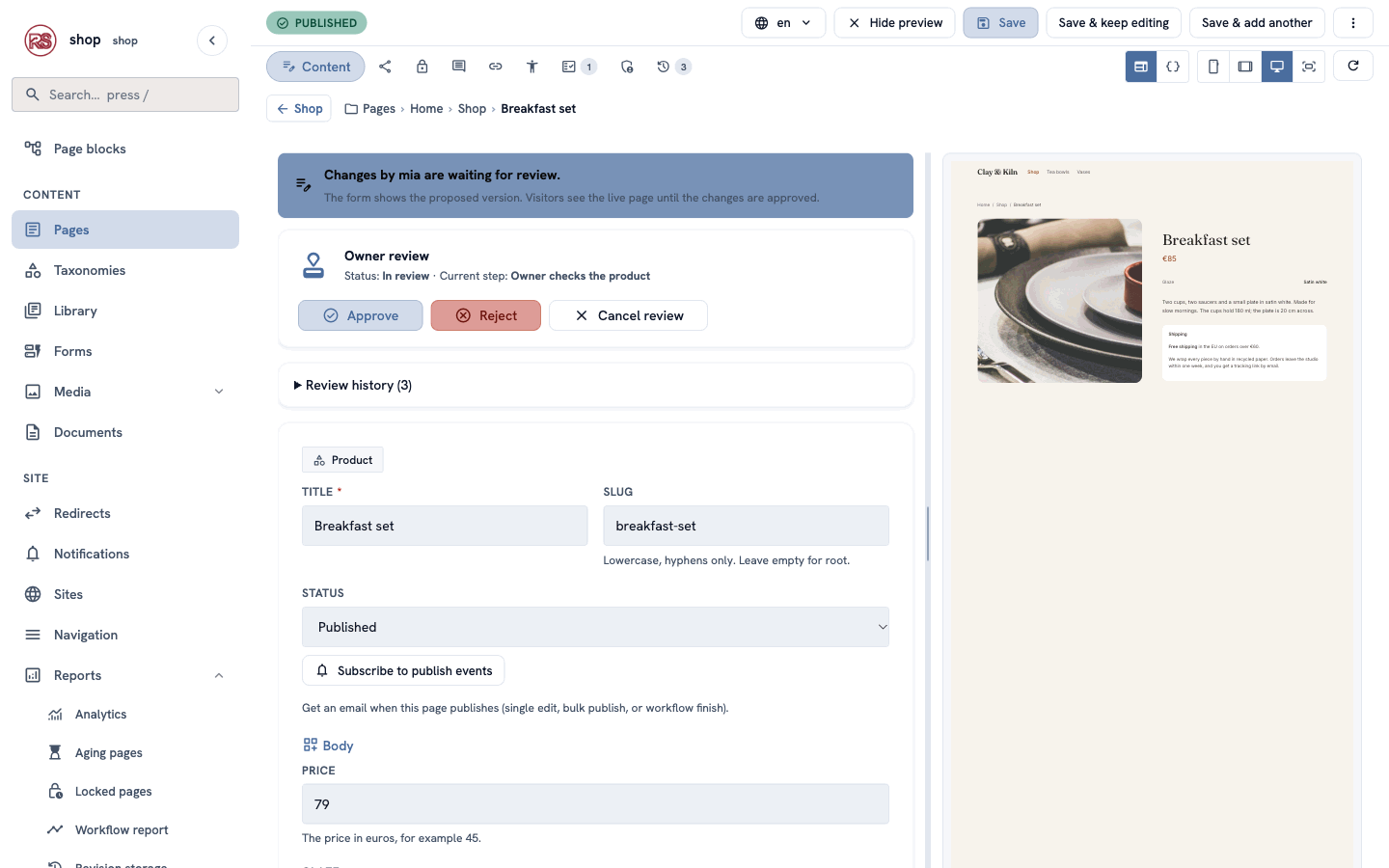
- Approve puts the change live.
- Reject sends it back to Mia, with your note. The live page does not change.
- Cancel review throws the change away. The live page does not change.
Check it worked
- Signed in as Mia, a new product has no Published in the Status list, and it goes live only after you approve it.
- Your dashboard lists the pages waiting for your review.
- With Re-approval on edit on, Mia's change to a live product does not show on the site until you approve it.
If something goes wrong
| Problem | What to do |
|---|---|
| Mia can still publish directly. | Open Utilities → Page types → Product → Settings: Workflow must be Owner review. Check that the workflow is Active and has a step. And check that Mia is not a Tenant superuser. |
| "Couldn't save — page is under review". | The page waits for a reviewer. Wait for the decision, or ask the reviewer to click Reject or Cancel review. |
| Nobody sees Approve. | Only people with the step's role (here Administrator) and superusers can approve. Give the role to the reviewer under Management → Users. |
| Reject does nothing. | Write a note first: the reviewer must say what should change. |
| You cannot delete a workflow. | A page type still uses it. Choose another workflow (or none) in the page type's Settings first. |
For developers
- Page types from code name their workflow with
#[page_type(workflow = "Owner review")]on the struct (orworkflow_slug()inPageTypeOverrides). Page types made in the admin choose it on their Settings screen, as in step 3. - One write path. The admin, autosave and the MCP tools all save through the same code, so none of them can publish around the review. An MCP
update_pageon a live page with re-approval returns"held_for_review": true. - Held changes are stored in
cms_page_pending_change(one row per page) until the review ends. Templates always render the live page.
Next
A sale: publish a sale page at a set time and take it down again, without being there.