A sale
Goal: prepare a Winter sale page now, and let the site publish it on 1 December at 9:00 and take it down on 8 December at 18:00 — without you being there.
Who this is for: shop owners and editors. You do not need any technical knowledge.
Time: about 15 minutes.
This is chapter 15 of Build a ceramics shop, step by step.
Before you start
Words you will see
| Word | What it means |
|---|---|
| Go live at | The moment the page appears on the site. |
| Expire at | The moment the page disappears from the site again. |
| Scheduled | The page is ready and waits for its Go live at time. Visitors can't see it yet. |
| Expired | The page was taken down at its Expire at time. You can still edit it and use it again. |
| Timezone | The clock the times are in. The admin shows which one it uses. |
How it works
- You write the sale page and save it as a draft.
- You set Go live at and Expire at. The page becomes Scheduled.
- At the Go live at time the page appears on the site: on its own address, as a card on the home page and in the footer menu.
- At the Expire at time it disappears again. The page stays in the admin, ready for the next sale.
You don't have to be signed in at those times. The site checks the clock by itself.
Steps
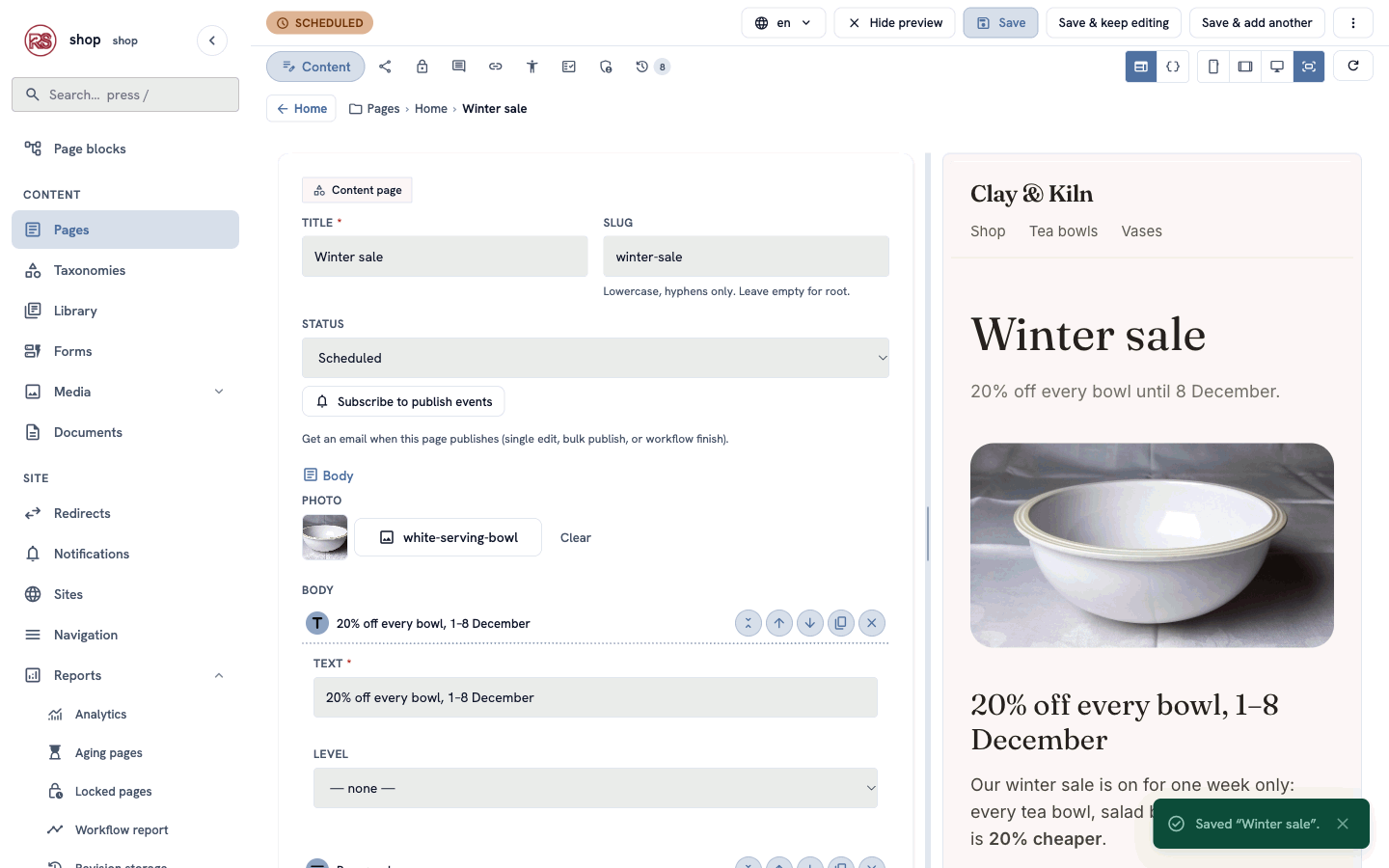
1. Write the sale page
- In the menu on the left, click Pages. In the row of Home, click ⋮, then + Child page.
- Find Content page and click Use this type. Title:
Winter sale. Click Create & keep editing. - Photo: click Choose an image… and choose a photo for the sale (we use the white serving bowl).
- Under Body, add a Heading (
20% off every bowl, 1–8 December) and a Paragraph with the details, for example:
Our winter sale is on for one week only: every tea bowl, salad bowl and serving bowl is **20% cheaper**.

Order with the form on any product page and write **SALE** in the message. We take 20% off the price on your invoice. The sale ends on 8 December at 18:00.
- Click the Promote tab and type a short SEO description:
20% off every bowl until 8 December.The home page shows it on the sale's card. - Leave Status as Draft and click Save & keep editing.
2. Set the times
- Click the Promote tab and scroll to Schedule.
- Go live at:
1 December 2026, 09:00. - Expire at:
8 December 2026, 18:00. - Click Save & keep editing.
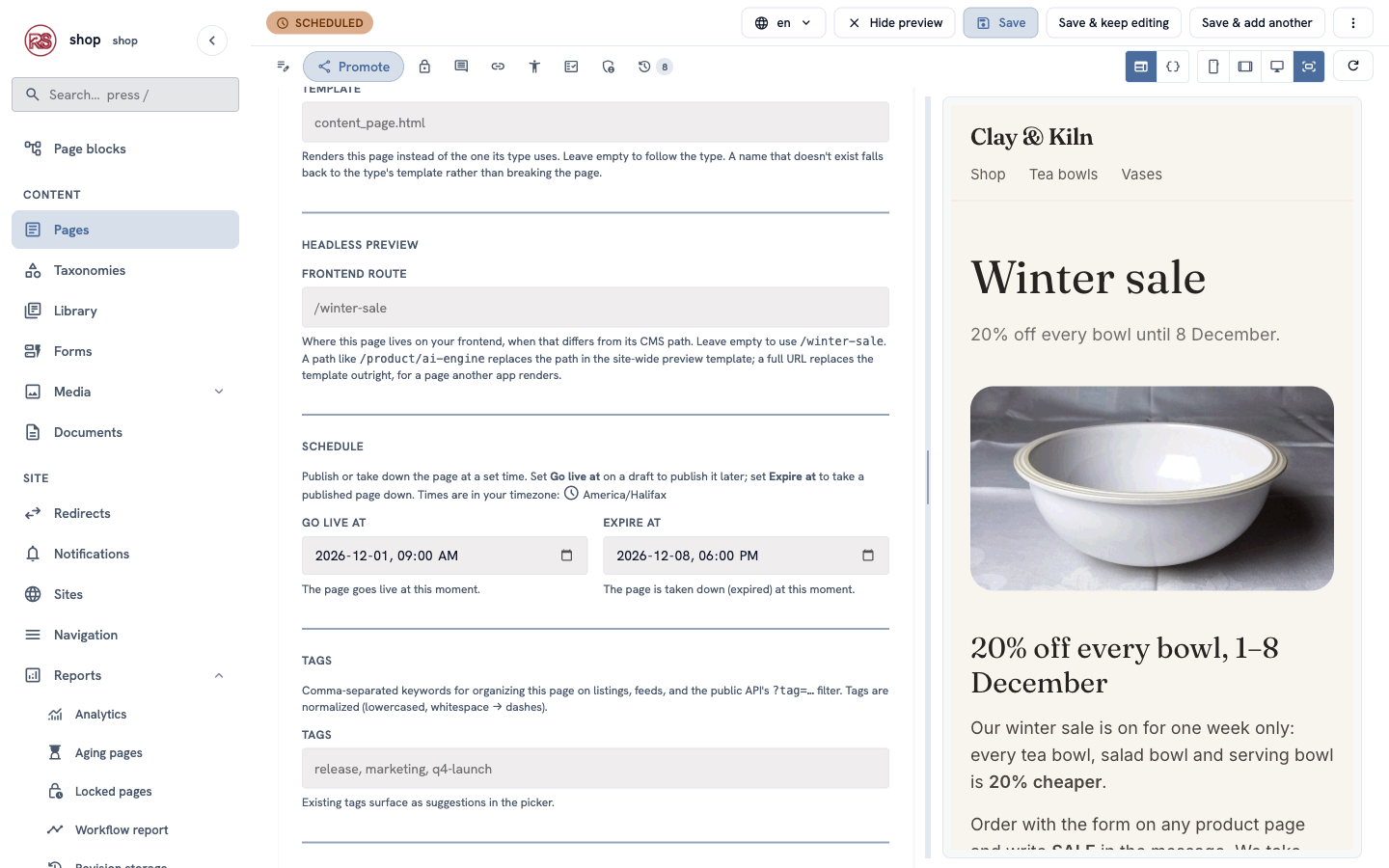
The status at the top changes to Scheduled.
Which clock? Under the Schedule heading the admin says which timezone it uses — normally your computer's. If it is wrong (for example, you plan from a holiday abroad), ask the person who manages your site to set Timezone on your user (Management → Users → Edit).
3. Check the plan
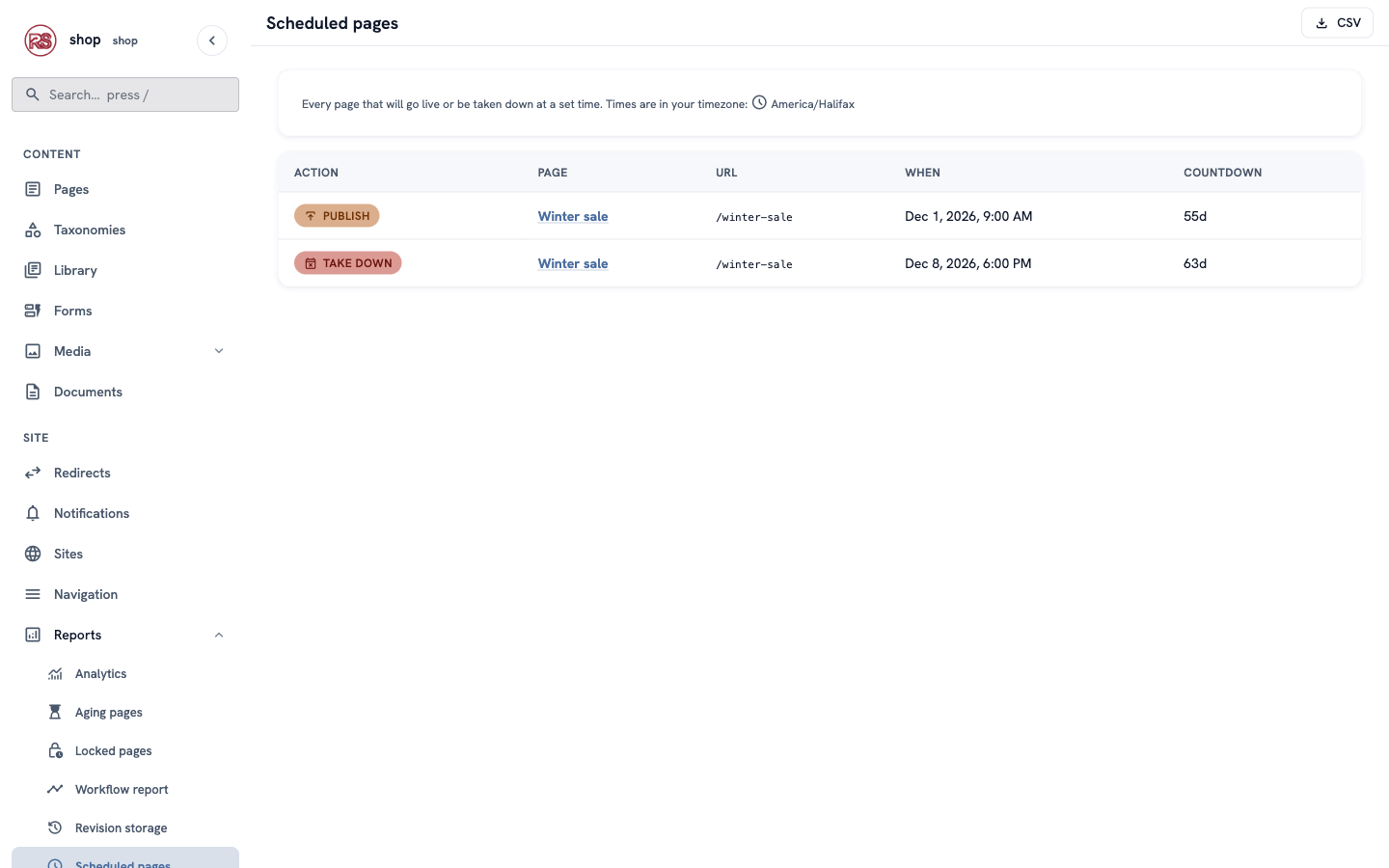
Open Reports → Scheduled pages. Every page that will go live or be taken down at a set time is listed, with the time and a countdown:
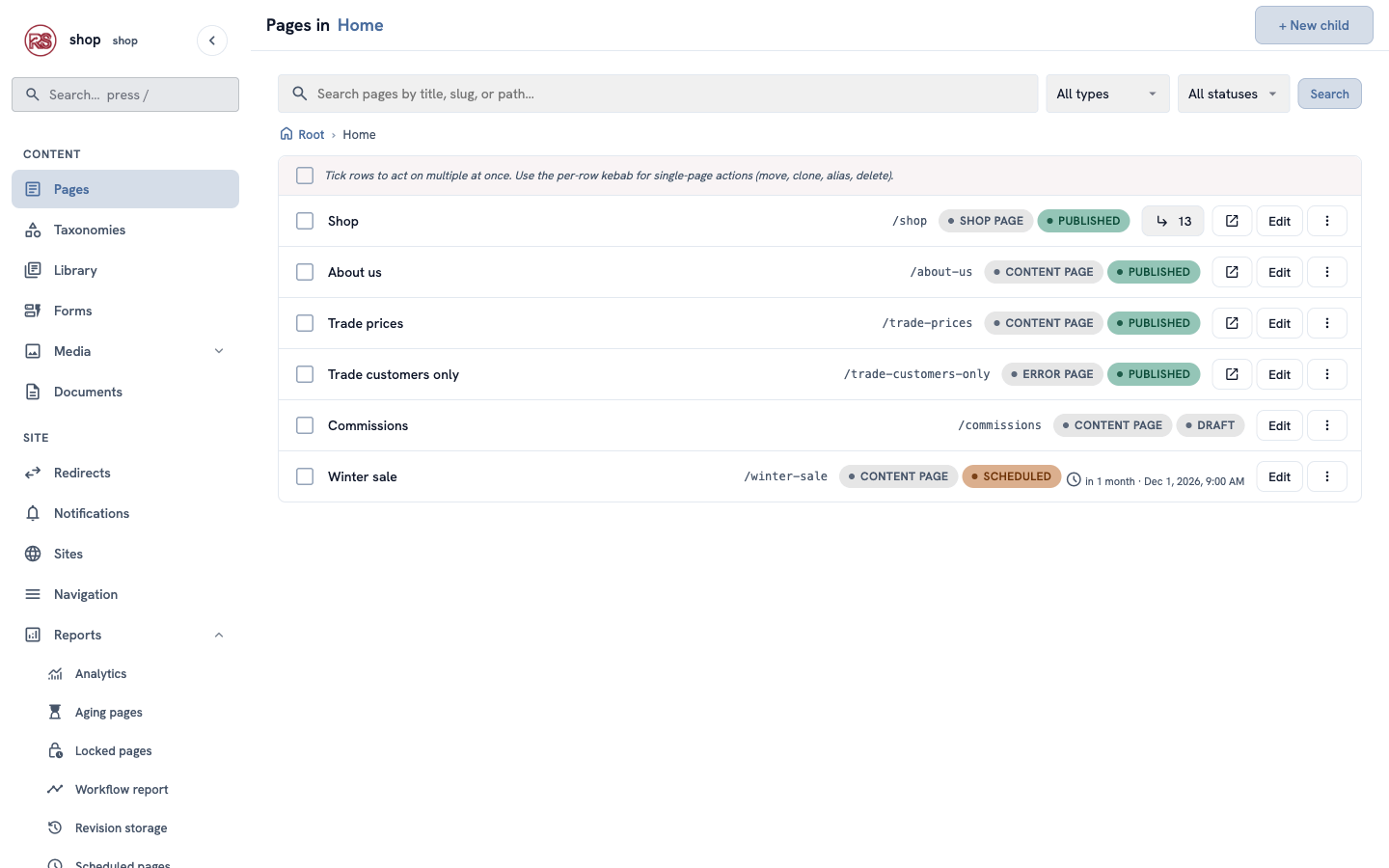
The page list shows it too: Scheduled, with "in 1 month · Dec 1, 2026, 9:00 AM":
Before 1 December, a visitor who types /winter-sale gets "not found", and the sale is not in any menu or list.
4. On 1 December
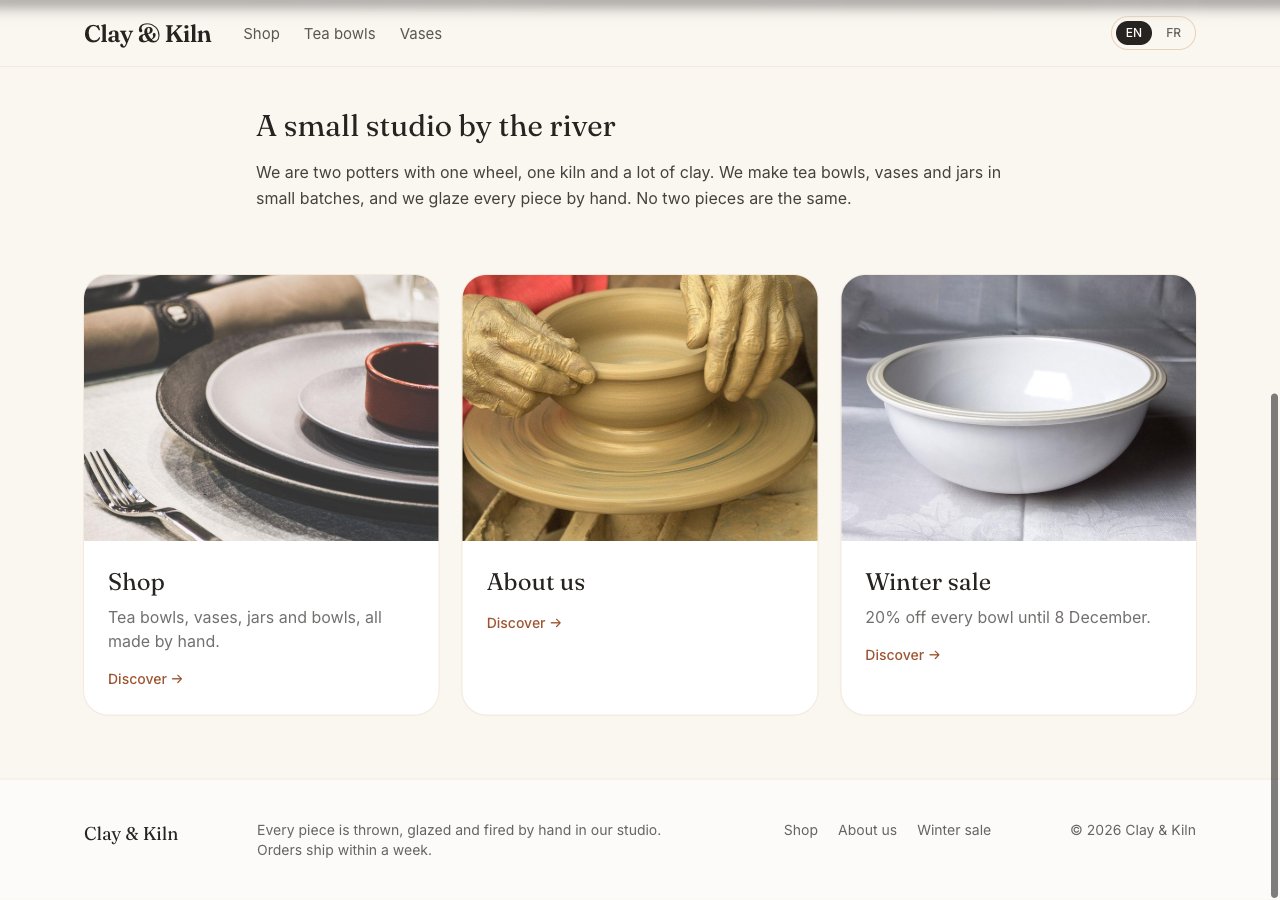
At 9:00 the sale appears by itself. The home page shows its card, with your SEO description, and the footer menu has a Winter sale link:

5. After the sale
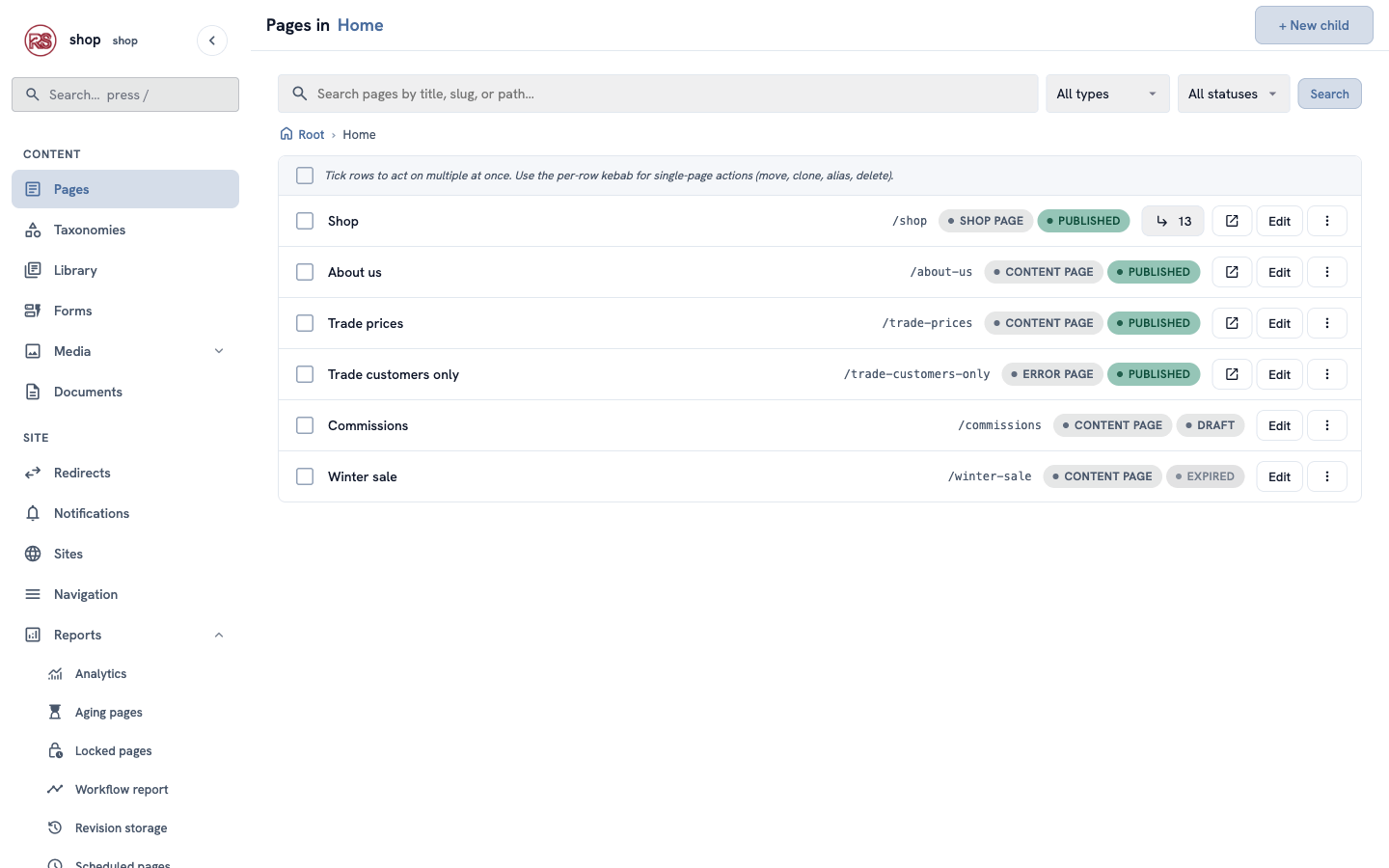
At 18:00 on 8 December the page disappears from the site again: its address says "not found", and the card and the menu link are gone. In the admin it is Expired:
Next year: open the page, change the text and the two times, set Status to Draft, and save. It is Scheduled again.
Check it worked
- After step 2 the page says Scheduled, and Reports → Scheduled pages lists a Publish and a Take down row with the times you typed.
- Before the go-live time,
/winter-salesays "not found".
If something goes wrong
| Problem | What to do |
|---|---|
| The times in the report are not the ones you typed. | Look at the timezone under Schedule. If it is not yours, ask for Timezone to be set on your user. |
| The page went live at once. | Go live at was empty or already past. Set a future time and save: the page becomes Scheduled, whatever status you chose. |
| The page did not appear at the time. | Reload the page — your browser may show an old copy. In the admin, check that it says Scheduled with the right time, not Draft. |
| You want to end the sale early. | Set Expire at to now, or set Status to Draft, and save. |
For developers
- The clock. A page is public by its dates as soon as they pass, before any background work: the router judges
go_live_at/expire_atitself. A sweep then sets the stored status (scheduled→published→expired); start it withrustango_cms::spawn_schedule_sweeper(®istry_pool, interval, invalidator)— the example shop checks every 60 seconds. - Cached pages. Pass your page-cache invalidator to the sweeper, so a page that goes live or expires is purged from the cache at that moment.
- Times are stored in UTC. The admin converts to and from the editor's timezone (the user's Timezone, else
RCMS_DEFAULT_TIMEZONE, else the browser's).
Next
Next chapter: Let an AI agent help — an AI assistant writes new product pages as drafts, and you publish them.