Groups of products: categories
Goal: make four groups — Tea bowls, Vases, Jars and Bowls — so visitors can find products by group.
Who this is for: shop owners and editors. You do not need any technical knowledge.
Time: about 5 minutes.
This is chapter 5 of Build a ceramics shop, step by step.
Before you start
Words you will see
| Word | What it means |
|---|---|
| Taxonomy | A list of words to sort your pages. The site always has one taxonomy called Categories. |
| Category | One word in that list, for example Vases. A page can be in one or more categories. |
| Parent | A category can be inside another category, for example Small vases inside Vases. |
Steps
1. Open the categories
In the menu on the left, click Taxonomies. You see the Categories row with 0 terms.
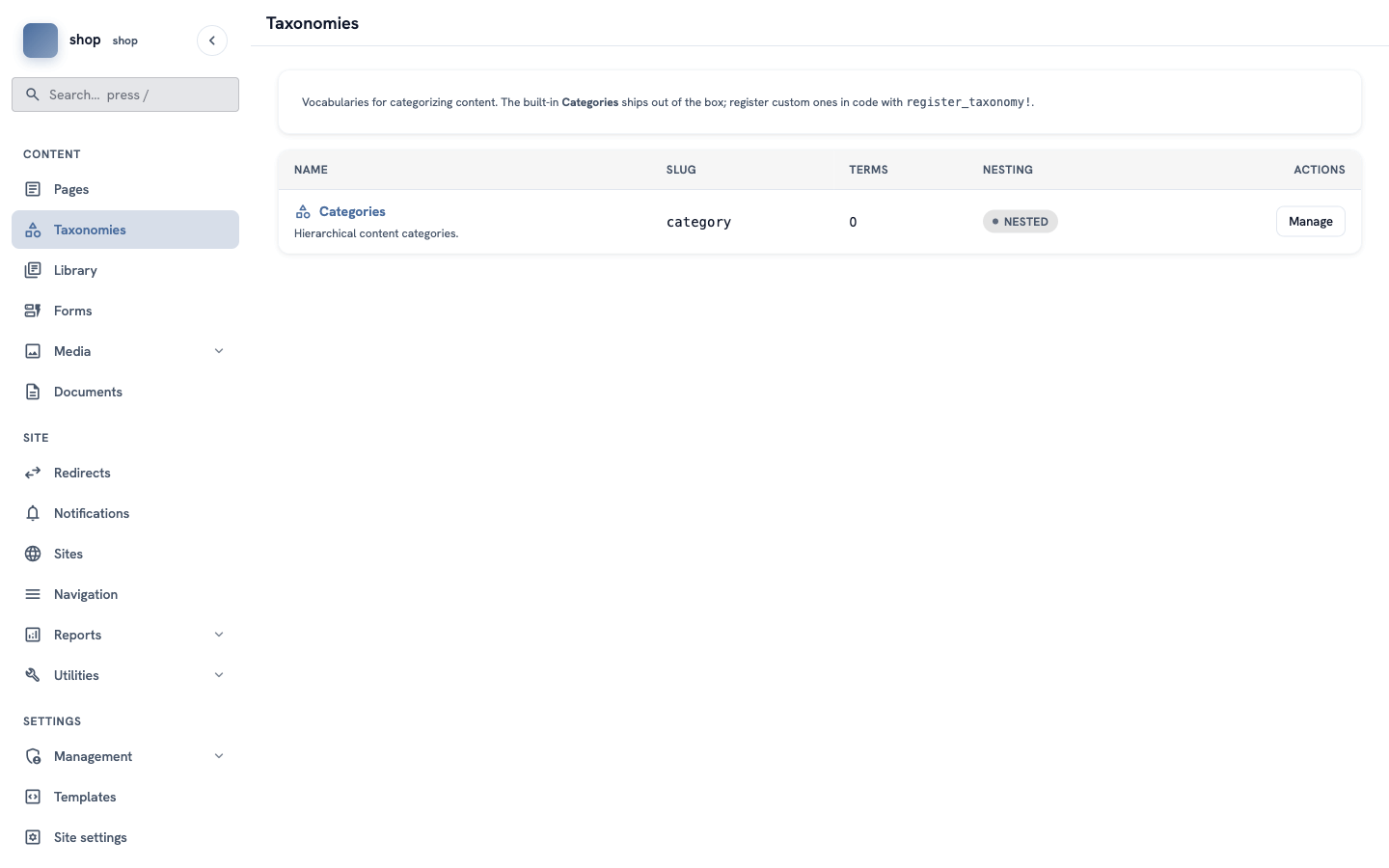
In the Categories row, click Manage. Then click + Add category at the top right.
2. Add the first category
Fill in the form:
| Box | What to type |
|---|---|
| Name | Tea bowls |
| Slug | leave empty — it is made from the name (tea-bowls) |
| Description | Bowls and cups for tea. |
| Featured image and Thumbnail | optional, you can leave them empty |
| Parent | keep — none (top level) — |
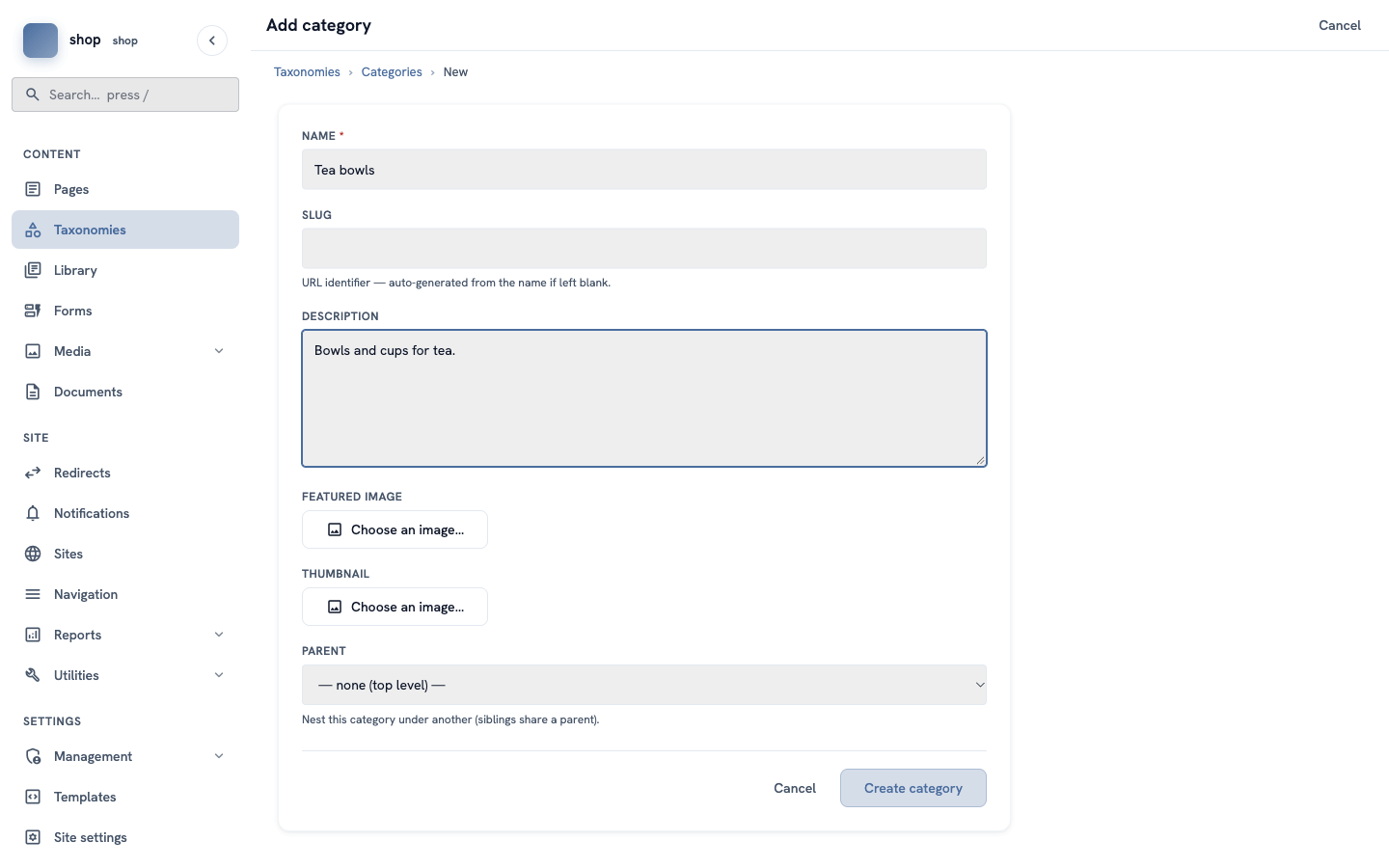
Click Create category.
3. Add the other categories
Click + Add category again and add:
| Name | Description |
|---|---|
Vases | Vases for flowers and for the shelf. |
Jars | Jars with and without lids. |
Bowls | Bowls for the table and the kitchen. |
Check it worked
The Categories list shows four rows, each with its slug.
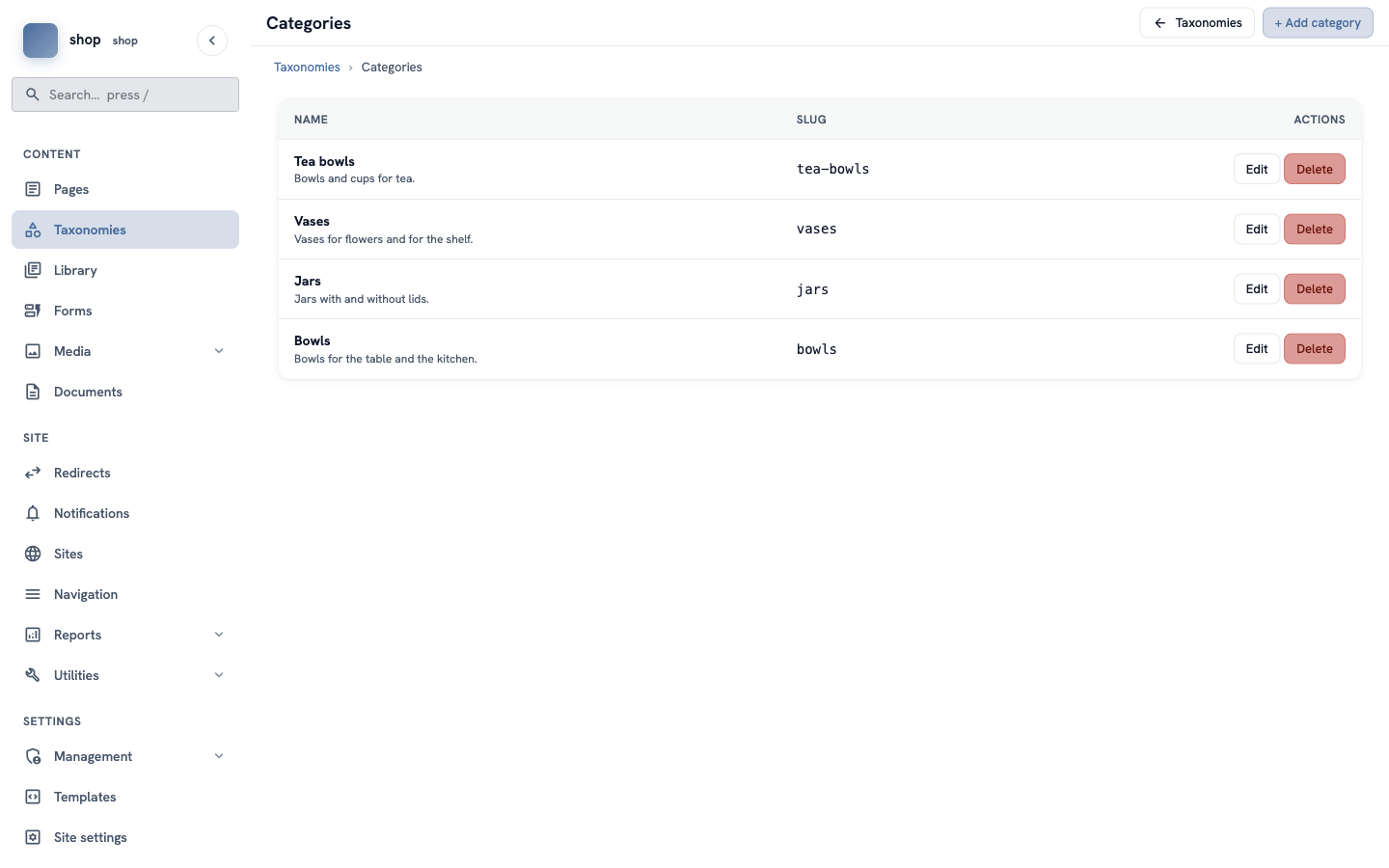
Remember the slugs. In chapter 8 you use them to link from the menu to one group, for example
tea-bowls.
In chapter 7 you put each product in a category. The shop page then shows the products in groups.
If something goes wrong
| Problem | What to do |
|---|---|
| You made a spelling mistake. | Click Edit in the row, fix the name and save. Check the slug too. |
| You made a category twice. | Click Delete in one of the rows. |