Reusable text: write it once, show it everywhere
Goal: write the shipping information once, show it on the "About us" page and on every product page, and change it in one place.
Who this is for: shop owners and editors. You do not need any technical knowledge. One short tip at the end is for developers.
Time: about 10 minutes.
This is chapter 9 of Build a ceramics shop, step by step.
Before you start
- You did chapters 1 to 8.
- You can see Library in the menu on the left. If you cannot see it, ask the person who manages your site.
Why reusable text?
Some text is the same on many pages: shipping, care instructions, opening hours. If you copy it into every page, you must also change every page when something changes — and it is easy to forget one.
In the Library you write the text once. Pages show it from there. When you change it in the Library, every page changes at the same time.
Words you will see
| Word | What it means |
|---|---|
| Library | The place in the admin for content that is not a page and can be used on many pages. |
| Snippet (or Library element) | One piece of reusable content in the Library, for example "Shipping". |
| Type | The kind of snippet. The shop has the type Information: a title and a text. |
| Slug | The inside name of a snippet, for example shipping. Only small letters and -. |
| Snippet block | The block you add to a page to show a snippet. |
Steps
1. Open the Library
In the menu on the left, click Library. You see the snippet types of your site. The shop has one: Information, with 0 snippets.
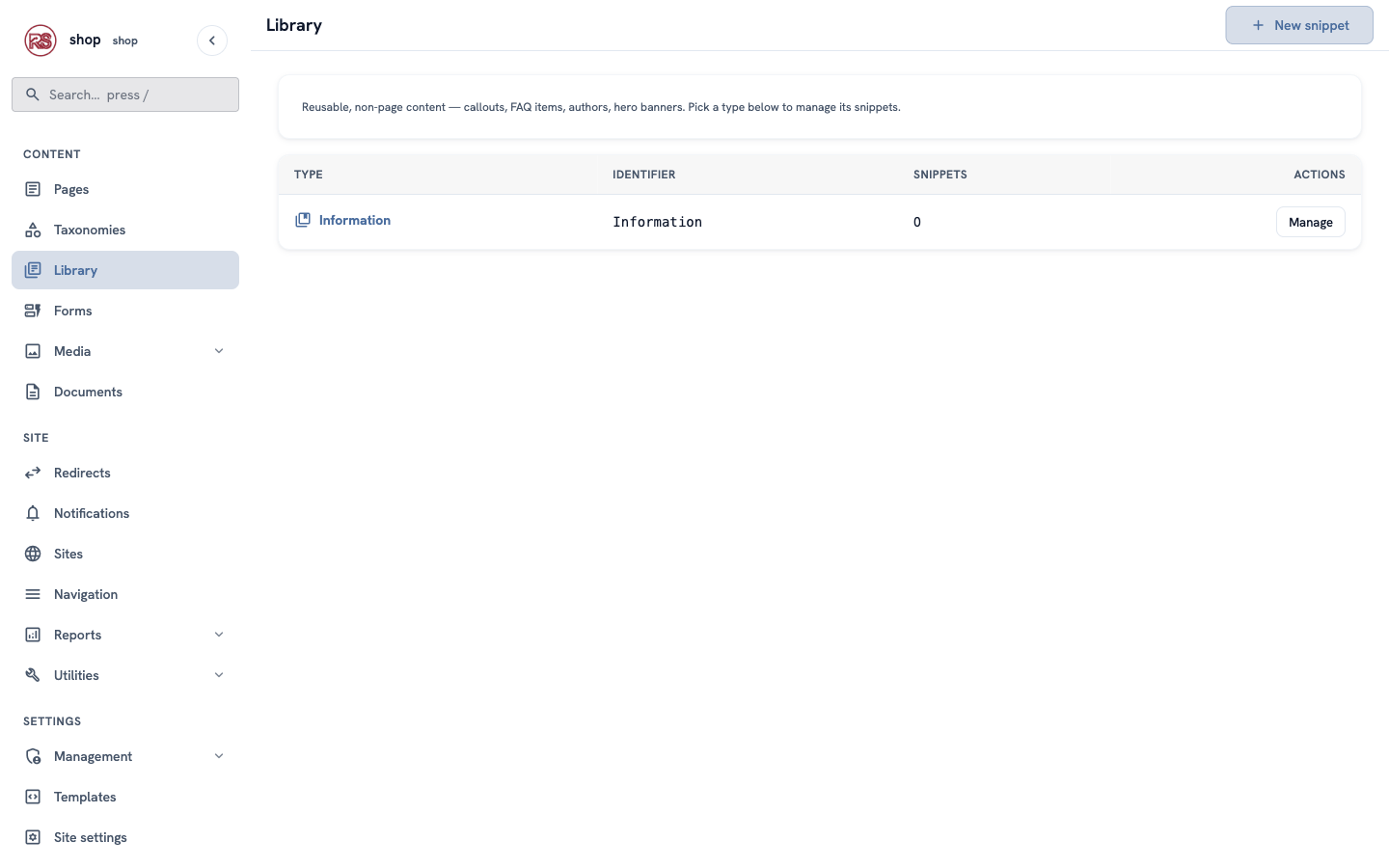
Click Manage in the Information row, then + New Information at the top right.
2. Write the shipping text
Fill in the form:
| Box | What to type |
|---|---|
| Type | keep Information |
| Slug | shipping |
| Title | Shipping — only you see it, in the admin |
| Folder | leave empty |
| Body | the text visitors will see (example below) |
For the example shop, the body is:
**Free shipping** in the EU on orders over €80.

We wrap every piece by hand in recycled paper. Orders leave the studio within one week, and you get a tracking link by email.
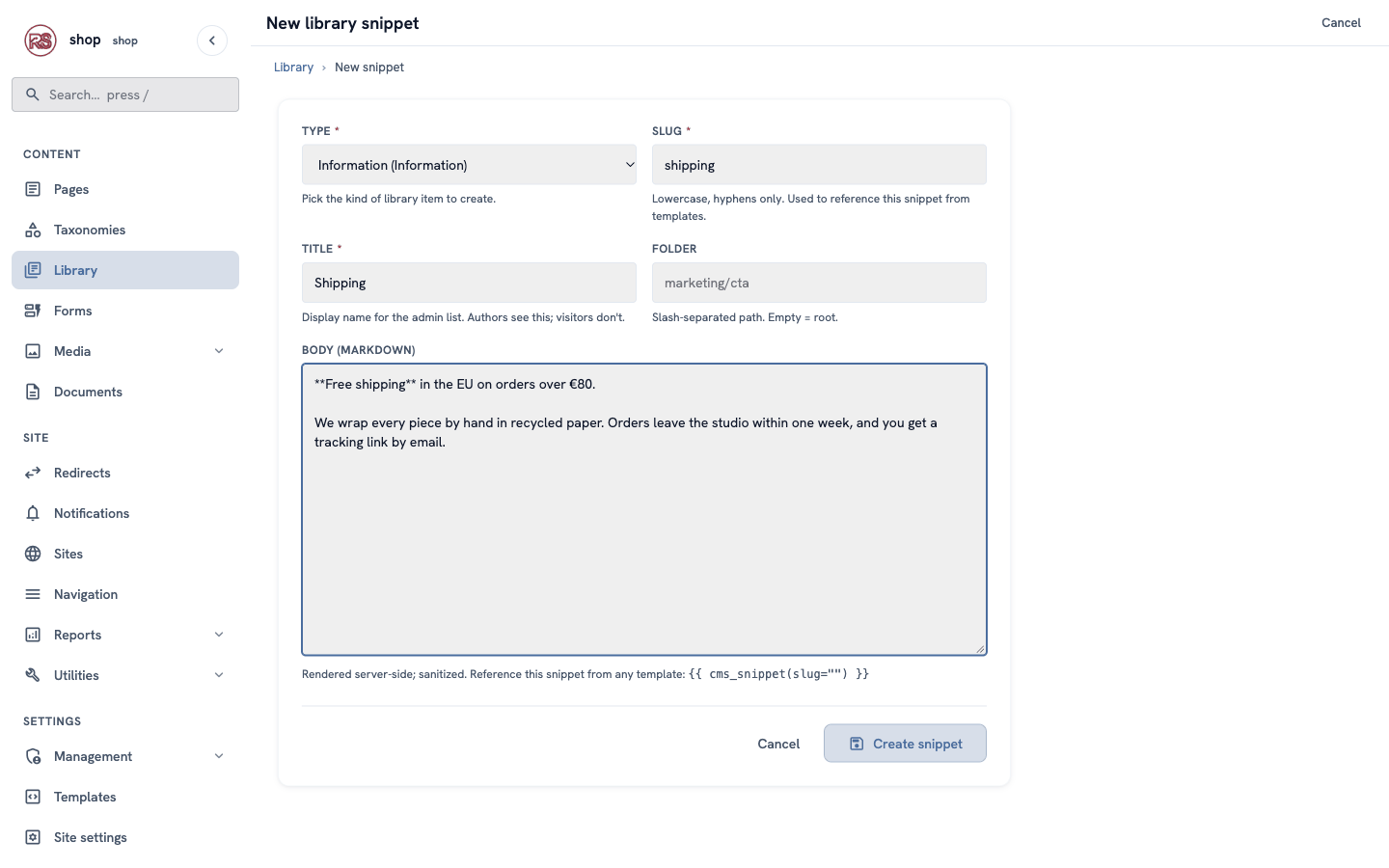
Tip: the body uses Markdown. Two stars make bold text:
**Free shipping**. An empty line starts a new paragraph.
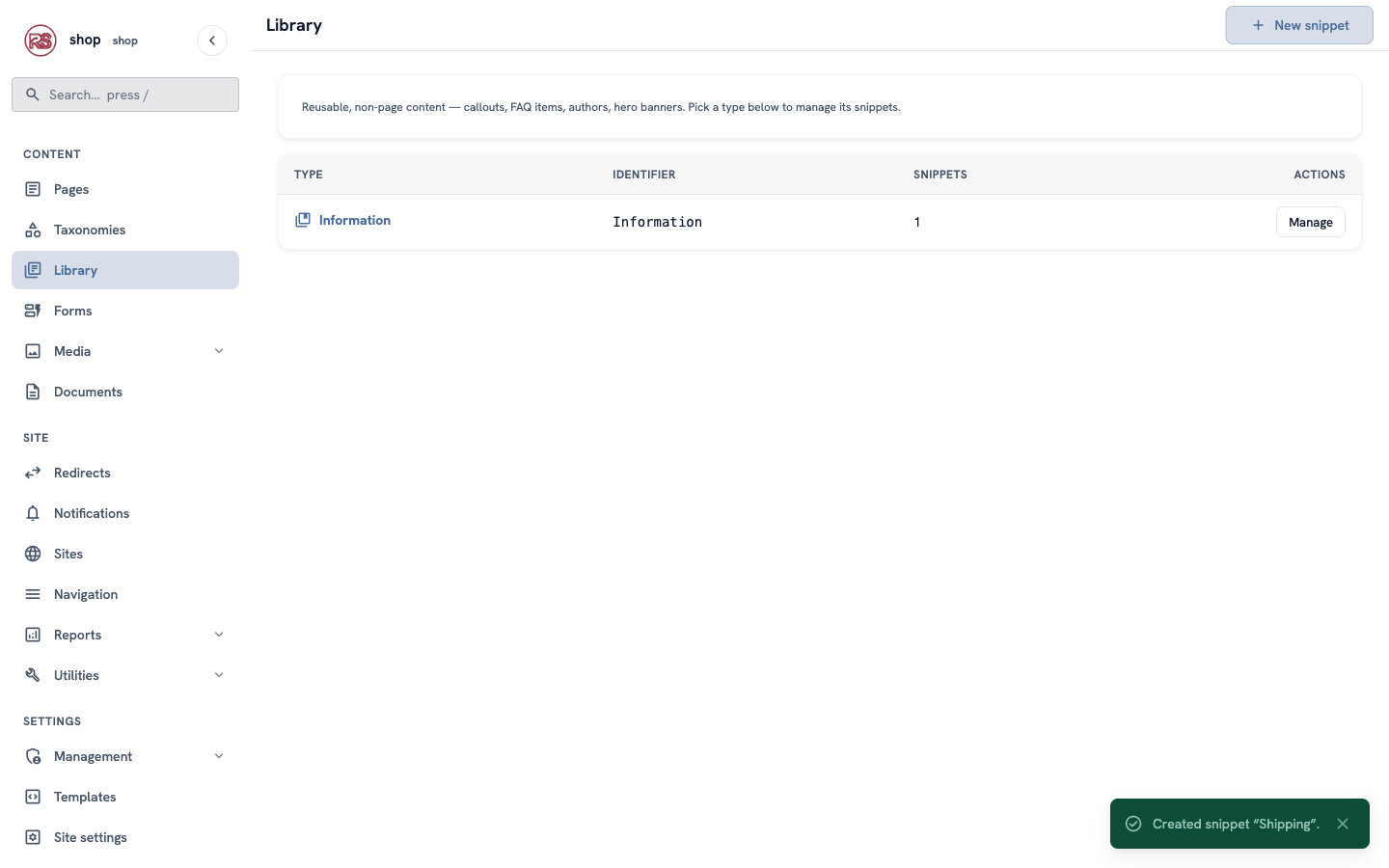
Click Create snippet. A green message says Created snippet "Shipping".
3. Add a second snippet
Click + New Information again and add the care instructions:
- Slug:
care - Title:
Care for your pieces - Body:
All our pieces are safe for food and for the dishwasher. Glazed stoneware can go in the microwave, too.and, as a second paragraph,To keep the glaze bright for many years, wash by hand with a soft cloth.
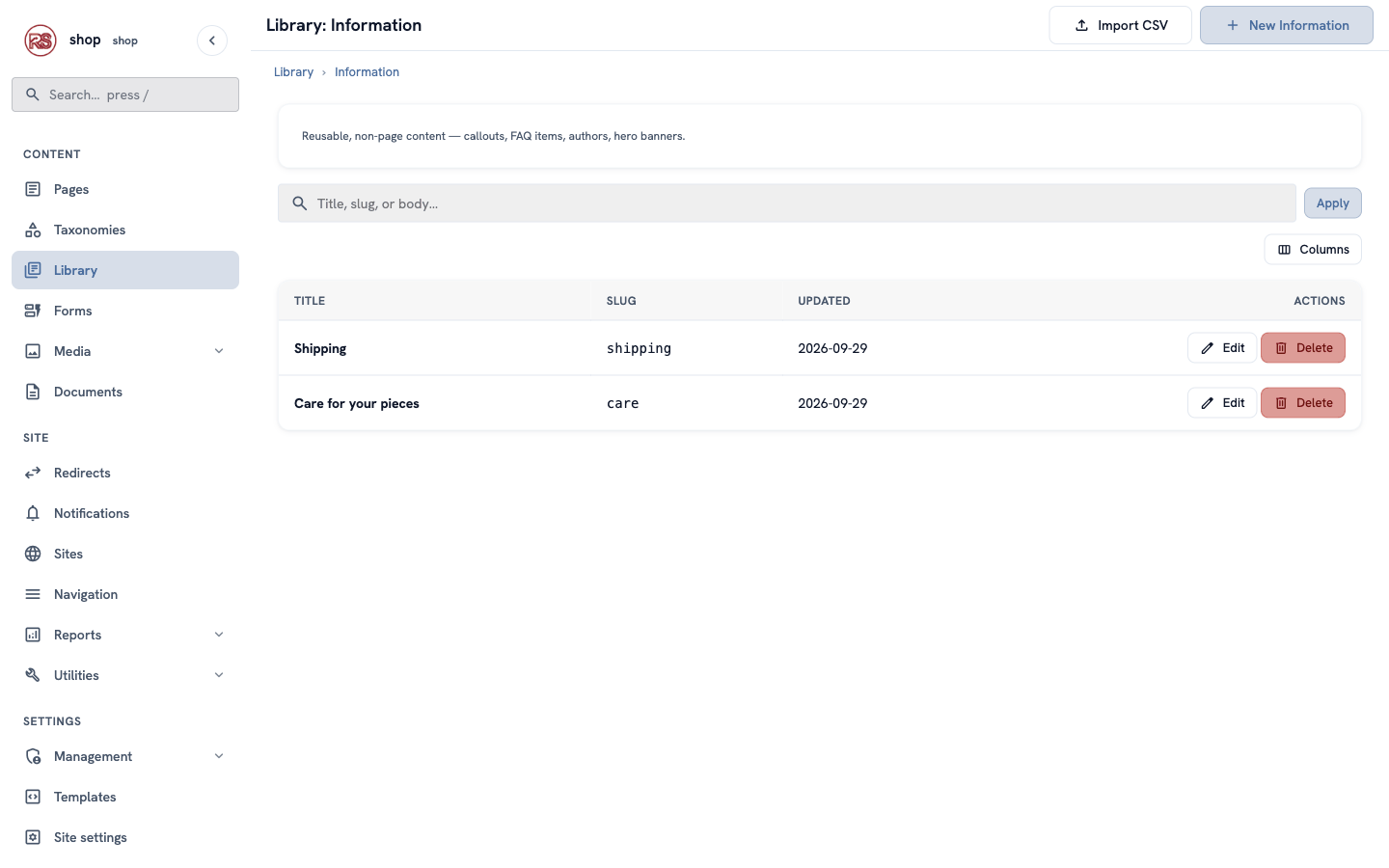
Now Library → Information shows both snippets.
4. Make the "About us" page
- In the menu on the left, click Pages. In the row of Home, click ⋮, then + Child page.
- Find Content page and click Use this type.
- In Title, type
About us. The slug fills in by itself:about-us. - In Status, choose Published, then click Create & keep editing.
- Under Photo, click Choose an image…, choose potter-hands and click Choose.
5. Write the story
Under Body, click + Add block:
- Choose Heading. Text:
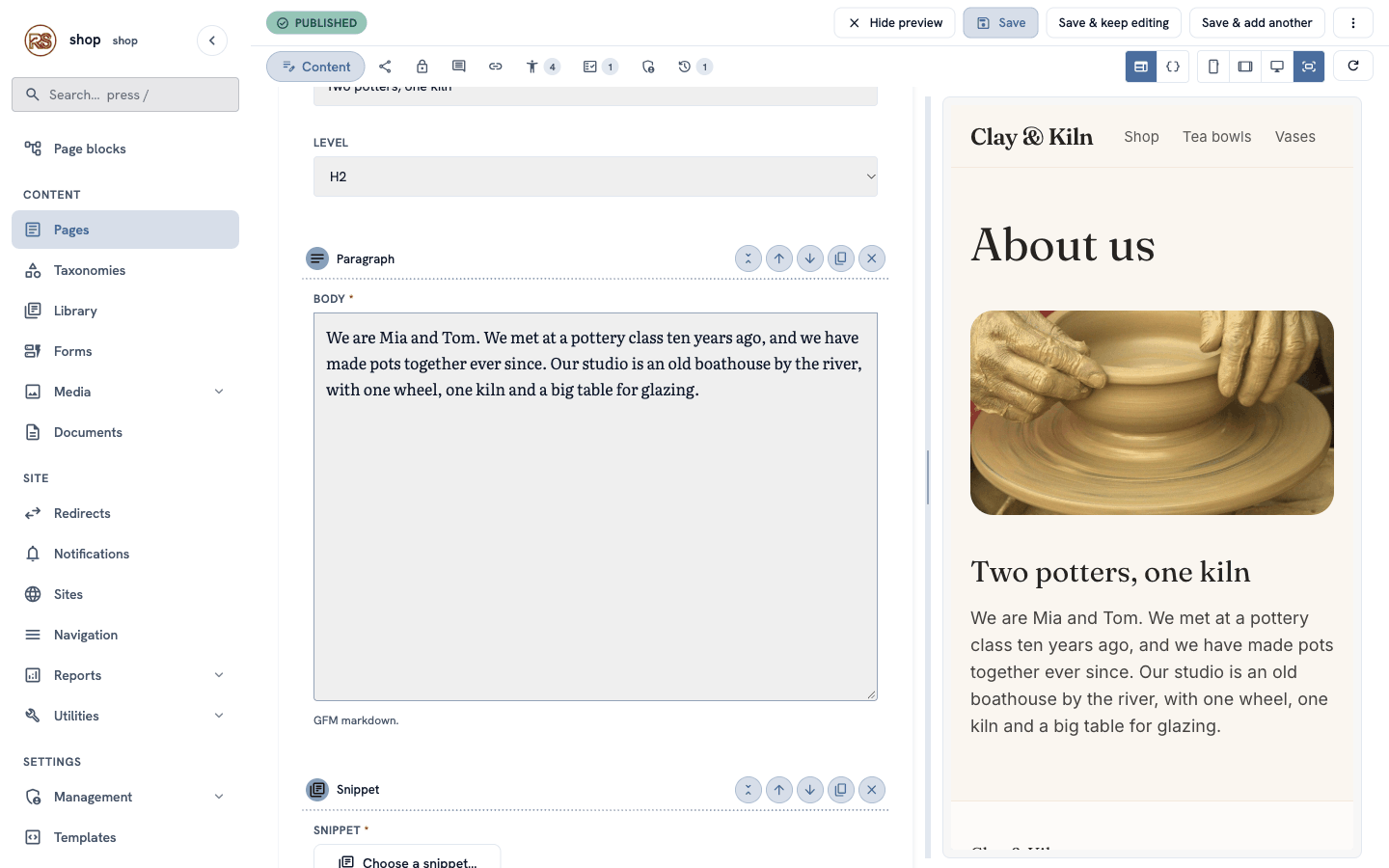
Two potters, one kiln. Level: H2. - Click + Add block again and choose Paragraph. Write a few sentences about the studio, for example:
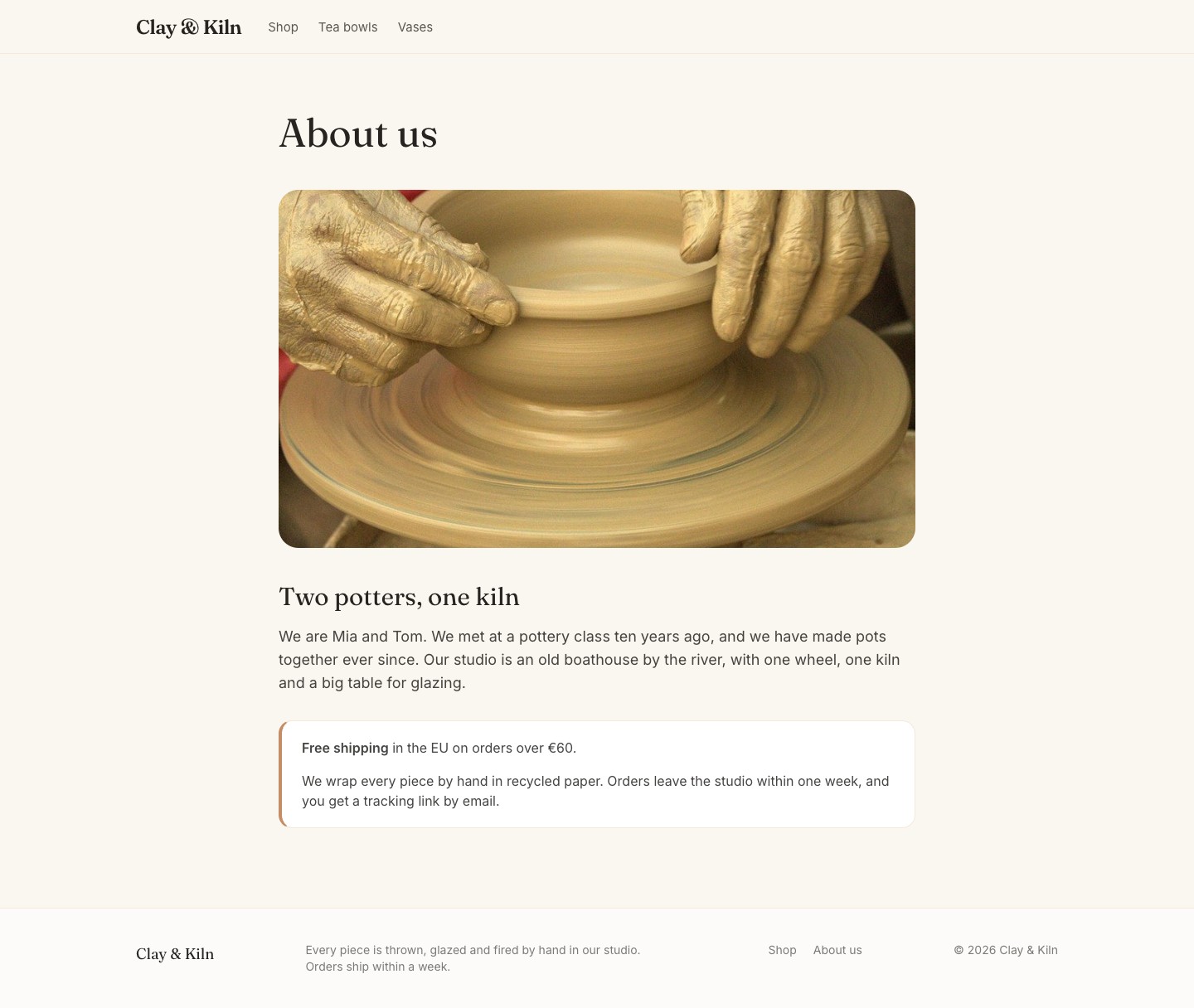
We are Mia and Tom. We met at a pottery class ten years ago, and we have made pots together ever since. Our studio is an old boathouse by the river, with one wheel, one kiln and a big table for glazing.
The preview on the right shows the photo, the heading and the text.
6. Add the shipping snippet
- Click + Add block and choose Snippet ("Pick a reusable snippet from the library").
- In the new block, click Choose a snippet…. A window lists your snippets.
- Click Shipping.
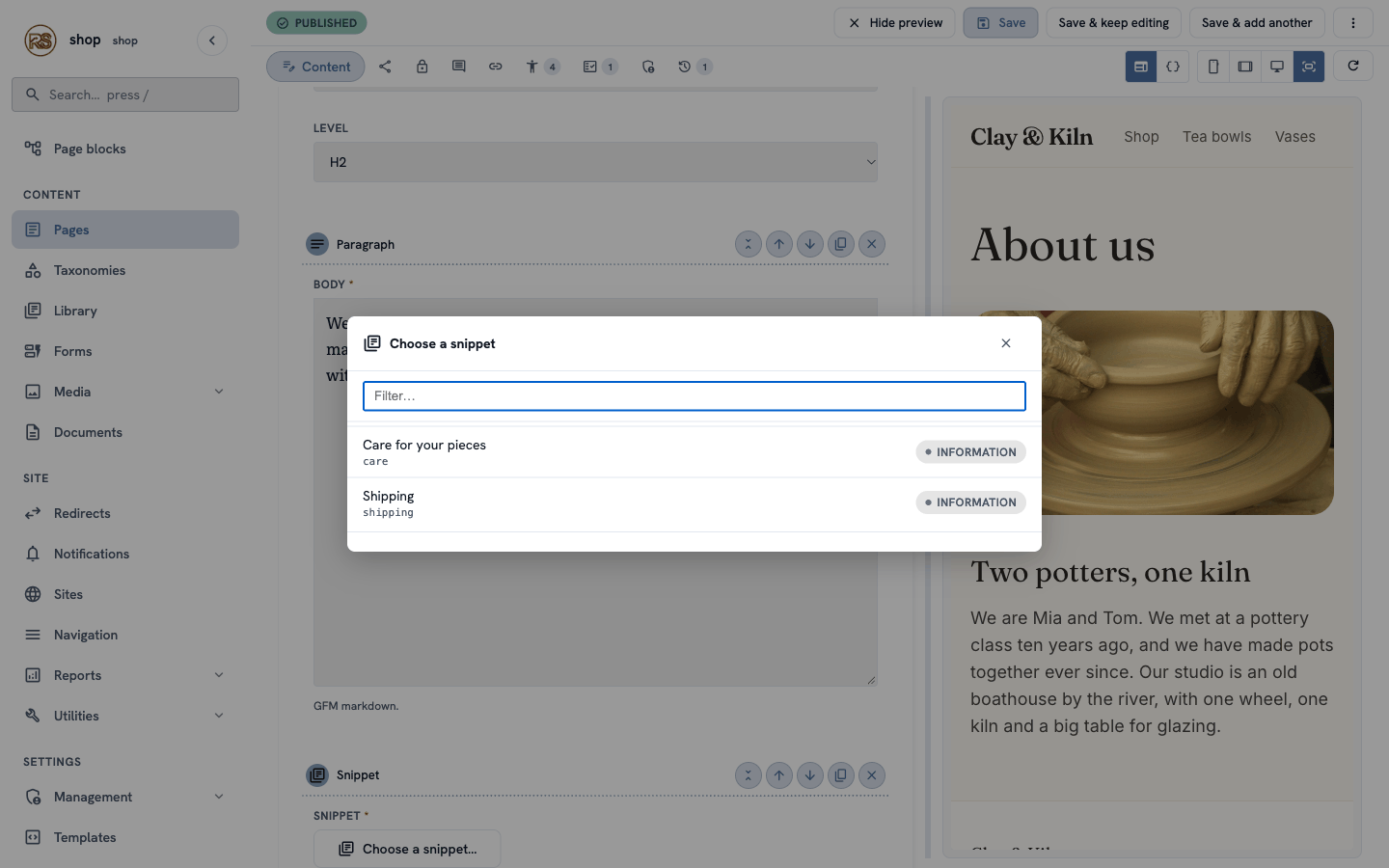
Tip: with many snippets, type a few letters in Filter… to find one quickly.
Click Save at the top.
Check it worked
Open the page /about-us on your site. Under the story, the shipping text is in a white box.
Look at the footer, too: About us is there next to Shop. The footer lists all published pages under the home page by itself (see Show menus and settings in templates).
Change it once — every page follows
The free-shipping limit goes down from €80 to €60. You change it in one place:
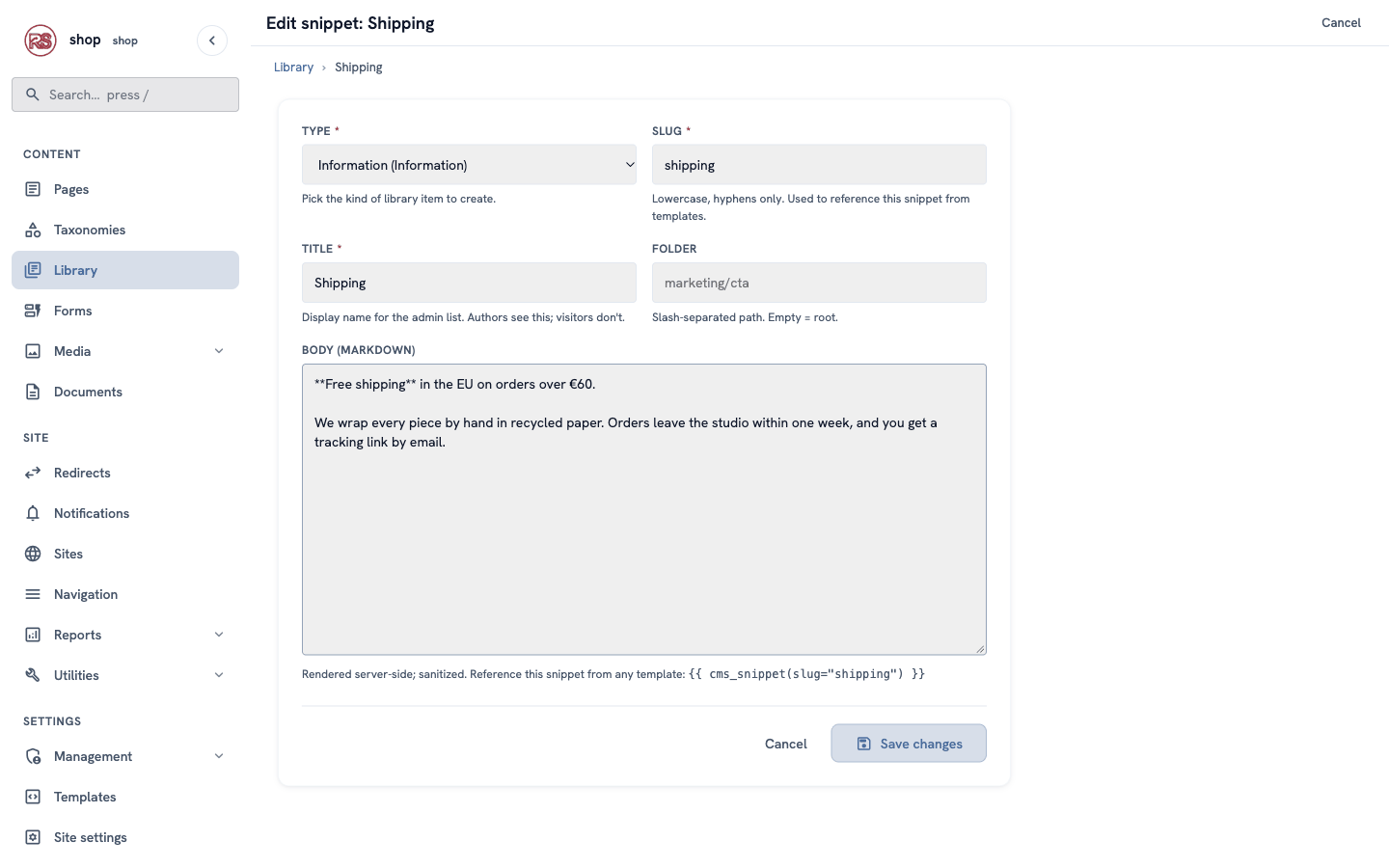
- Go to Library → Information and click Edit in the Shipping row.
- In Body, change
€80to€60. - Click Save changes.
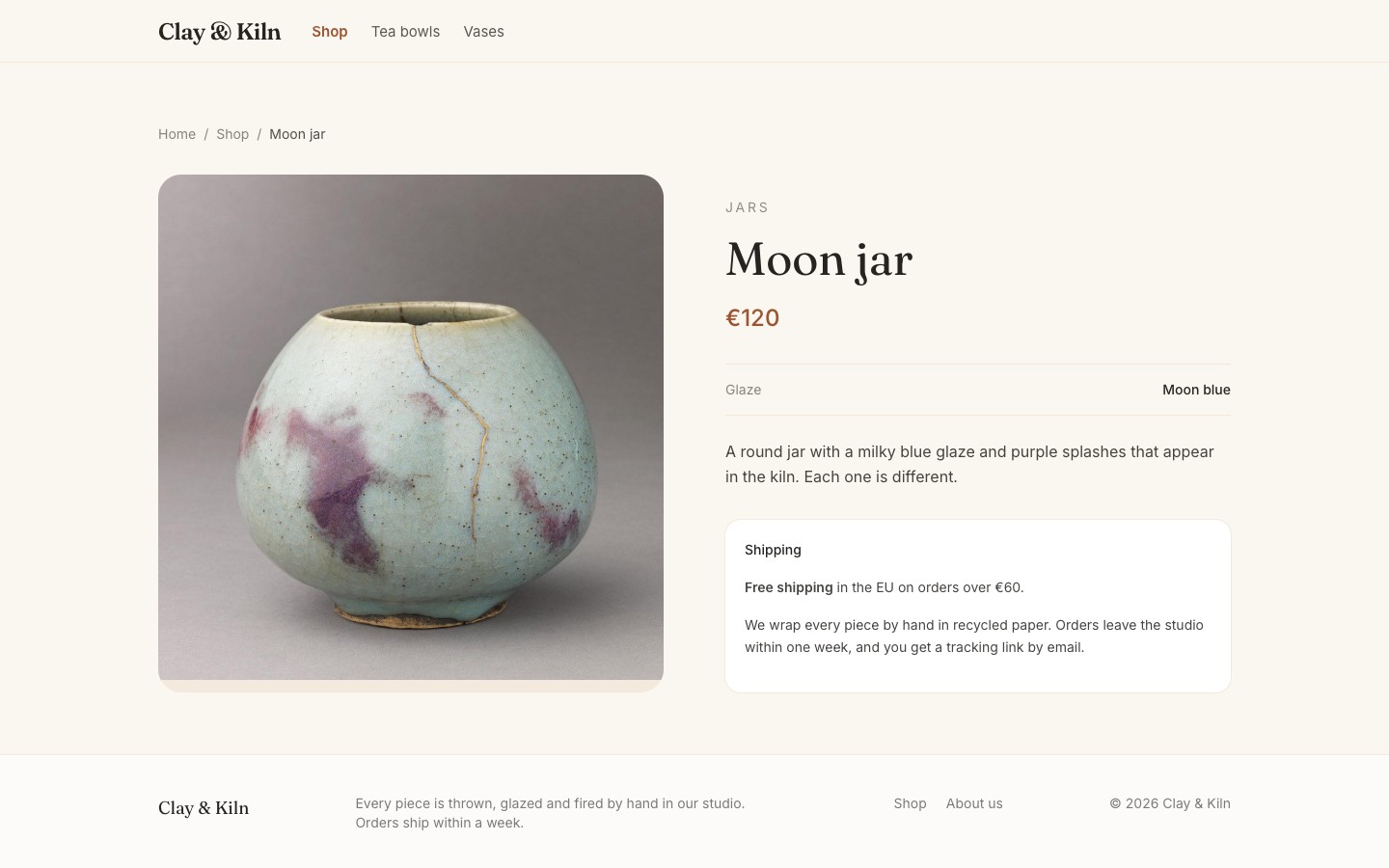
Now open the About page — and any product page. Both say €60. In the example shop, every product page shows the same shipping box under the description.
If something goes wrong
| Problem | What to do |
|---|---|
| There is no Snippet block in the list. | The page type does not allow it. The Content page type allows it; others may not. Ask a developer to allow snippet_chooser in the type. |
| Choose a snippet… shows an empty list. | You have no snippets yet. Create one in the Library first (steps 1–2). |
| The page shows old text. | Check that you clicked Save changes in the Library. Then reload the page. |
| You deleted a snippet by mistake. | Its Snippet blocks have nothing to show. Create it again with the same slug, then choose it again in each Snippet block. |
For developers: show a snippet from a template
The product pages show the shipping box without a Snippet block — their template asks for the snippet by its slug:
{% set shipping = cms_snippet(slug="shipping", body=true) %}
{% if shipping %}
<aside class="shipping">
    <p>Shipping</p>
    {{ shipping | safe }}
</aside>
{% endif %}
cms_snippet(slug="…")returns the snippet's text as HTML, in a wrapper; addbody=truefor the text alone.- An unknown slug gives an empty string, so the
{% if %}keeps the page tidy while the snippet does not exist yet.
The Information type itself is made in code — see LibraryTypeHandler in The helper traits.