The home page
Goal: make the front page of the shop: a big photo, a heading over it and a short welcome text.
Who this is for: shop owners and editors. You do not need any technical knowledge.
Time: about 10 minutes.
This is chapter 3 of Build a ceramics shop, step by step.
Before you start
- You did chapter 1 and chapter 2.
- If this is your first page ever, you can read How to create and publish your first page first. It explains the basics more slowly.
Words you will see
| Word | What it means |
|---|---|
| Page type | The kind of page. The Home page type has boxes for a big photo and a heading. |
| Slug | The last part of the page address. The home page has an empty slug, so it opens at the main address of your site. |
| Block | One piece of content: a heading, a paragraph, a photo or a quote. You put blocks one under the other. |
| Preview | The right side of the editor. It shows the page the way visitors will see it. |
Steps
1. Choose the page type
In the menu on the left, click Pages, then + New root page.
Find Home page and click Use this type.
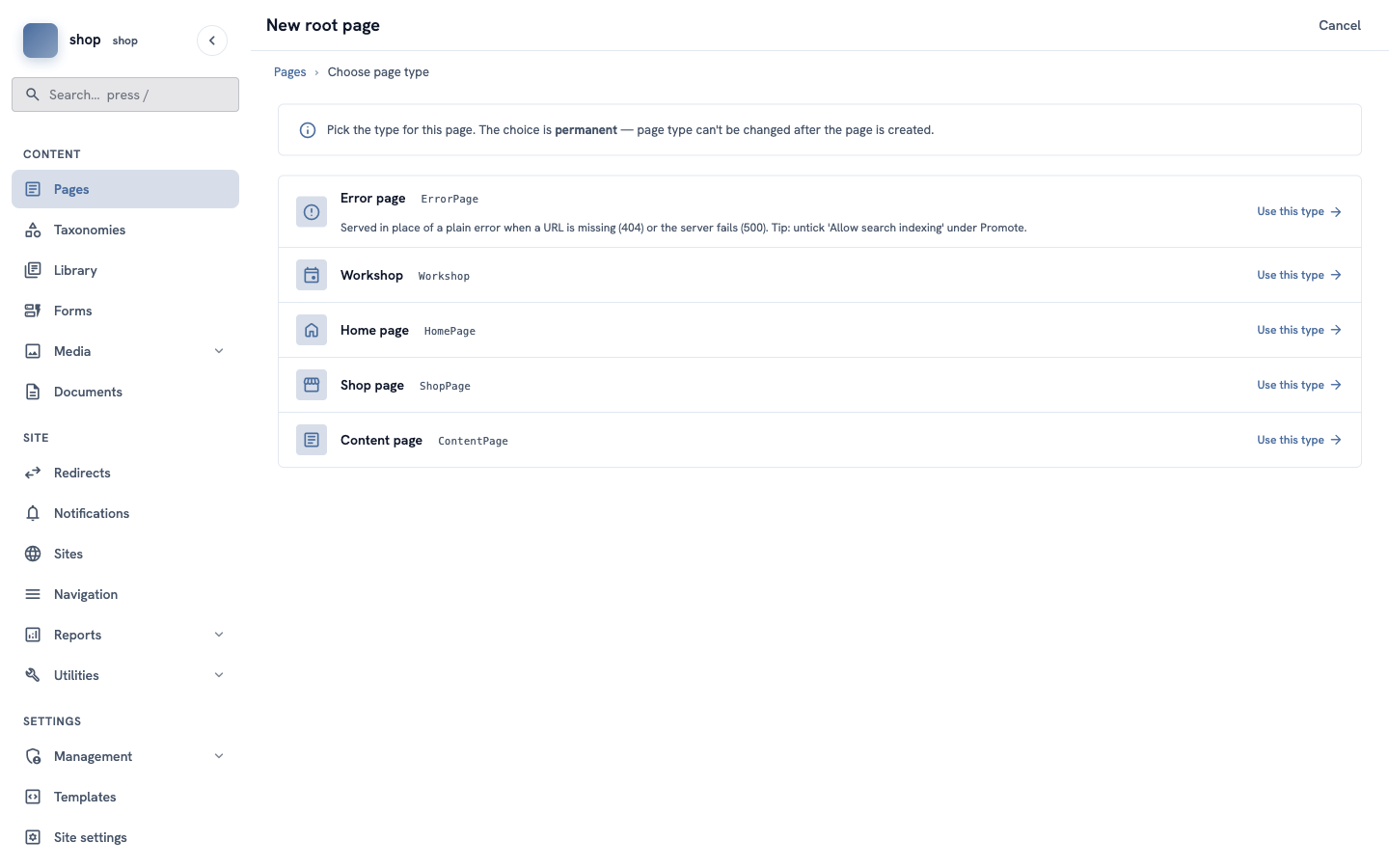
Important: you cannot change the page type later.
2. Title, slug and status
- In Title, type
Home. - Click in Slug and delete all the text. The box must be empty.
- In Status, choose Published.
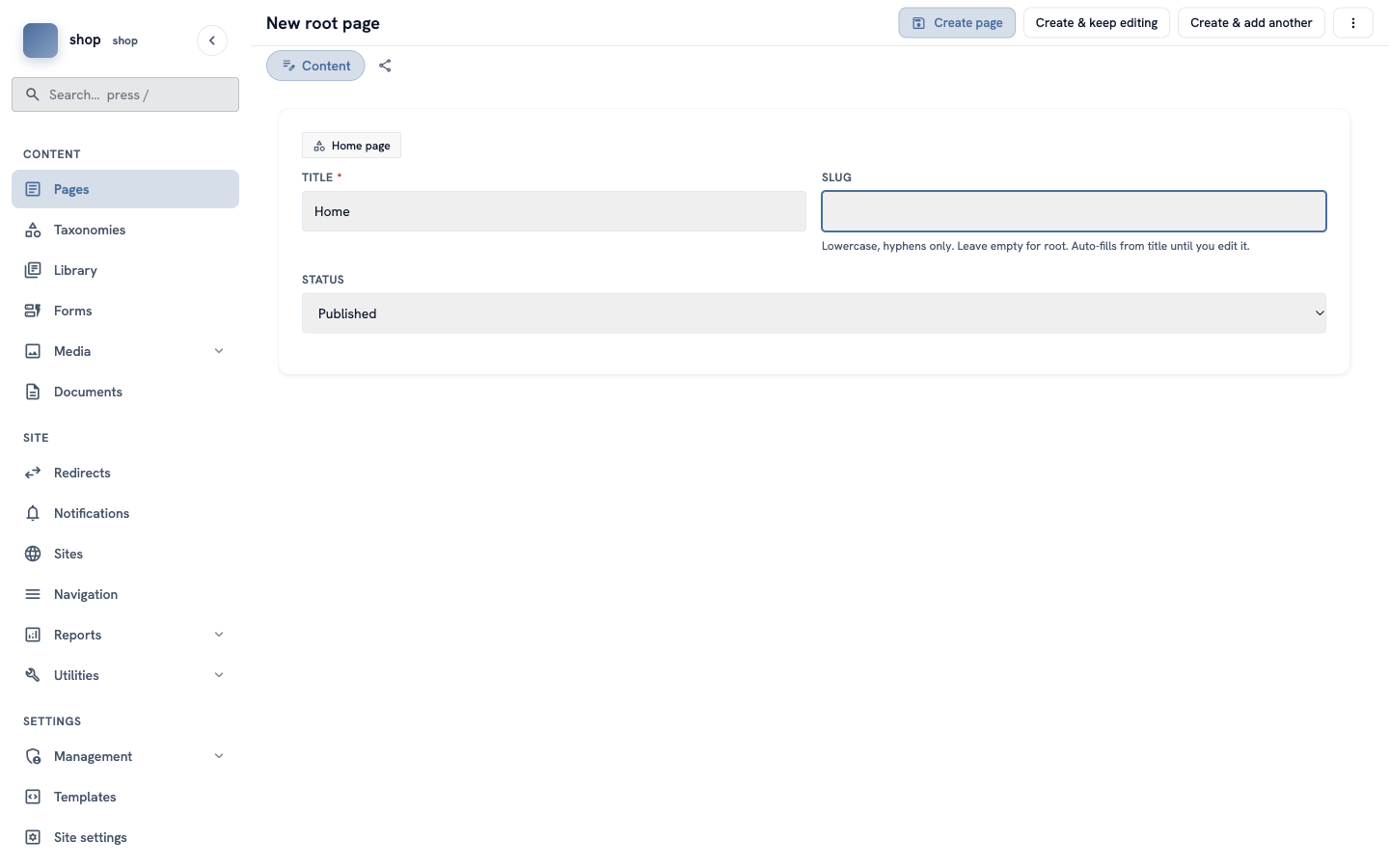
Click Create & keep editing at the top. The page is saved, and the full editor opens.
3. Choose the big photo
The editor has more boxes now. On the right you see the preview.
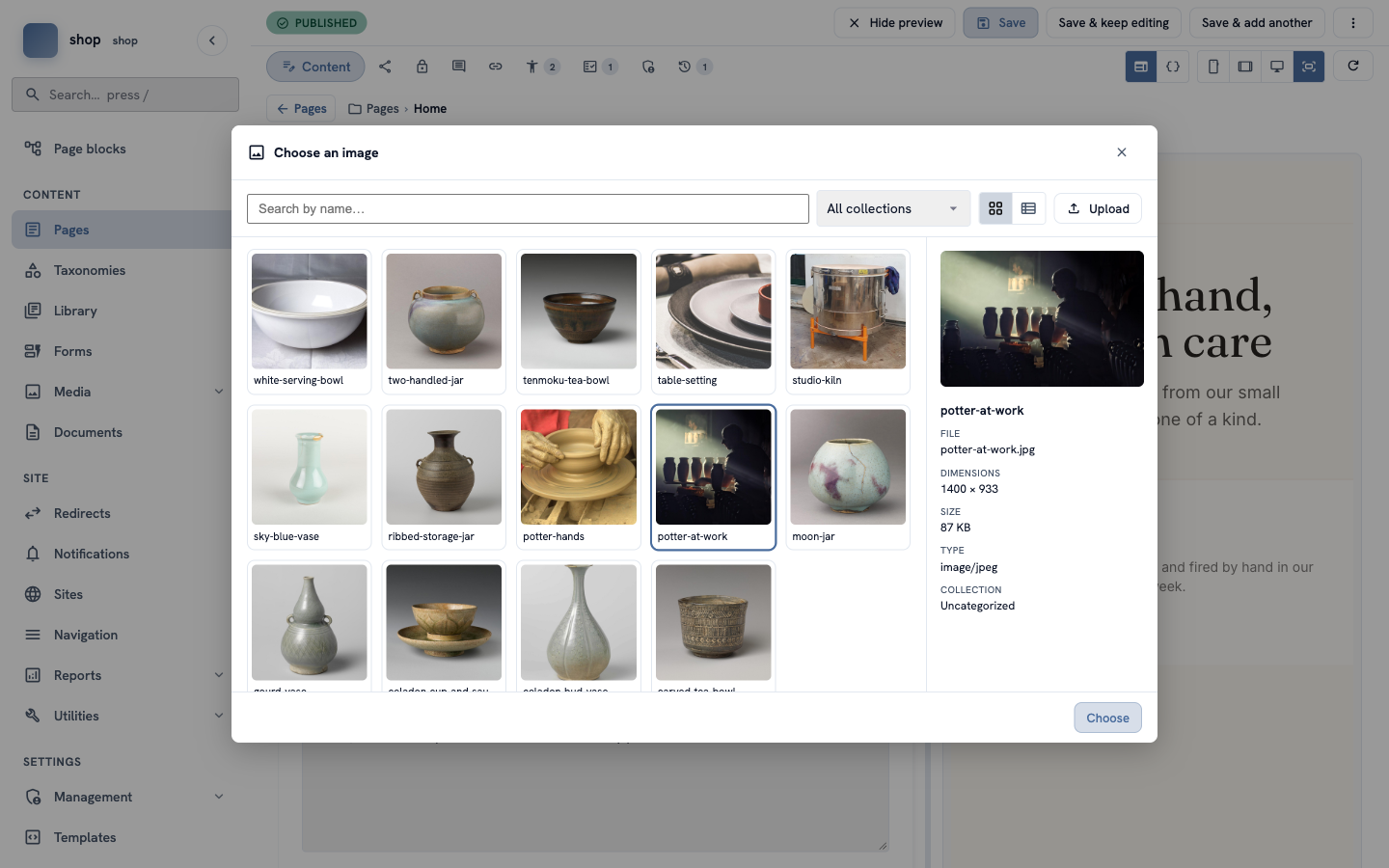
Under Big photo, click Choose an image…. A window opens with all your photos.
- Click the photo you want. For the example shop, click potter-at-work. On the right you see its details.
- Click Choose at the bottom.
4. The heading and the text
- In Big heading, type
Made by hand, fired with care. - In Text under the heading, type
Bowls, vases and cups from our small studio. Every piece is one of a kind.
The preview on the right shows your photo with the heading and the text on it.
5. Add a welcome text with blocks
Scroll down to Introduction and click + Add block. A window shows the blocks you can use.
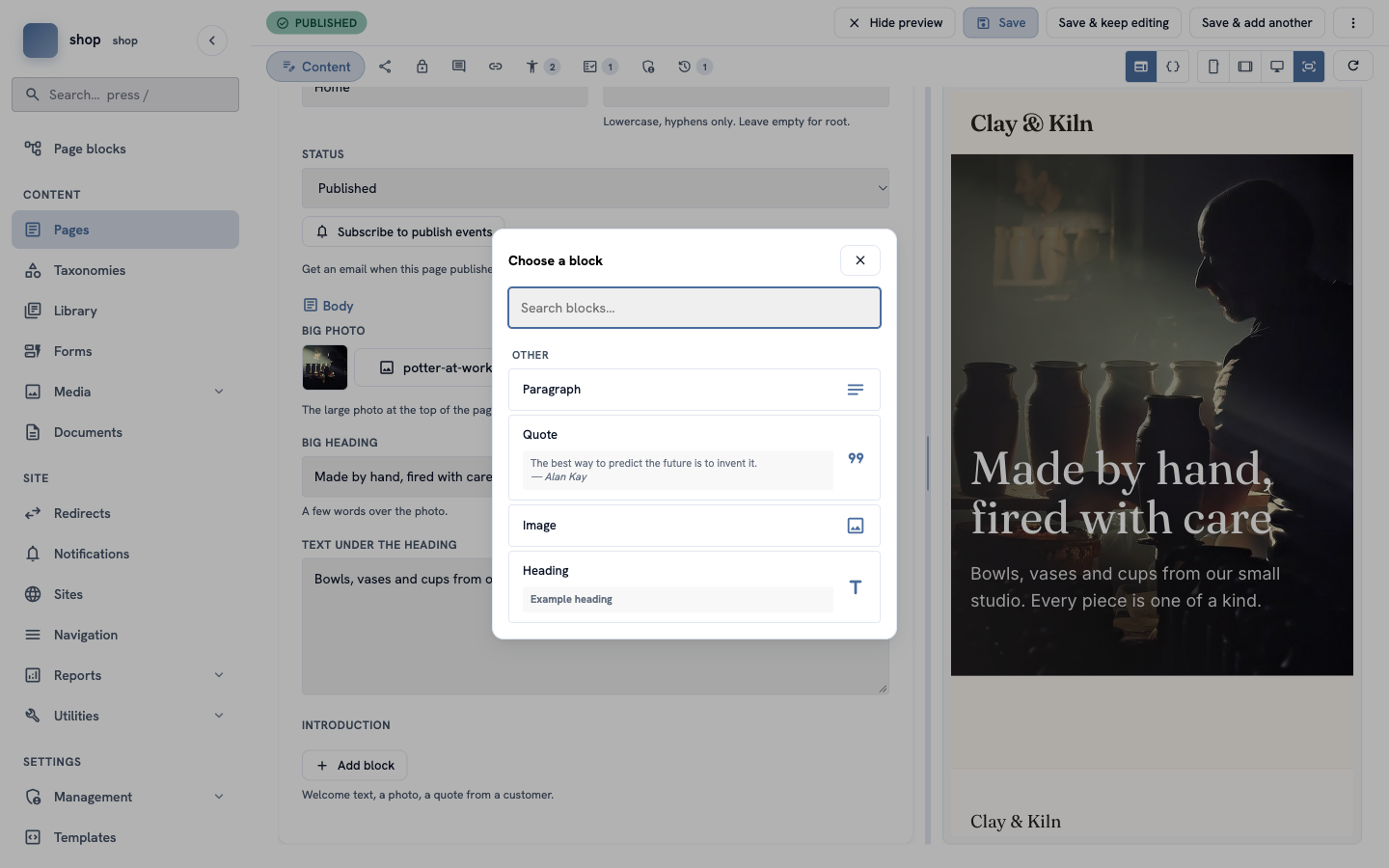
- Click Heading. In Text, type
A small studio by the river. In Level, choose H2. - Click + Add block again and choose Paragraph. Type a few sentences about your studio, for example:
We are two potters with one wheel, one kiln and a lot of clay. We make tea bowls, vases and jars in small batches, and we glaze every piece by hand. No two pieces are the same.
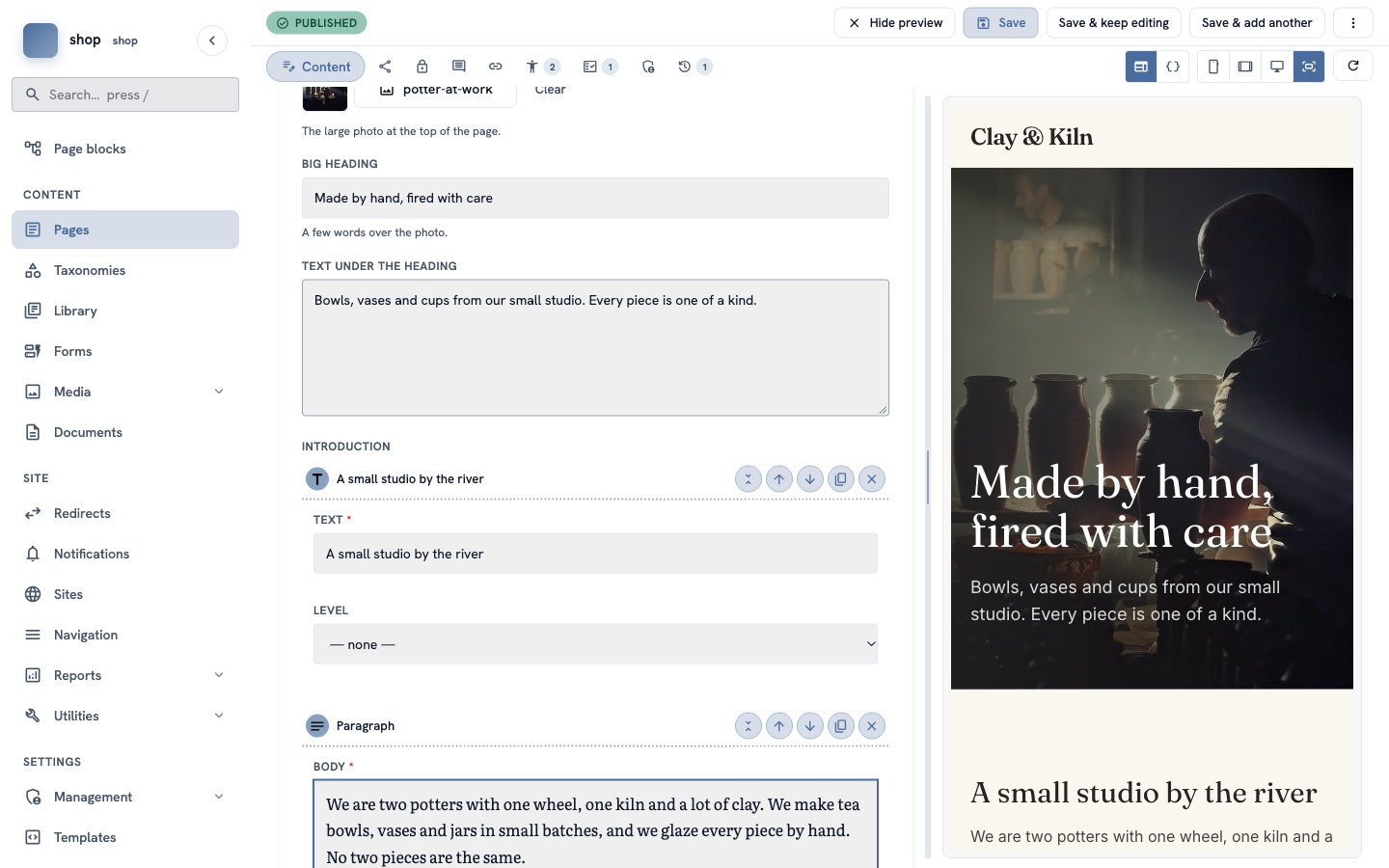
Tip: each block has small round buttons on the right: up and down change the order, the copy button makes a copy, and × removes the block.
6. Save
Click Save at the top.
Check it worked
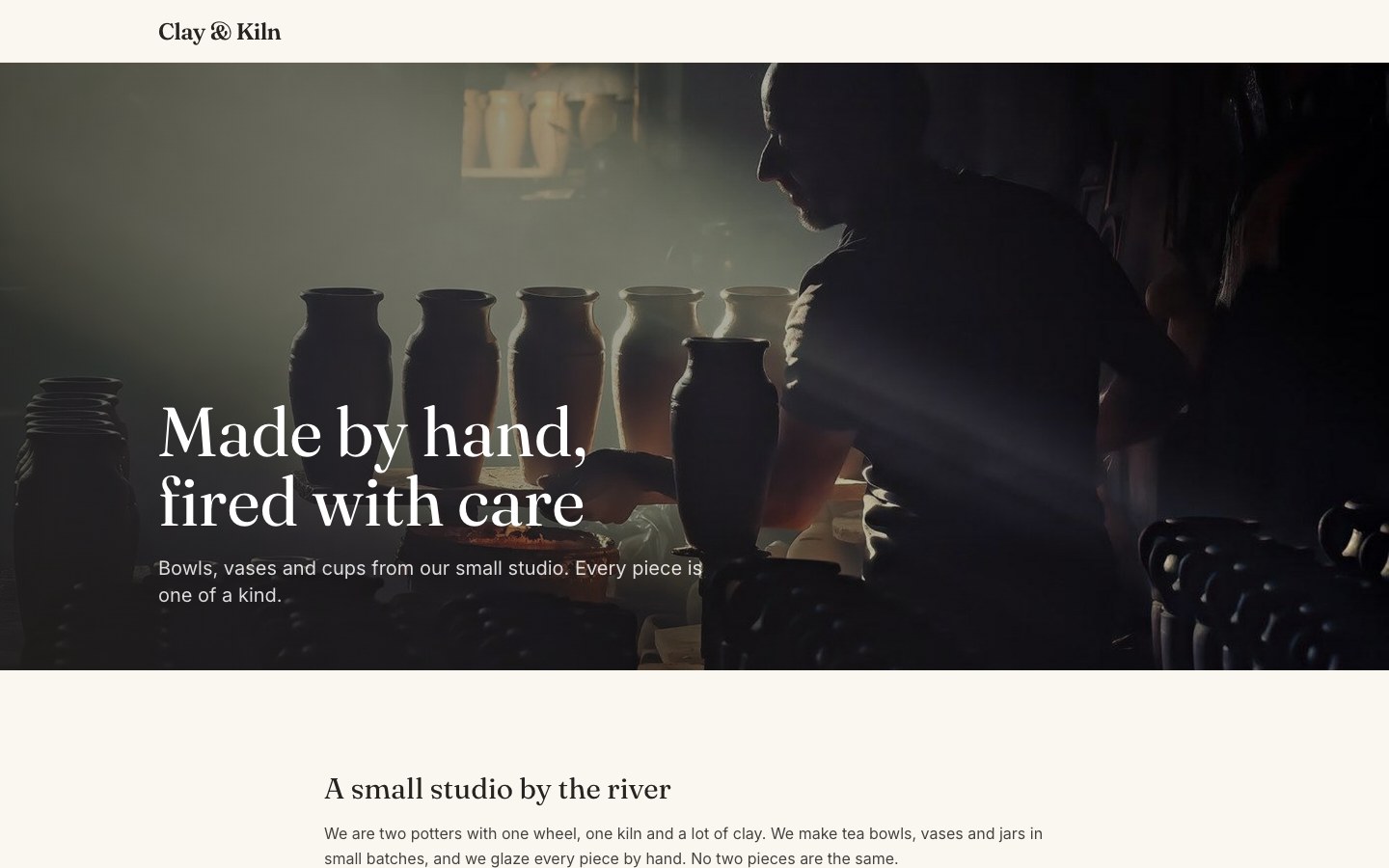
Open the main address of your site (for example www.example.com). You see:
- the shop name from chapter 1 at the top left,
- the big photo with your heading and text,
- your welcome text under the photo,
- the footer text at the bottom.
If something goes wrong
| Problem | What to do |
|---|---|
| You do not see the boxes Big photo and Big heading. | They show after the first save. Click Create & keep editing, not Create page. If you clicked Create page, click the page in the list to edit it. |
| The main address shows "Page not found". | The slug is not empty, or the status is Draft. Edit the page: delete the slug text, choose Published and save. |
| The heading on the photo is hard to read. | Choose a darker photo, or a photo with a quiet part on the left. |