A second language
Goal: show the shop in French too: the pages, the menu, the shipping text and the order form.
Who this is for: shop owners and editors. You do not need any technical knowledge.
Time: about 30 minutes, plus the time to write the translations.
This is chapter 12 of Build a ceramics shop, step by step.
Before you start
- You did chapters 1 to 11.
- You have the French texts, or you can write them. The CMS does not translate for you.
Words you will see
| Word | What it means |
|---|---|
| Locale | A language of your site, for example en (English) or fr (French). |
| Default language | The language you write pages in. For Clay & Kiln it is English. |
| Original (or canonical) | The text in the default language. |
| Translation | The same text in another language. If a box has no translation, visitors see the original. |
How it works
You write every page once, in English. For French, you do not make new pages. You open the same page in translation mode and type the French text next to the English text.
- The French shop lives at addresses that start with
/fr/:/fr/,/fr/shop/moon-jar, … - The header shows EN and FR buttons. Visitors click them to change the language.
- Photos, prices and the page tree are the same in every language. You translate only the words.
Steps
1. Add French
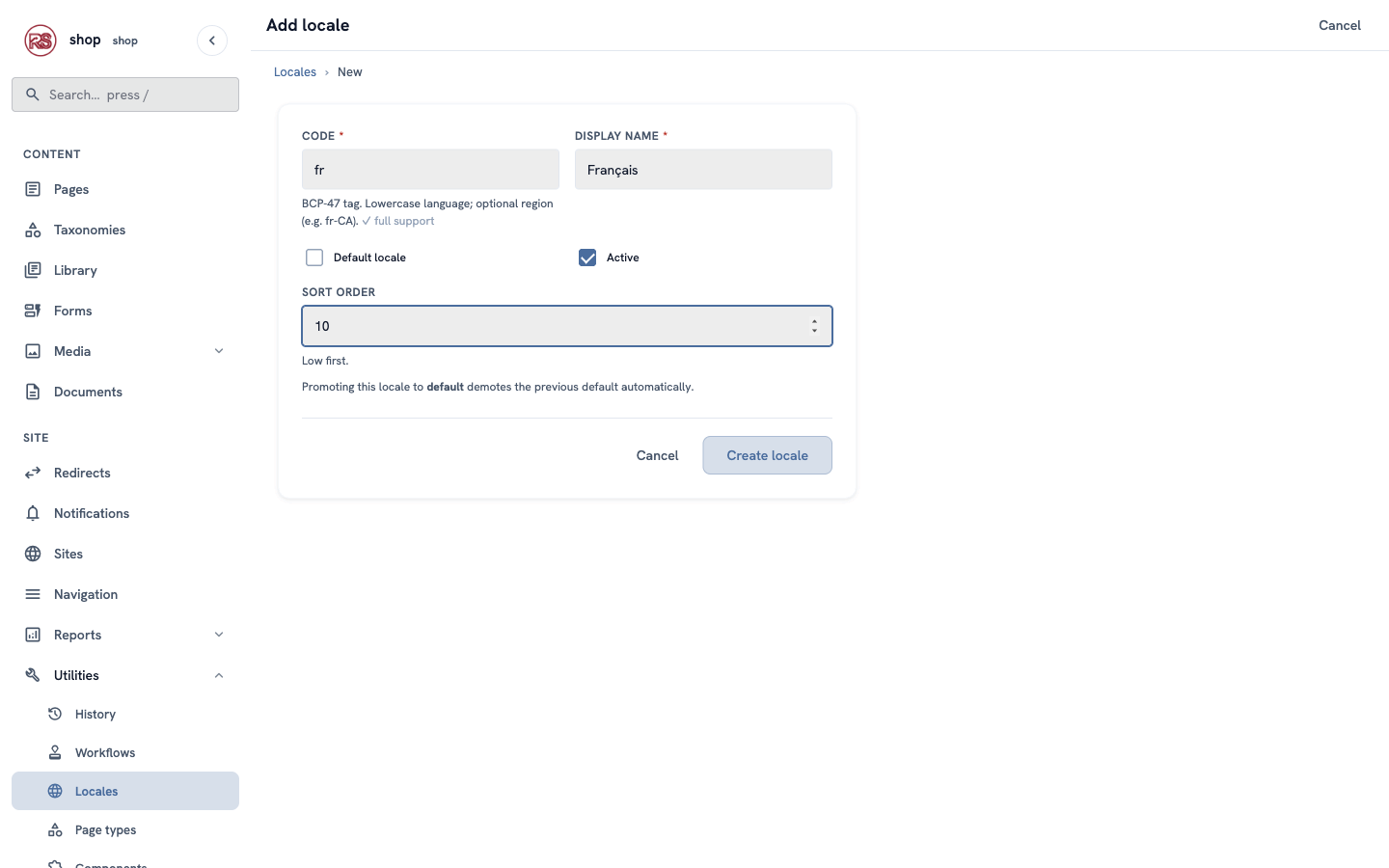
- In the menu on the left, open Utilities → Locales.
- Click + Add locale.
- Code:
fr. Display name:Français— write it the way French speakers write it, because visitors see it. - Keep Active ticked. Do not tick Default locale — English stays the default.
- Click Create locale.
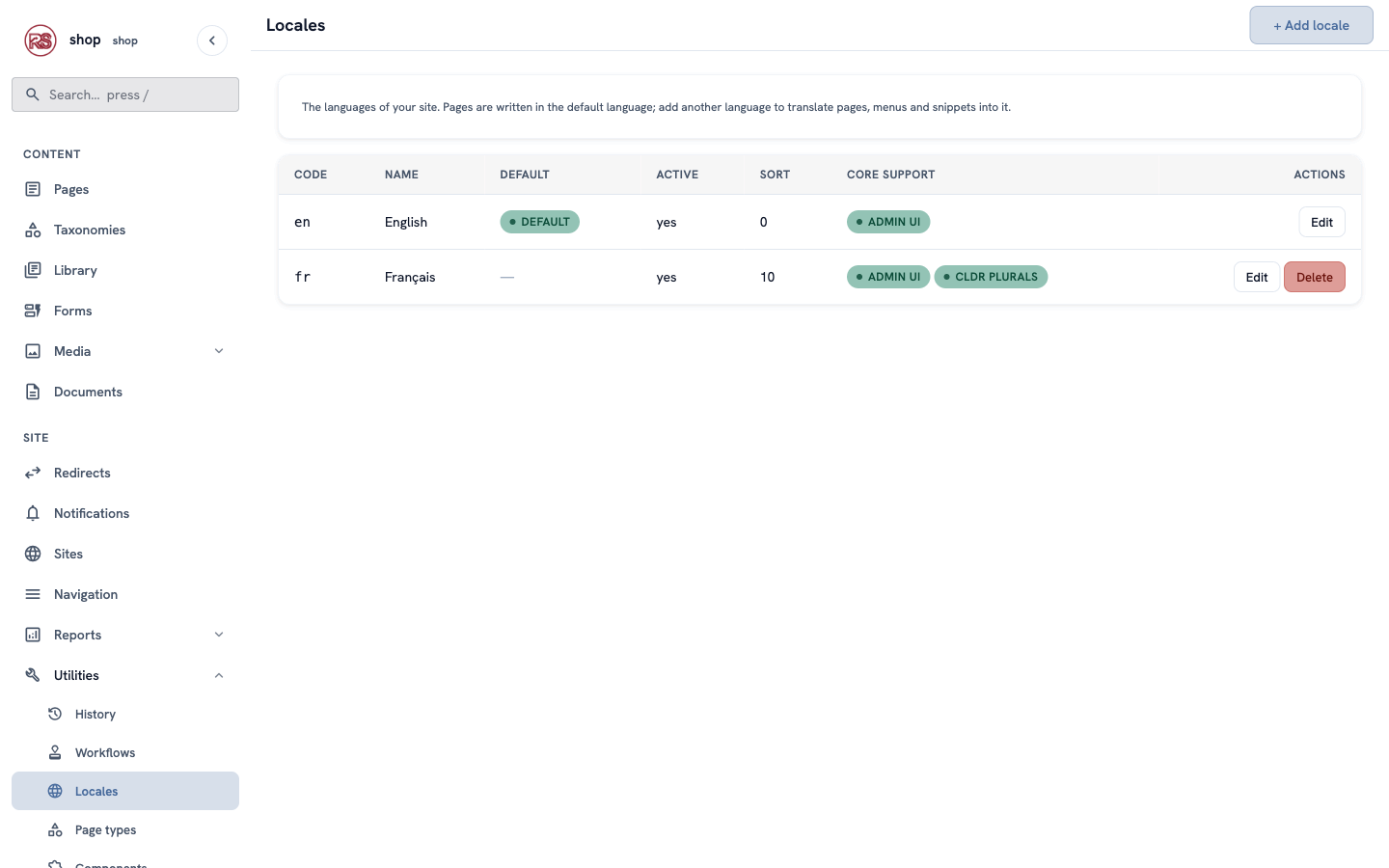
The list now has two languages. The EN / FR buttons appear in the shop's header by themselves.
2. Translate the home page
- Open Pages and click Home.
- At the top of the editor, click the language button (the globe, en) and choose Français (fr).
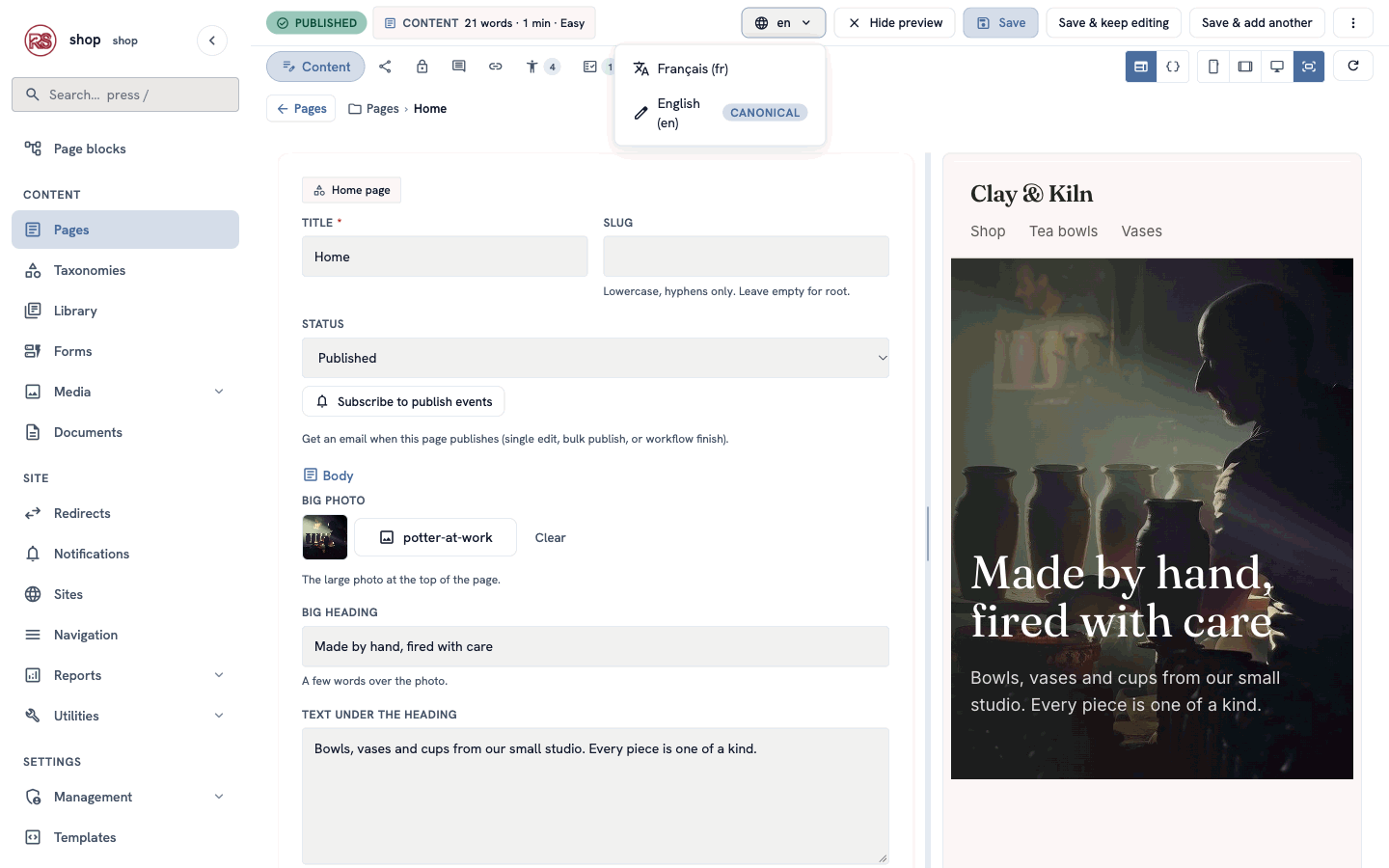
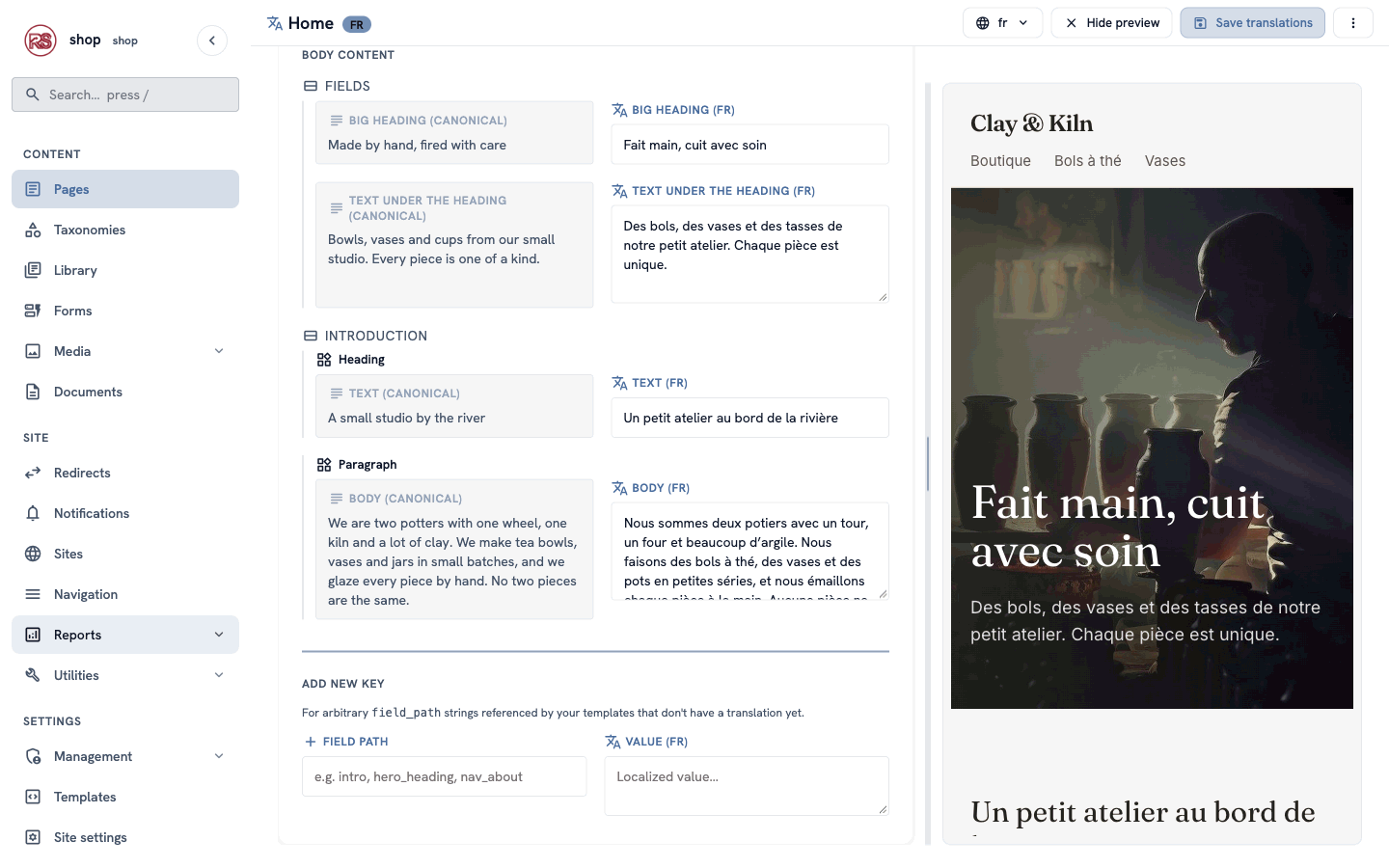
The editor changes to translation mode. Each text has two columns: the English original on the left, a box for French on the right.
- Fill in the Core fields:
| Box | French |
|---|---|
| Title | Accueil |
| SEO description | Bols, vases et tasses faits main dans notre petit atelier. Chaque pièce est unique. |
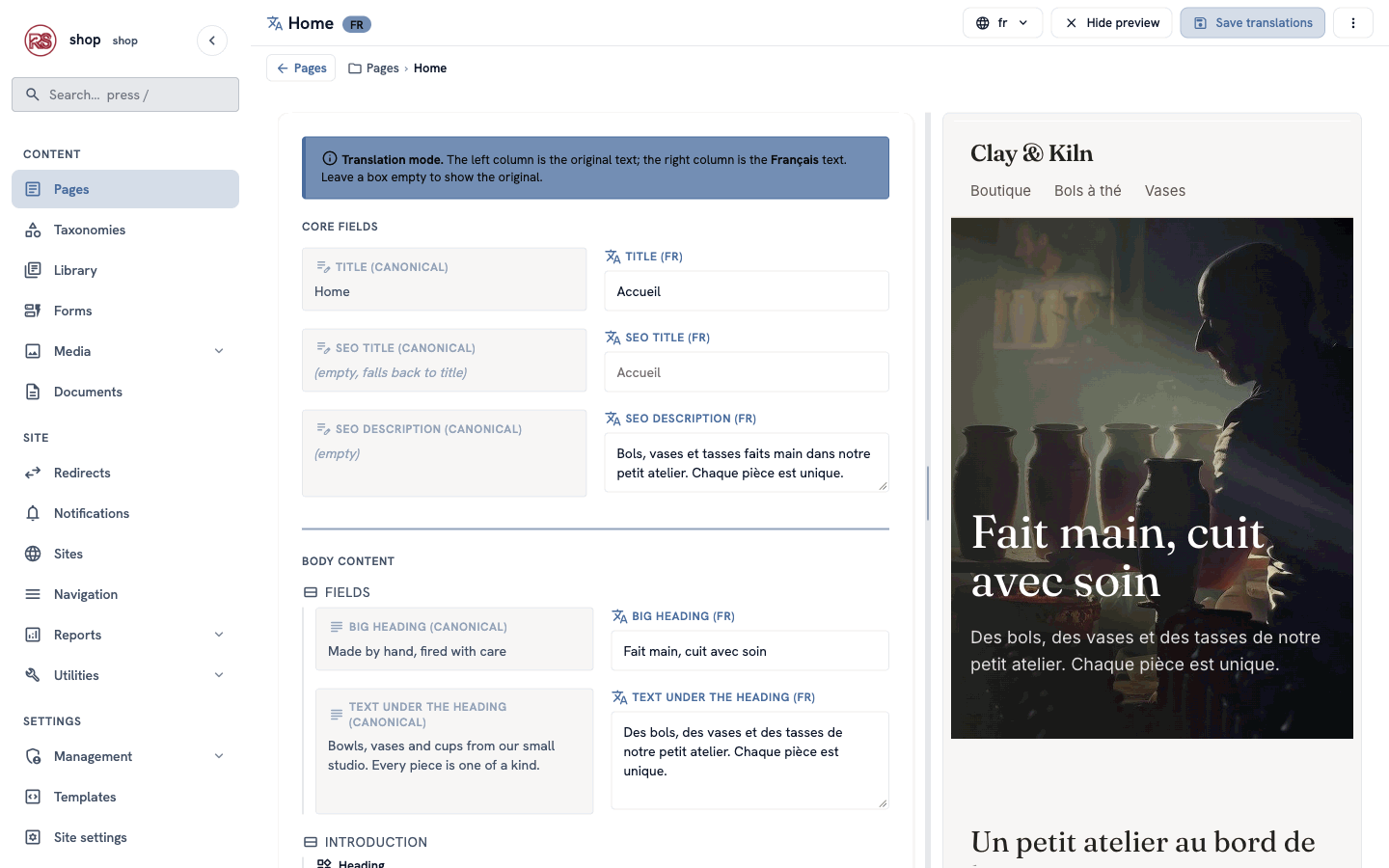
SEO title: the grey text in an empty box is what visitors will see. Home has no SEO title, so it uses the title — and the French title is
Accueil. You can leave it empty.
- Scroll down to Body content and translate the texts of the page:
| Box | French |
|---|---|
| Big heading | Fait main, cuit avec soin |
| Text under the heading | Des bols, des vases et des tasses de notre petit atelier. Chaque pièce est unique. |
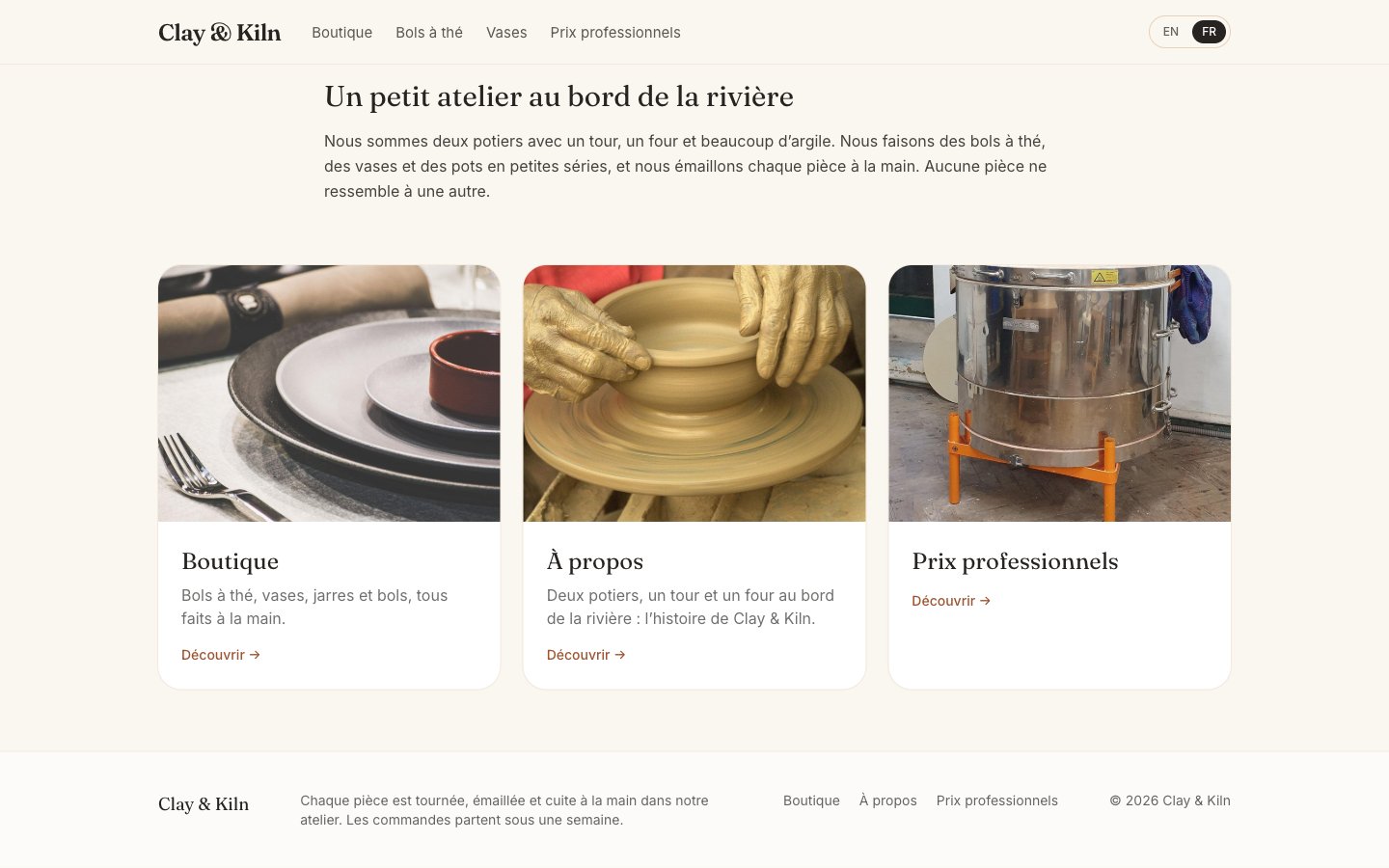
| Introduction → Heading | Un petit atelier au bord de la rivière |
| Introduction → Paragraph | Your French paragraph. |
The preview on the right shows the French page while you type.
- Click Save translations.
3. Translate the products
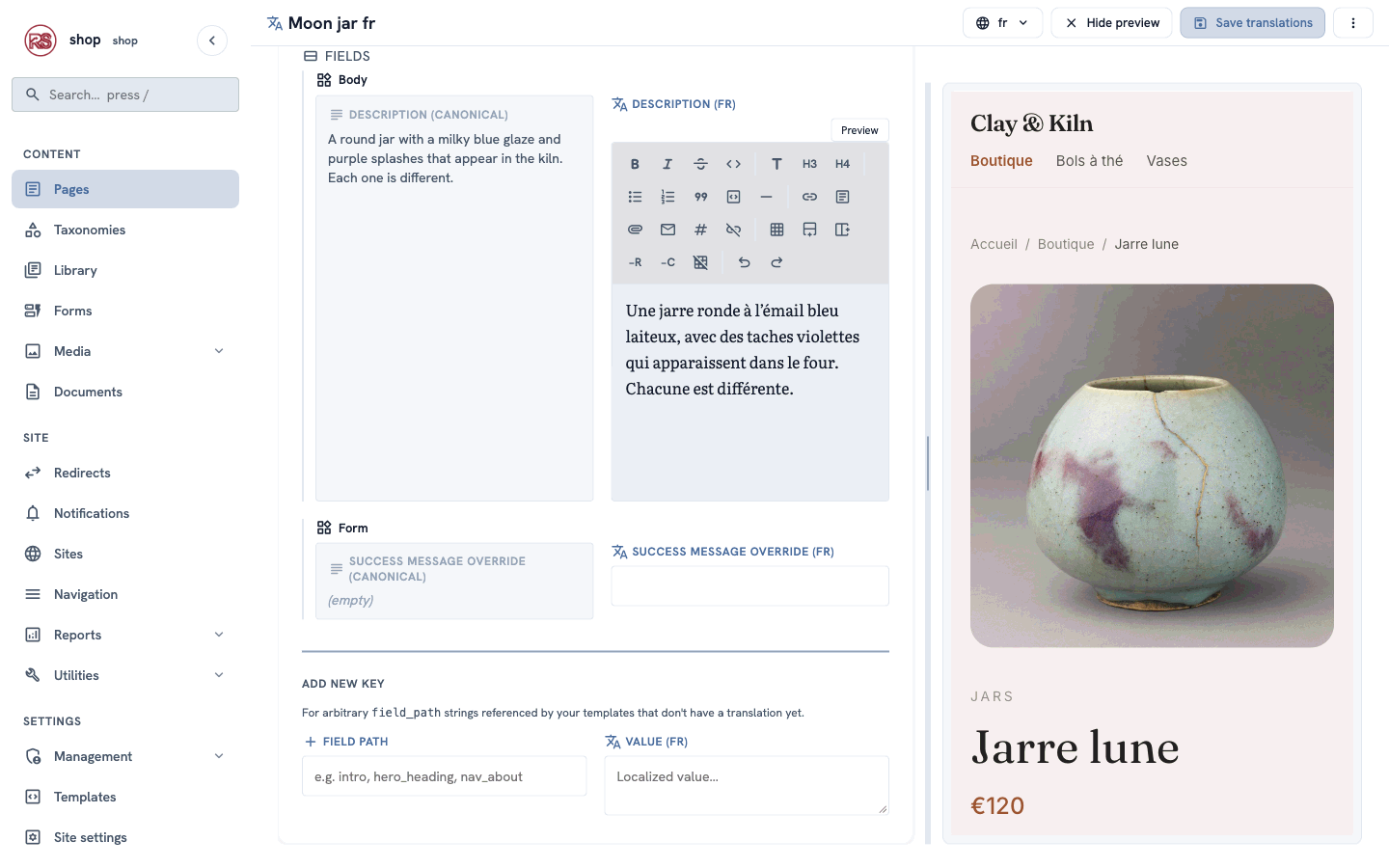
Do the same for every product. Open Moon jar, choose Français (fr), and fill in:
| Box | French |
|---|---|
| Title | Jarre lune |
| SEO title | Jarre lune — jarre en grès bleu faite main |
| Description (under Fields → Body) | Une jarre ronde à l’émail bleu laiteux, avec des taches violettes qui apparaissent dans le four. Chacune est différente. |
The description is formatted text, so its French box has the same toolbar as the English one.
Translate the SEO title too. It is a separate box. If it stays empty, the French page uses the English SEO title, and the browser tab says Moon jar — handmade blue stoneware jar.
Translate the Shop page as well (title Boutique). Its title is shown in the breadcrumbs of every product.
4. Translate the menu
- Open Navigation and click Main menu.
- At the top right, click fr.
- A Translate to Français (fr) card appears under the menu. Type a French label for each item:
| Original | Label (fr) |
|---|---|
| Shop | Boutique |
| Tea bowls | Bols à thé |
| Vases | Vases |
- Click Save translations.
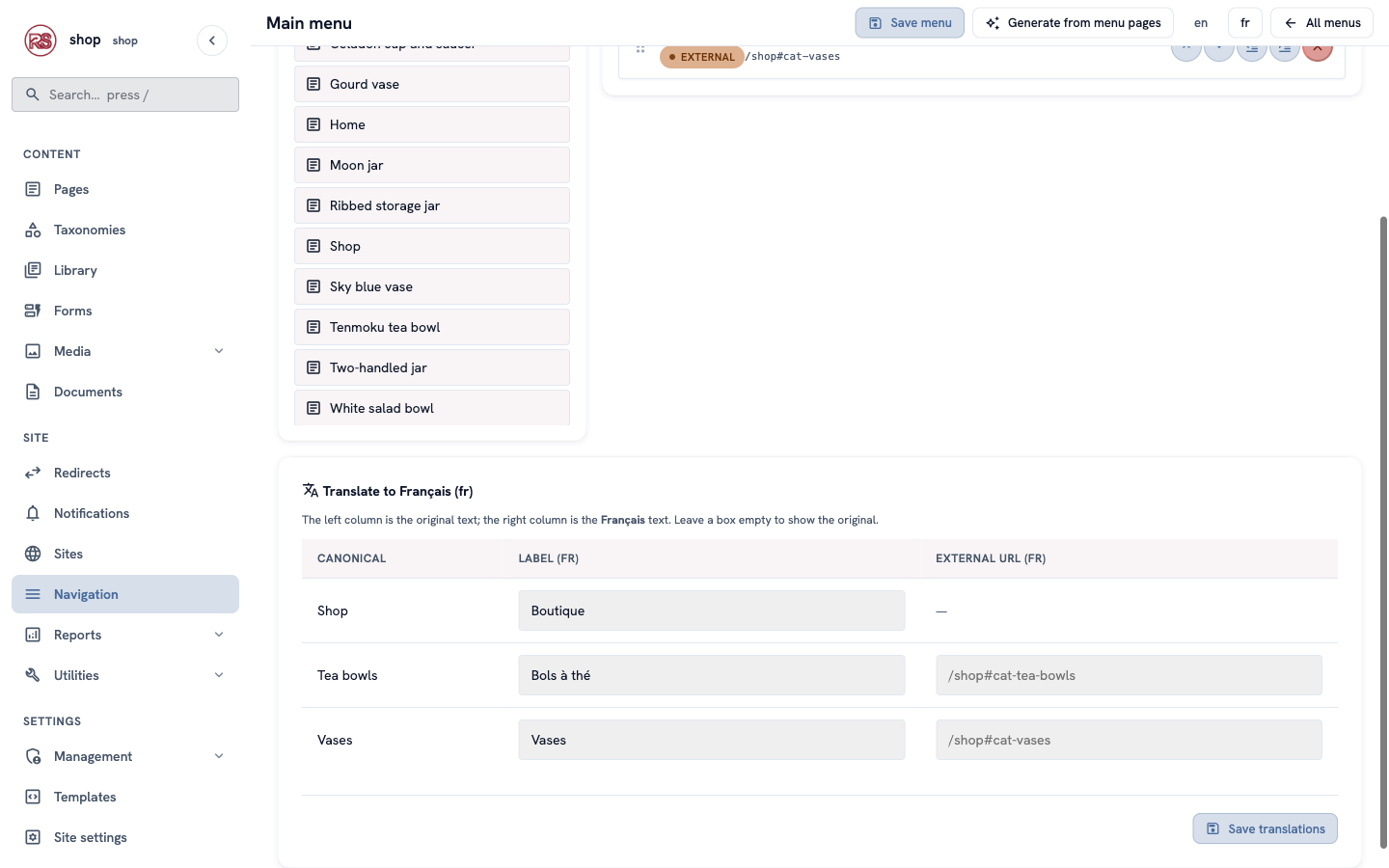
Items without a label use the page title. If you translated the page's title, the menu item is already French.
5. Translate the reusable text
The shipping text from chapter 9 is shown on every product. Translate it once:
- Open Library and click Shipping.
- At the top right, click fr.
- Title (fr):
Livraison. Body (fr): the French text. Keep the**…**marks for bold text. - Click Save translations.
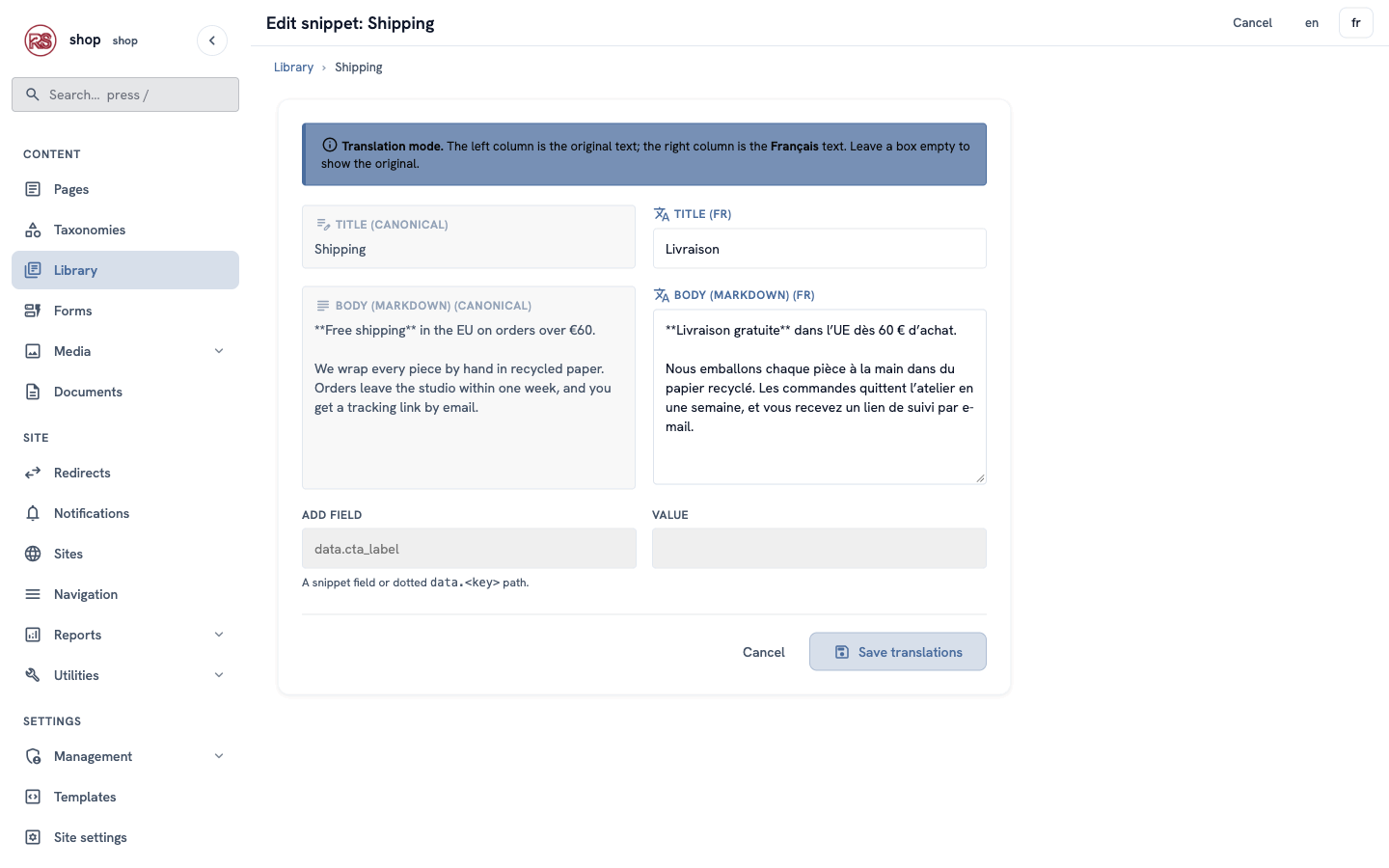
Every French product page now shows the French shipping text.
6. Translate the order form
- Open Forms and click Order a piece.
- In the builder, click Translate and choose Français.
- The texts are grouped: first the Form (the button and the thank-you message), then one group per field. Fill in the French:
| Text | French |
|---|---|
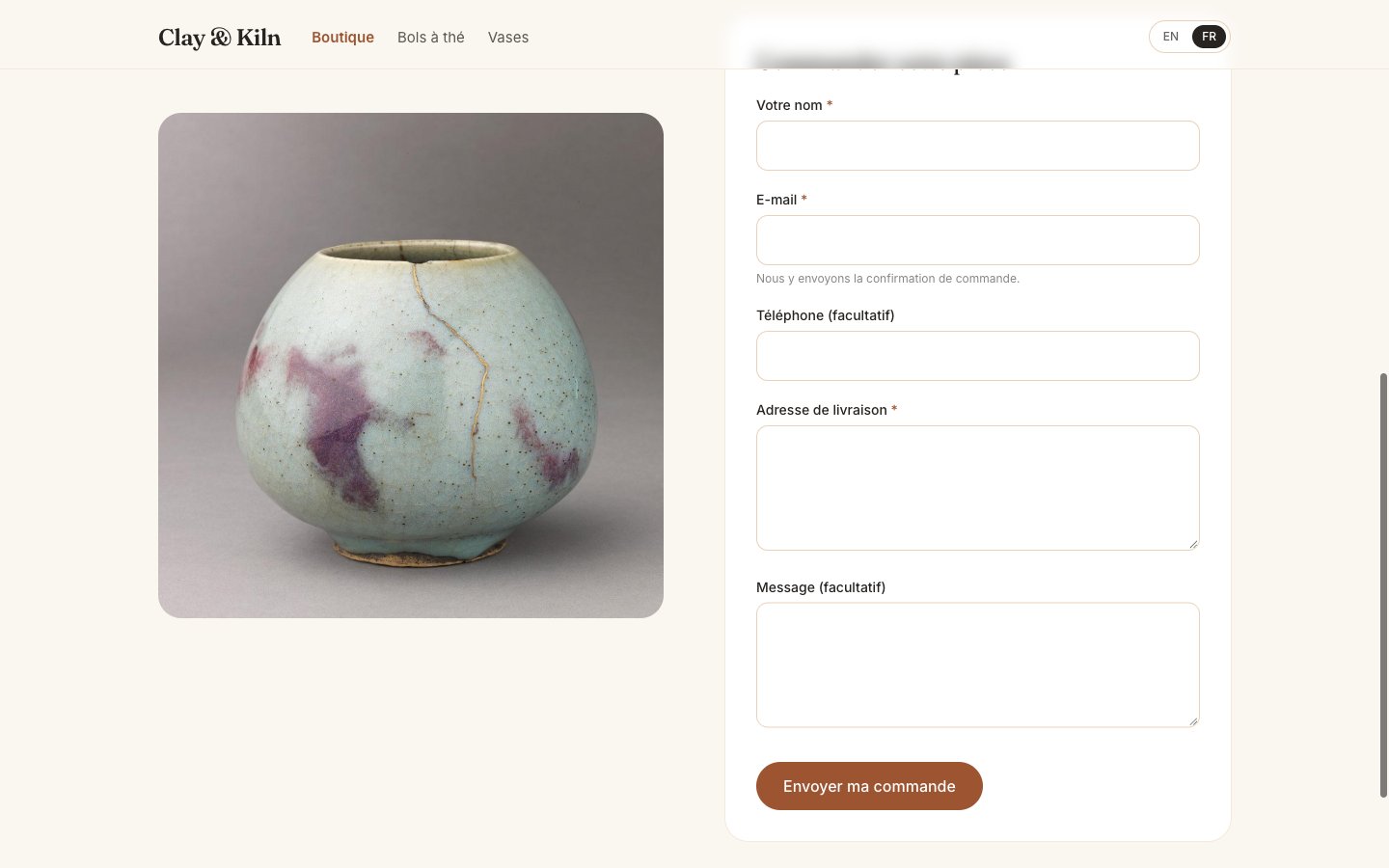
| Submit button label | Envoyer ma commande |
| Success message | Merci ! Nous avons bien reçu votre commande. … |
| Your name | Votre nom |
E-mail — help text: Nous y envoyons la confirmation de commande. | |
| Phone (optional) | Téléphone (facultatif) |
| Delivery address | Adresse de livraison |
| Message (optional) | Message (facultatif) |
- Click Save translations.
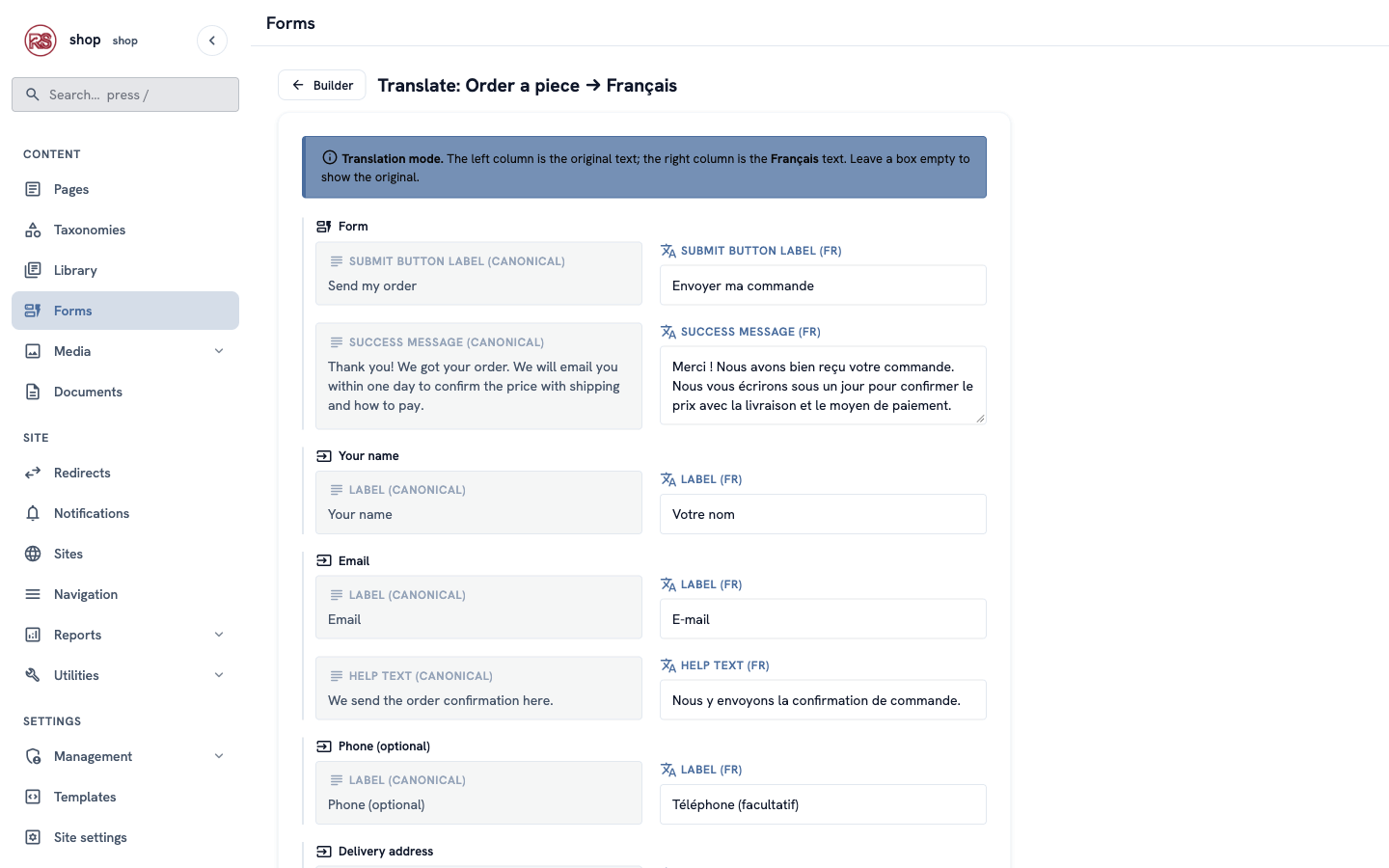
You only translate the words. The fields, their order and the rules (for example, required) are the same in every language. The orders from French visitors come to the same Submissions list.
7. Translate the category names
The category names (Tea bowls, Jars, …) show on the shop page and above each product's title.
- Open Taxonomies → Categories and click Edit next to Jars.
- At the top right, click fr.
- Name (fr):
Jarres. Click Save translations.
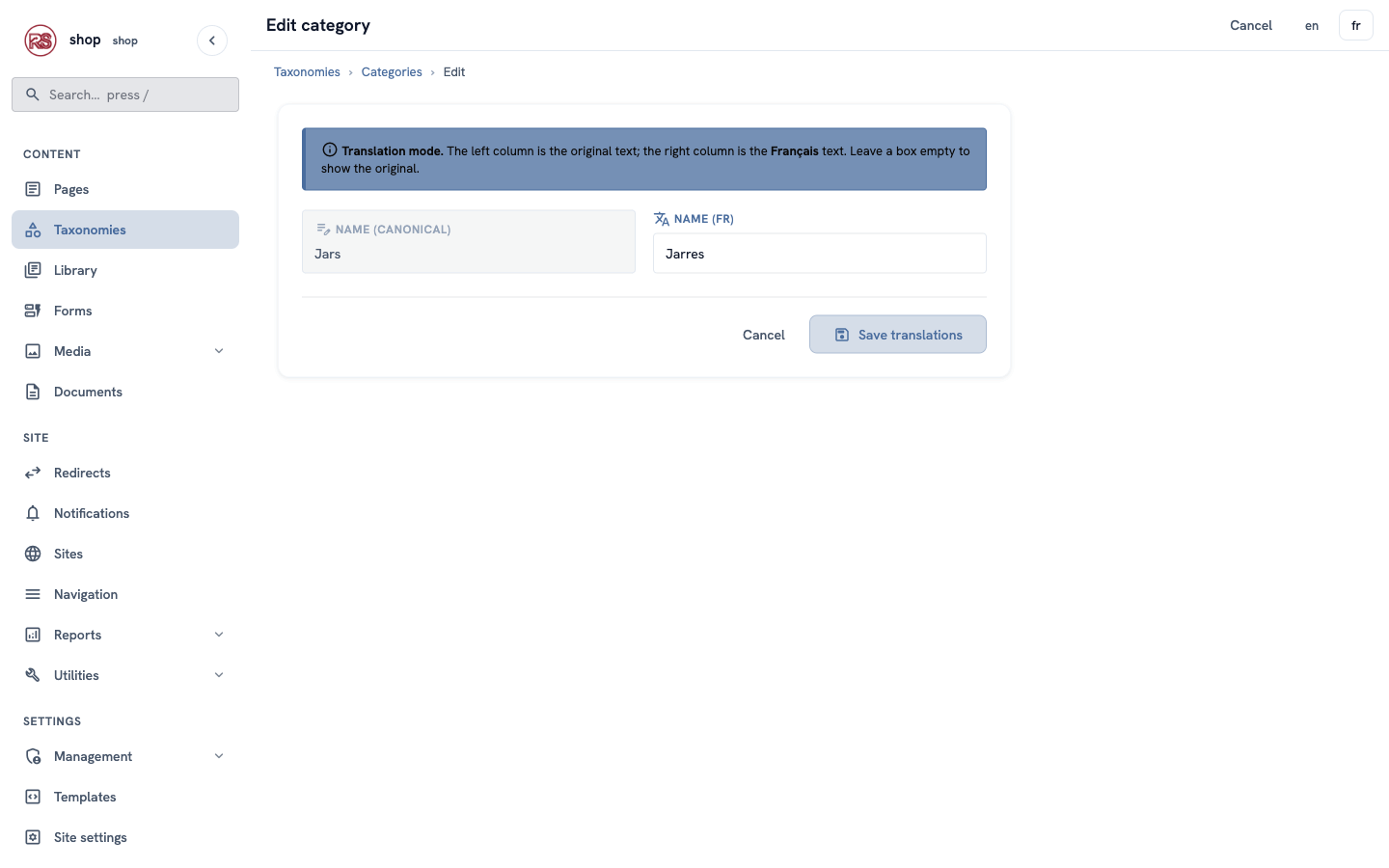
Do the same for the others: Bols à thé, Vases, Bols.
The menu links still work. The shop page's sections have addresses made from the category slug (
/shop#cat-tea-bowls), and the slug is the same in every language.
8. Translate the glaze choices
The glaze is a select field of the Product page type (chapter 4), so its options are translated on the page type, once for all products:
- Open Utilities → Page types and click Build fields for Product.
- Click Translate and choose Français.
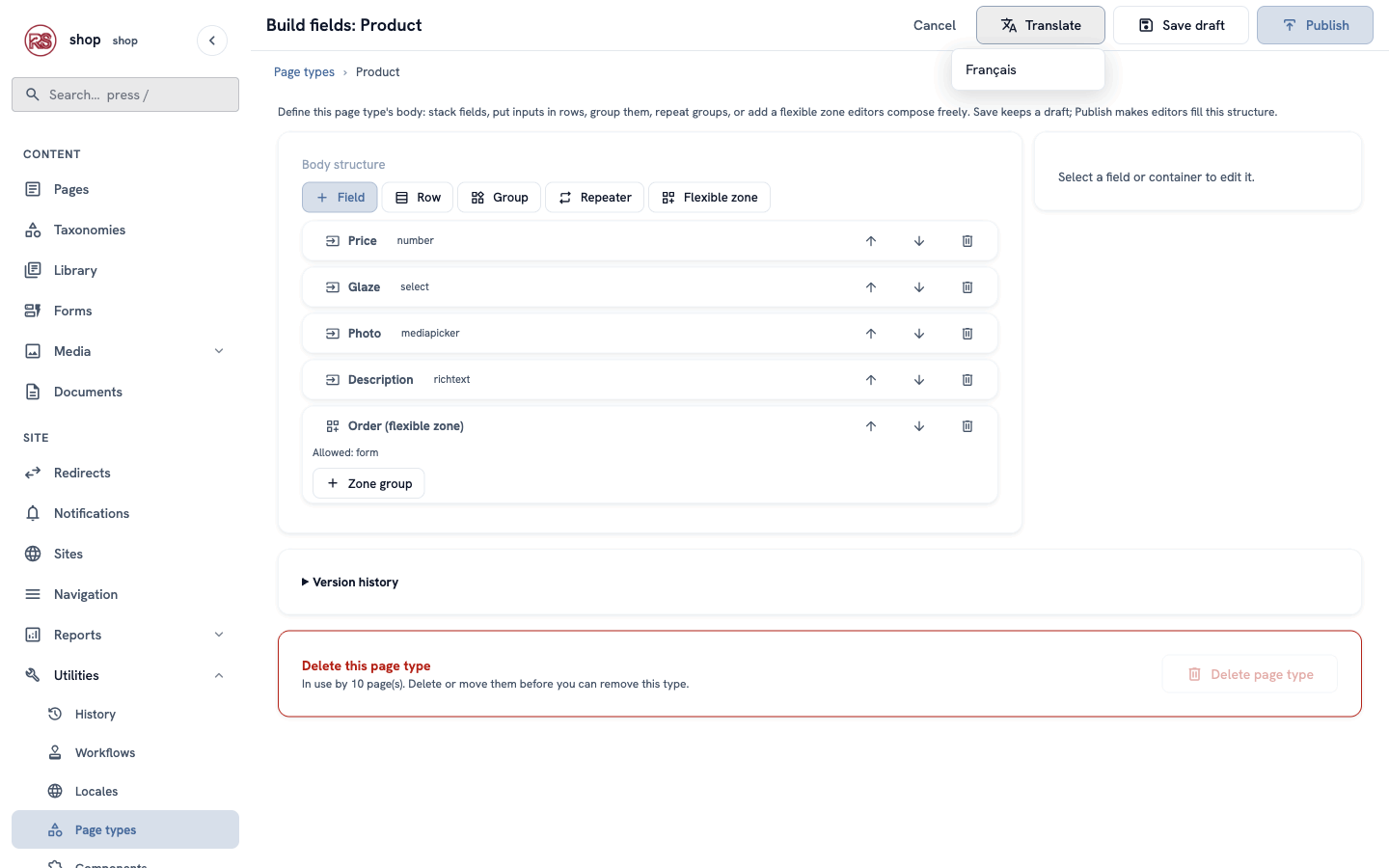
- Type the French label of each glaze:
| Option | French |
|---|---|
| Celadon green | Vert céladon |
| Tenmoku brown | Brun tenmoku |
| Moon blue | Bleu lune |
| Satin white | Blanc satiné |
- Click Save translations.
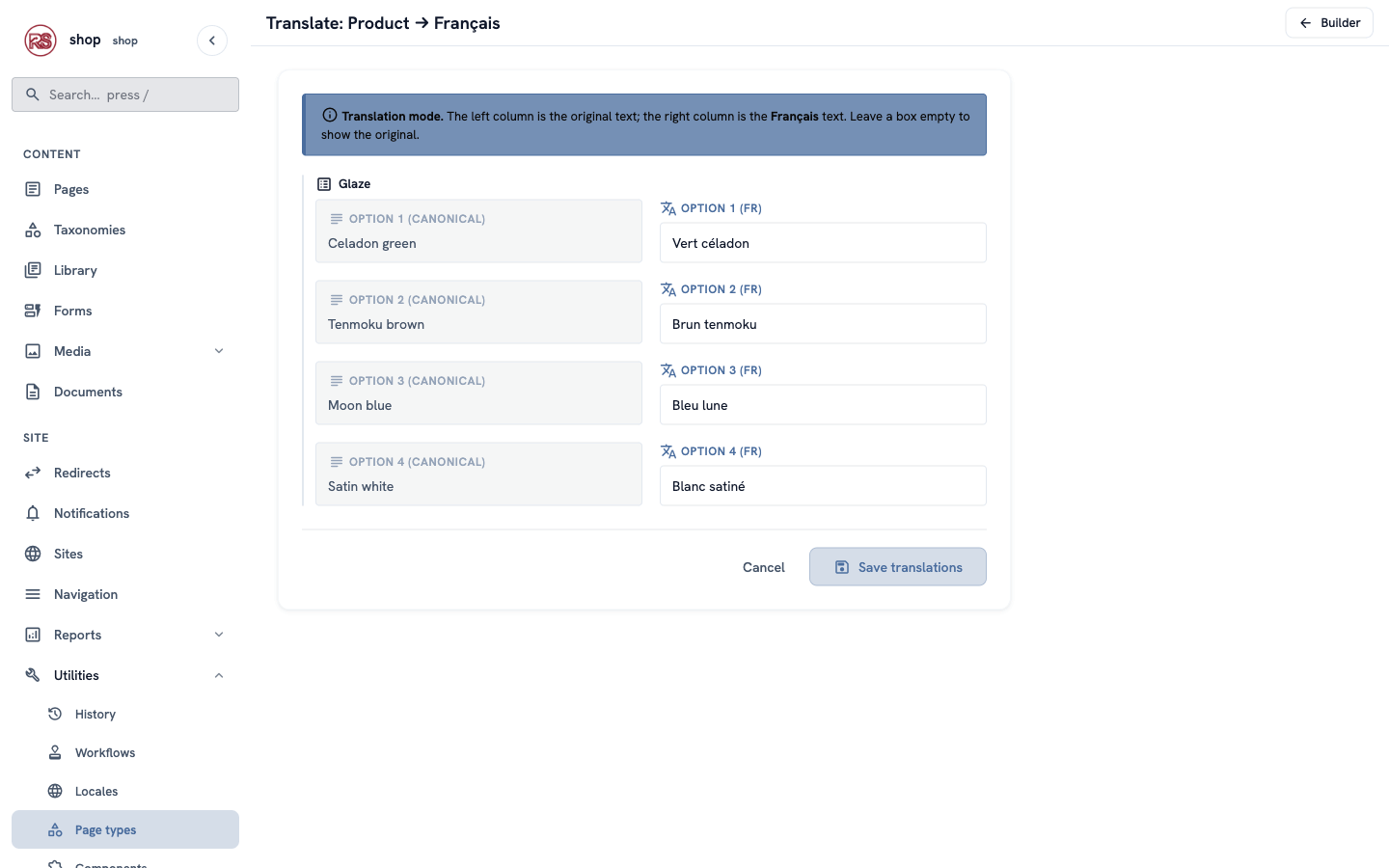
The products keep the glaze you chose; only the words visitors see change.
9. Translate the shop's own texts
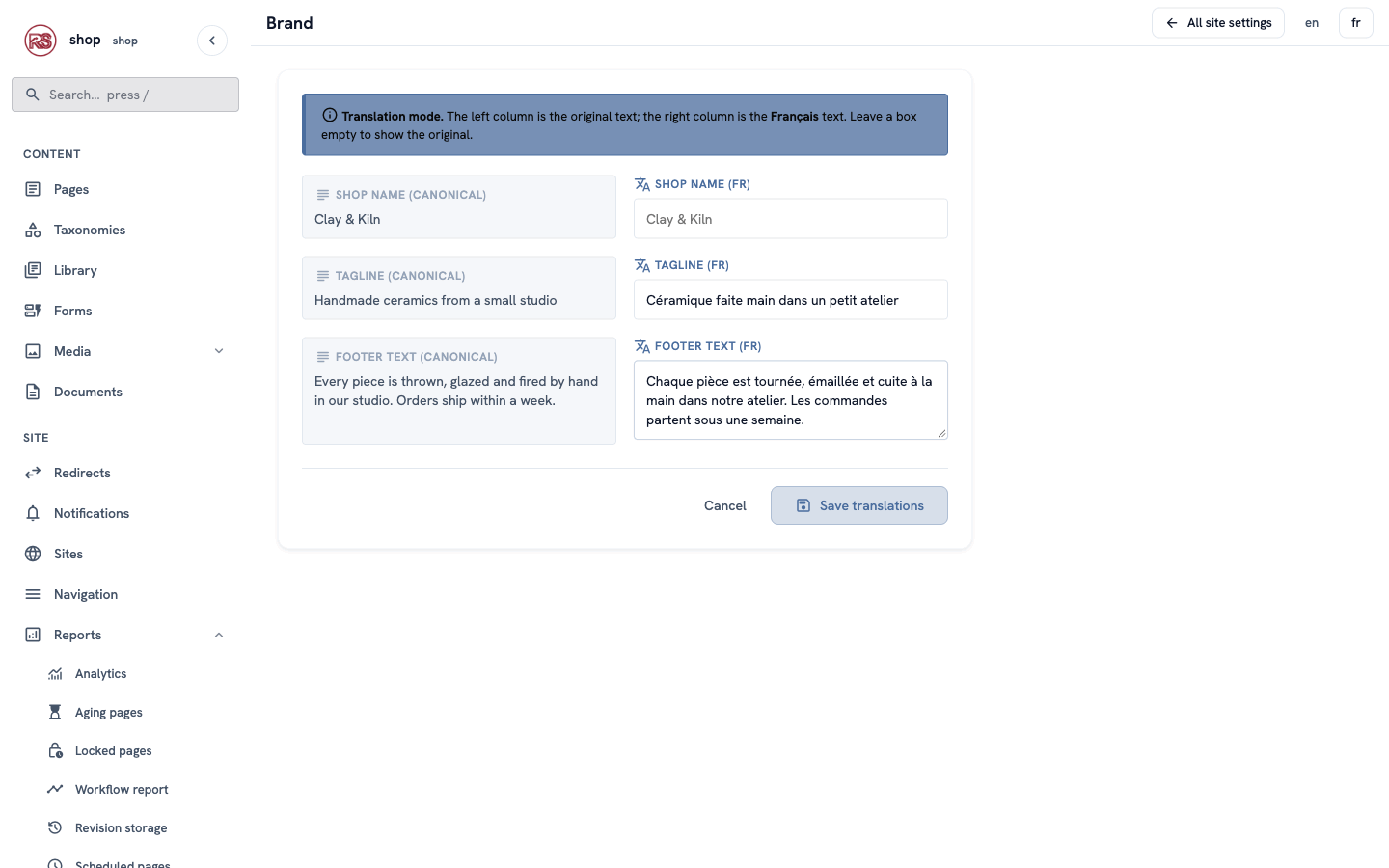
The tagline and the footer text come from the Brand settings (chapter 1). Translate them there:
- Open Site settings. In the brand row, click Edit (it said Configure before you filled it in).
- At the top right, click fr.
- Type the French Tagline and Footer text. Leave Shop name empty — the name stays Clay & Kiln in every language.
- Click Save translations.
Check it worked
Open the shop and click FR in the header.
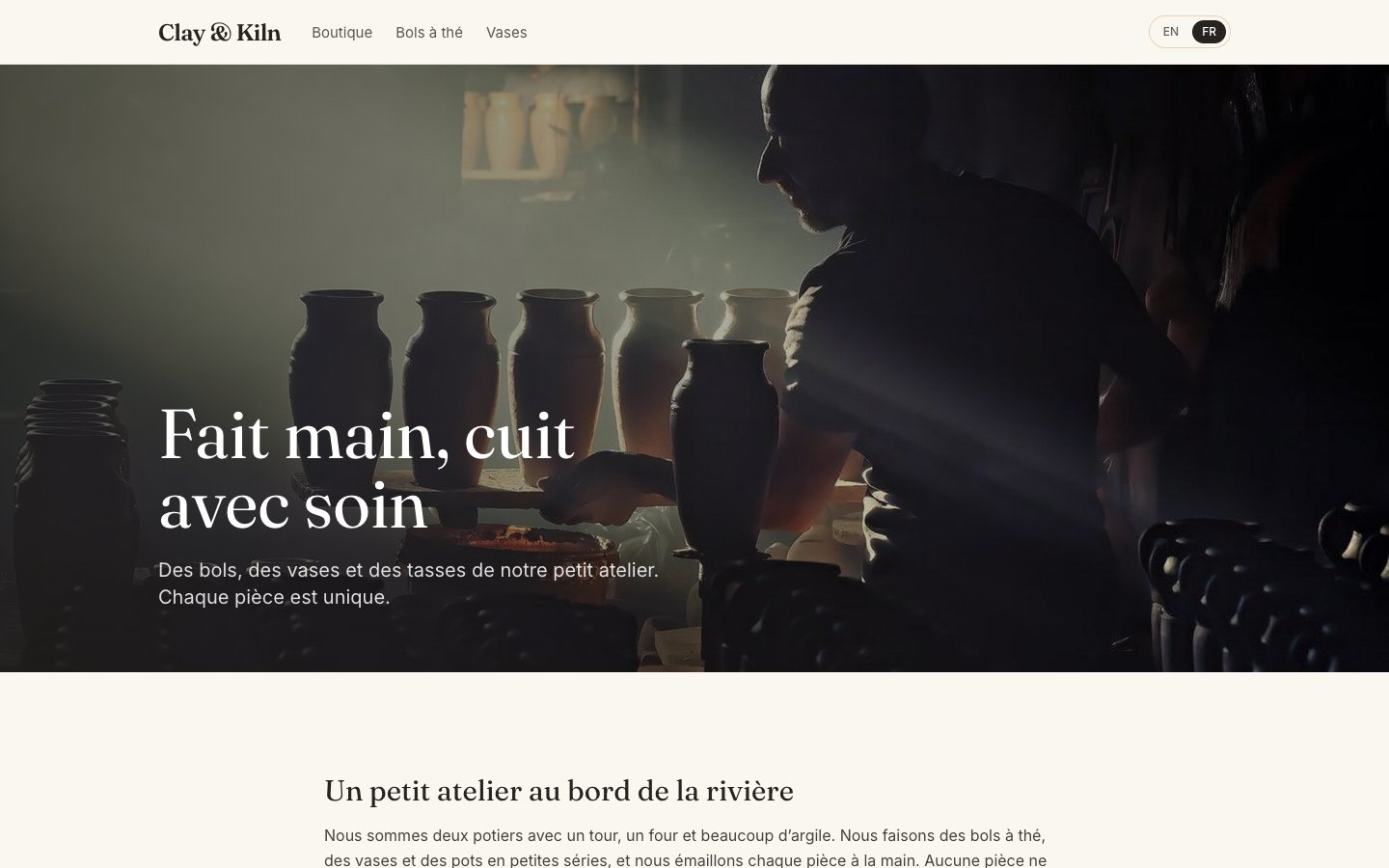
- The home page is French: the menu, the big heading and the introduction.
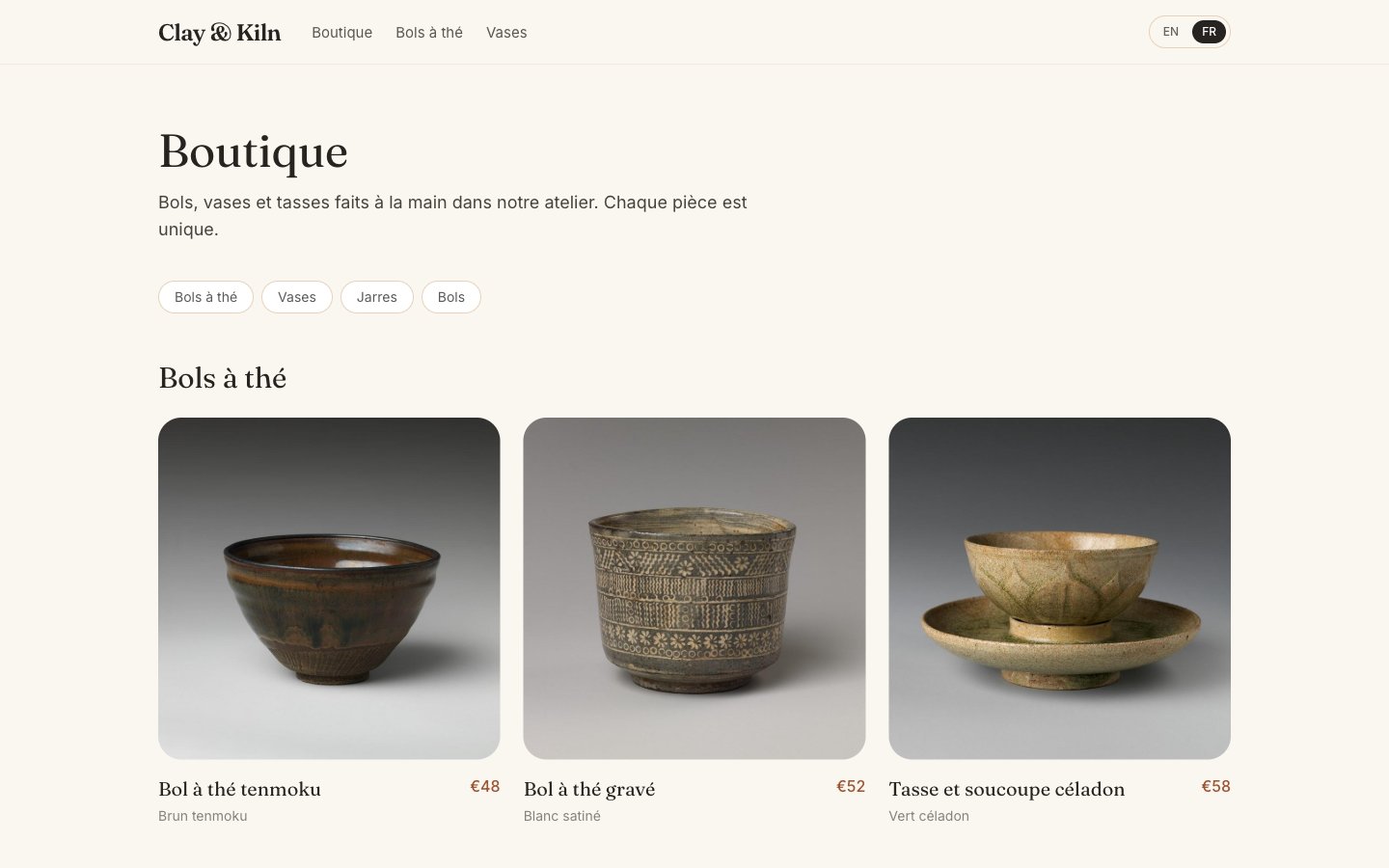
- Open Boutique. The category names, the product names and the glazes are French.
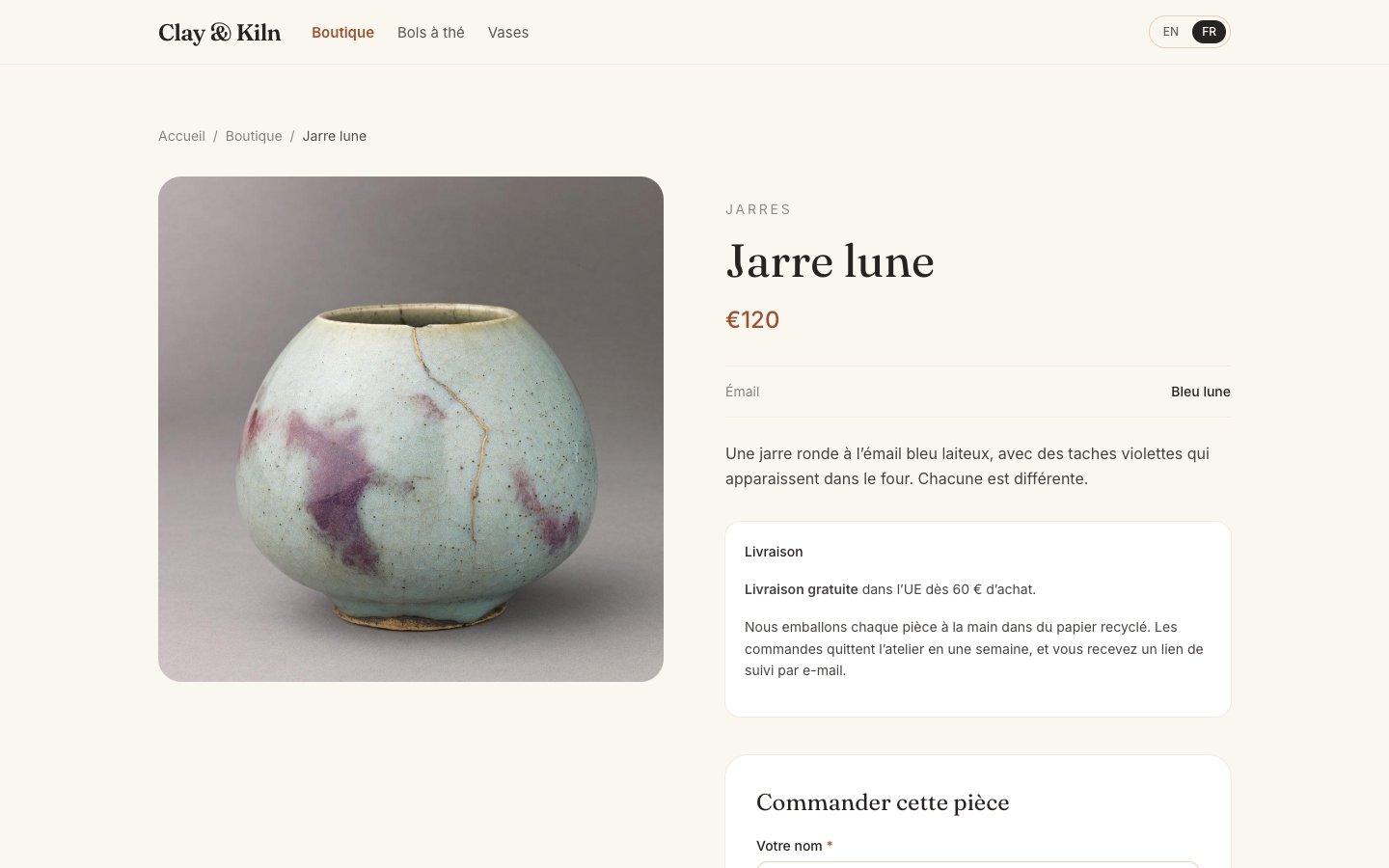
- Open a product. The category, the title, the glaze, the description and the shipping text are French.
- Scroll down: the order form is French too.
- Scroll to the bottom of the home page: the cards and the footer are French too.
- Click EN: everything is English again.
Words in the templates
A few words are written in the shop's templates, not typed in the admin: Émail / Glaze, Livraison / Shipping, Commander cette pièce / Order this piece. The example shop already has them in French. On your own site, ask your developer to translate them — see below.
If something goes wrong
| Problem | What to do |
|---|---|
| There are no EN / FR buttons in the header. | Check that the locale is Active in Locales. The template must also show the buttons (see below). |
| A French page shows an English text. | That box has no translation. Open the page in translation mode and fill it in. An empty box always shows the original. |
I clicked FR, and now links without /fr/ are French too. | That is on purpose: the shop remembers the visitor's language. Click EN to change back. |
| I changed the English text. Is the French text changed too? | No. Translations never change by themselves. Update the French text when you change the English. |
| I want to remove a translation. | Empty the box and click Save translations. The page shows the original again. |
For developers: the language in templates
The EN / FR buttons. language_switcher() returns one item per active language, each with code, url (this page in that language) and is_current:
{% set langs = language_switcher() %}
{% if langs | length > 1 %}
<nav aria-label="Language">
    {% for l in langs %}
    <a href="{{ l.url }}" hreflang="{{ l.code }}"{% if l.is_current %} aria-current="true"{% endif %}>{{ l.code | upper }}</a>
    {% endfor %}
</nav>
{% endif %}
Translated content needs no template change. page.title, the builder fields, the stream blocks, page.categories, menu(), cms_snippet(), site_setting() and the forms all return the visitor's language already.
Choice fields. builder.glaze is the stored value (Moon blue) in every language. Show builder_labels.glaze instead: the option's label in the visitor's language (Bleu lune). On a listing, each child has the same pair: child.builder and child.builder_labels (see The helper traits).
<dd>{{ builder_labels.glaze | default(value=builder.glaze) }}</dd>
Words in your templates. LANG holds the current language code. The shop has only a few such words, so it checks LANG directly (examples/ceramics_shop/templates/product_page.html):
<h2>{% if LANG == "fr" %}Commander cette pièce{% else %}Order this piece{% endif %}</h2>
With more languages or more words, keep them in a site setting or in Library elements, which editors can translate in the admin.
<html lang>. Use LANG there too, so browsers and screen readers know the language: <html lang="{{ LANG | default(value="en") }}">.